Convert and merge images
We recommend that you always create images in O&O DiskImage’s own format. This will allow you to work easily with the image in the future and use all the program’s features on it. If you do wish to use a different format, please use conversion. This feature will allow you, for example, to change the format of your O&O DiskImage file into a virtual hard disk.
You can also combine the images of changes into one complete image. This can be helpful when, for example, you want to save older image files and improve the clarity of your archive.
Convert an image file
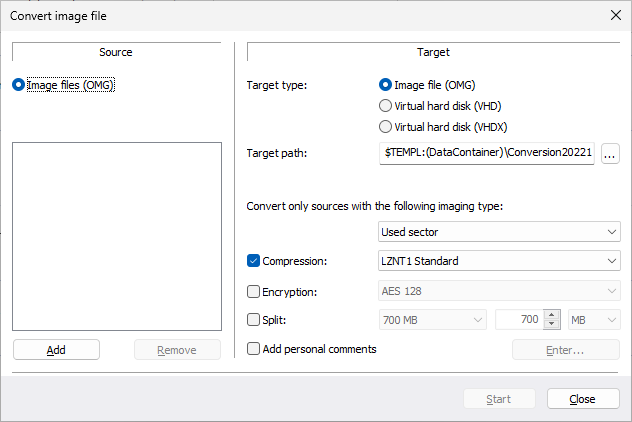
The tool Convert image file allows you to change the properties and content of existing images (OMG). It creates a copy of the image file (OMG), so that the original image remains intact.
Further settings like compression, encryption or splitting images into several image files with a certain size are possible.
Merge images
In Tools under Convert image file/Add you can select the drives for merging.
This enables separate image files to be merged together. Only image files of similar types can be merged: that means only forensic, direct forensic or used sector images can be combined.
Simply add the drive from the list.
Handling virtual hard disks (VHD/VHDX)
To simplify working with Microsoft Virtual PCs (VPC), you can now convert image files into virtual drives (VHD/VHDX). The converted image can be integrated as a virtual drive in the VPC, without having to install O&O DiskImage there.
- To convert an image to a virtual drive file (VHD/VHDX), click Convert image file in the Tools menu.
- Select Image file (OMG) as source in the Convert image file dialog and attach the desired image file.
- Enter Virtual hard disk (VHD/VHDX) as target and click Start.
The following options cannot be selected for a VHD/VHDX: Compression, Encryption, and Split. In addition, only the following imaging methods are available "Only used sectors" or "Forensic".
Merge incremental images
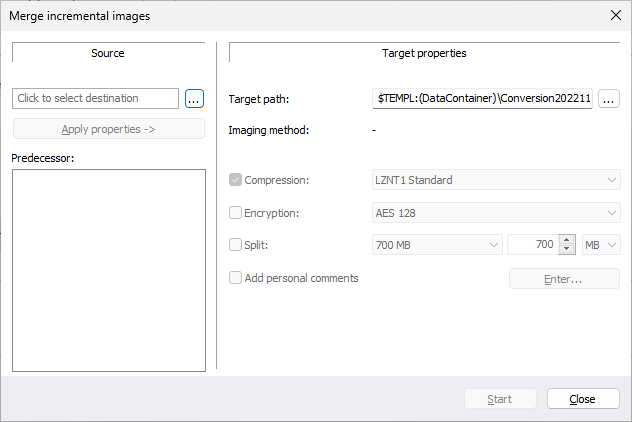
If you have already created several incremental images, you can combine them to form a new base image. The newly created base image is now a "complete" image. Older images that contained only changes can be deleted once the combining has been completed.
- Make sure your computer will be able to access all drives where the base and incremental images are located.
- In the menu bar under Tools click Merge incremental images.
- A program window will appear where you can select and merge the existing image files.
Only consecutive image files (Image of the changes) with the same base image may be merged. By clicking Image information and the corresponding Drive information you will find all details about the image(s).