Jobs and reports
The Job Assistant provides options for scheduling program functions to be run automatically. You can, for example, plan to have your data drives imaged once a week.
- You will be forwarded to the corresponding activity window for your selected job via Start/Jobs & reports, which lists all jobs and reports created in O&O DiskImage. With a double click you can see the corresponding report or edit the job.
- You can create a new job schedule by clicking the Add as job symbol after selecting the drive or a folder in the activity window.
In order to execute jobs on a regular basis, the starting conditions (e.g., source drive, images, or target drives) have to be the same. If you make changes to a drive's name, the storage location of the image, or on the layout of a target drive, the job may no longer be executed successfully.
Example: If you've created a job for incremental imaging, you need to enter where you saved all the previous images serving as a basis for the new incremental image. If you've moved the "base image" to another storage location, you'll need to enter the new storage location in the Job Assistant: otherwise the new path will not be found and the job cannot be run successfully.
The tabs for Scheduling and Notification are not available in the Job Assistant when starting from the O&O DIskImage bootable medium.
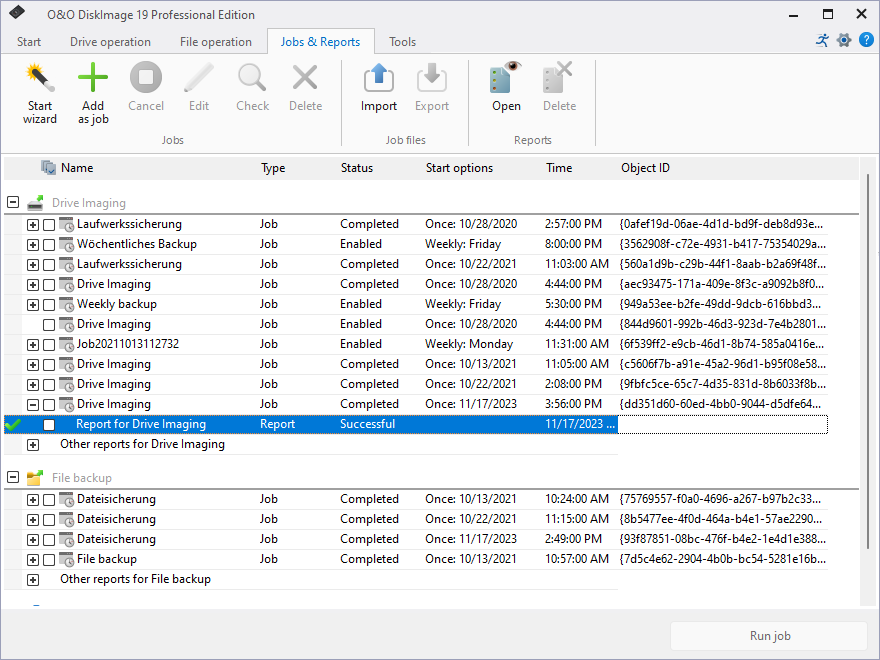
To run a job select Jobs and reports in the start page of O&O DiskImage. Start will begin the selected activity after a security question is answered.