Restoration options
Under Drive restoration/Restoration options you can specify additional settings for the restoration of drives from an image.
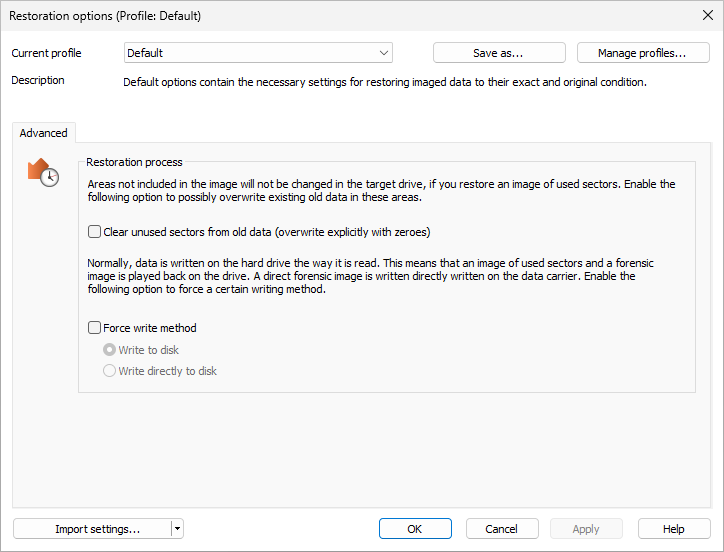
Create a restoration profile
Under Drive restoration/Restoration options you can return the current settings for an imaging back to their default settings or select an already created profile.
Under Current profile you can choose between Default and User-defined.
If you want to save your user-defined settings, do the following:
- Enable your settings under Restoration Options
- Select Save as
- Give your newly created profile a name in the dialog window and confirm.
Under Manage profiles you can change or delete an existing profile.
Force the writing method
Under Drive restoration/Restoration options/Advanced you can force a writing method. "Write to drive" is the default writing method used during restoration of images created with the "Used sector" or "Forensic" methods. "Write directly to disk" is the only writing method used during "Direct Forensic" cloning. You can, however, force a user-defined writing method.
Enable Force writing method and select the respective method.
Using the option Write to drive, data will be written to the drive with help from the operating system, and not from the offset to the disk.
With the option Write directly to disk, you can decide whether a restoration should be written directly to a disk, bypassing the file system driver. This function applies especially to encrypted disks and is required for restoring any disks that have been imaged using the direct forensic method.
Overwrite unused sectors
Under Drive restoration/Restoration options you can overwrite unused sectors explicitly with zeros: Data that has
been stored in these areas cannot be restored - not even with specialized data recovery software.