Default settings
Drive imaging
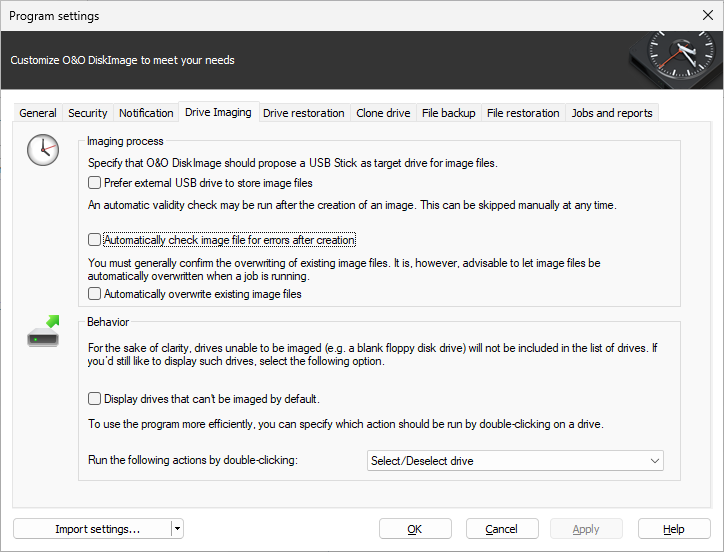
Under Drive imaging in the Program settings you can set specific settings for imaging.
Prefer external USB drive to store image files
If you enable this function, external USB drives will be preferred as the target drives for storing images.
Under the option Automatically check image file for errors after creation you can specify whether image files should be checked for errors immediately after they are created.
When you enable Overwrite existing image files, the prompting for overwriting image files with the same name will be suppressed during the creation of new images. This function is very useful when, for example, you're imaging data a number of times daily, and the image is automatically being named after the Day/Month/Year.
Under Behavior you can hide or un-hide drives that cannot be imaged by default in the user interface. Drives that cannot be imaged are for example: empty card reader or disk drives, the "Microsoft reserved partition" in GPT drives, OEM-BIOS-partitions in DELL and IBM or the system area in basic disks.
Drive restoration
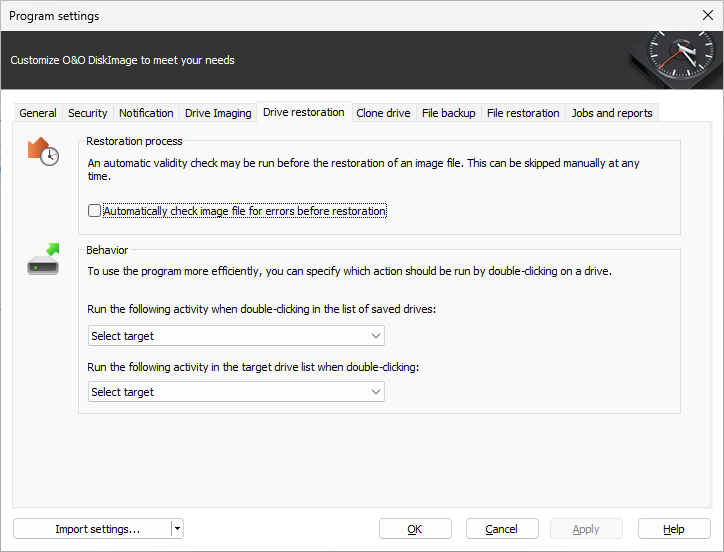
You can specify the default settings for restoration behavior under Drive restoration in the Program settings.
Under Drive restoration you can enable a validity check before the restoration of an image.
In addition, under Behavior you can specify which activity should be run when double-clicking a drive in the list.
Drive cloning
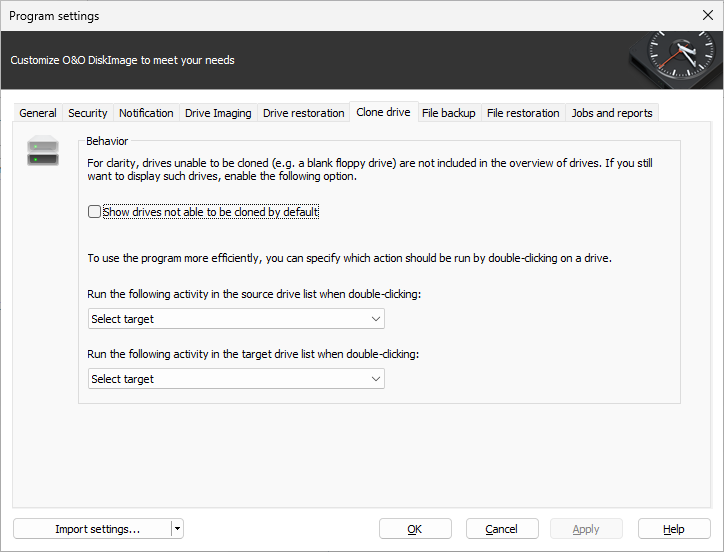
If you're looking to change or enable the default settings for cloning, click Clone drive in Program settings
You can specify, if drives not able to be cloned by default e.g. a CD/DVD drive or empty disk drive should be shown in the activity window "Cloning".
Also, you can specify what should happen when you double-click on a drive in the activity window "Clone drive".
File backup
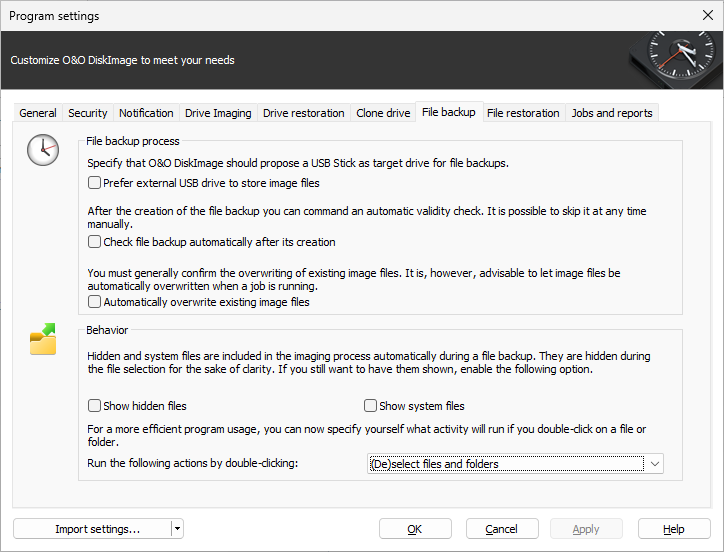
Under File backup in the Program settings you can set specific settings for a backup.
Prefer external USB drive to store image files
If you enable this function, external USB drives will be the preferred target for storing images.
Under the option Check file backup automatically after its creation you can determine if image files should be checked for errors immediately after they are created.
By selecting Automatically overwrite existing image files, the prompt asking if you want to overwrite an existing older image file with the same name will be suppressed. This function is very useful when, for example, you're imaging data a number of times daily, and the image is automatically being named after the Day/Month/Year.
Under Behavior you can adapt the program user guidance individually. In the DropDown menu, you can select what will happen when you double-click a file or folder.
File restoration
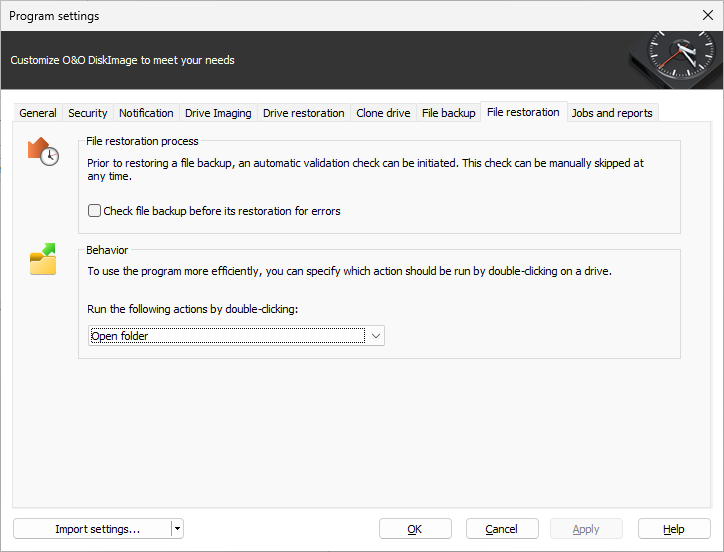
Under File restoration in the Program settings you can change the default settings for behavior during restoration .
You can set the Behavior by double-clicking a drive in the activity window "File restoration".
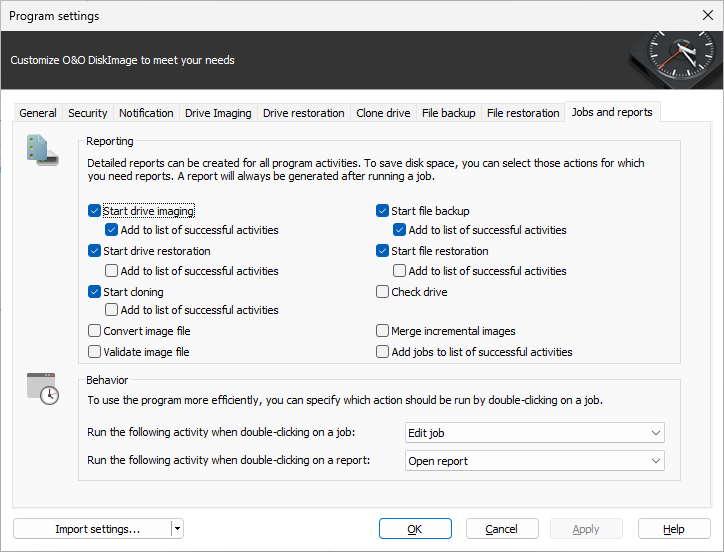
Jobs and reports
If you want to change or use the default settings for jobs and reports, click Start/ Program settings and then Jobs and reports.
Reporting
Detailed reports can be created for all program activities. To save space, you can select the activities you need for reports. Running a job always creates a report.
Behavior
Under Behavior you can specify which activities to run, if you double-click on a job in the job list.
You can also set the behavior by double-clicking a report in the report list.