Duplicate drives
Duplicate drives transfers an exact copy of a drive to another drive. Use it when you upgrade a hard disk or want a directly usable copy of a drive without storing a backup file.
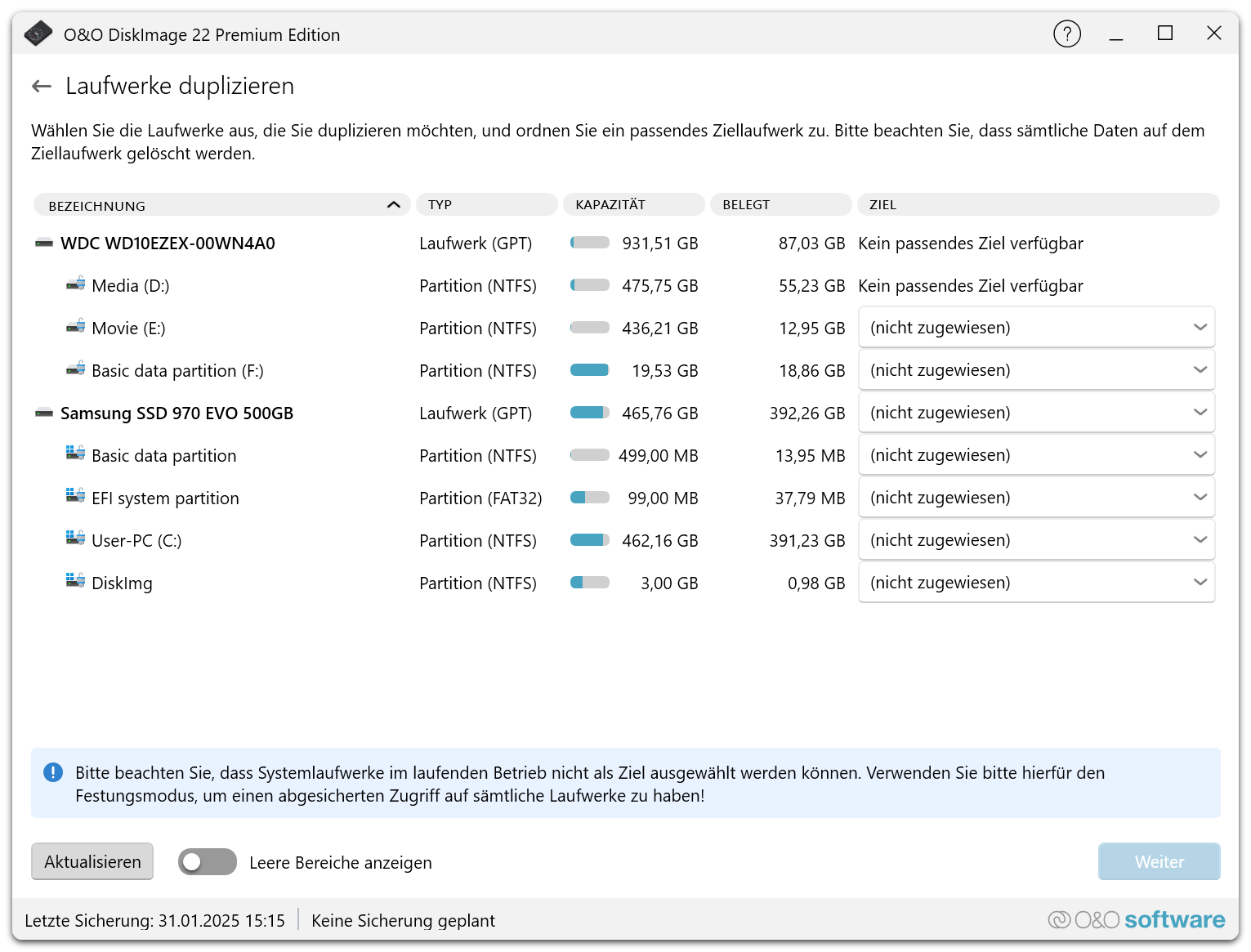
Duplicate a drive
- Select Duplicate drives on the start page.
- Select the source drive – the drive you want to duplicate.
- Assign the target drive to which the data is transferred. The target must be at least as large as the source. If no suitable target is available, the list says so.
- Check the selection and confirm that all data on the target drive will be deleted.
- Start the duplication. It can take some time, depending on the size of the drives.
All data on the target drive is deleted
Duplicating a drive deletes all existing data on the target drive. Back up any data on the target you still need before you start.
Things to consider
- Capacity of the target drive: the target must be at least as large as the source drive.
- System drives: while Windows is running, the system drive cannot be selected as a target. Use Fortress Mode for protected access to all drives. See Fortress Mode and startup medium.
- Avoid interruptions: do not interrupt the duplication, otherwise the target drive can be left incomplete.
- After the duplication: check that the duplicated drive works and contains the expected data before you remove the original.
Next steps
- Backup sources – when a backup file is the better choice.
- Restore drives – restore a drive from a backup instead.