Fortress Mode and startup medium
Both functions let you restore the PC outside the running Windows system: Fortress Mode restarts the installed PC in a protected environment, the startup medium starts a PC without a working operating system.
Fortress Mode
Fortress Mode starts the PC in a protected recovery environment with full access to the entire system. Use it to restore the system partition or locked drives, to duplicate to the system drive, and for direct forensic backups. Because Windows is not running, no running processes or malware can interfere with the operation.
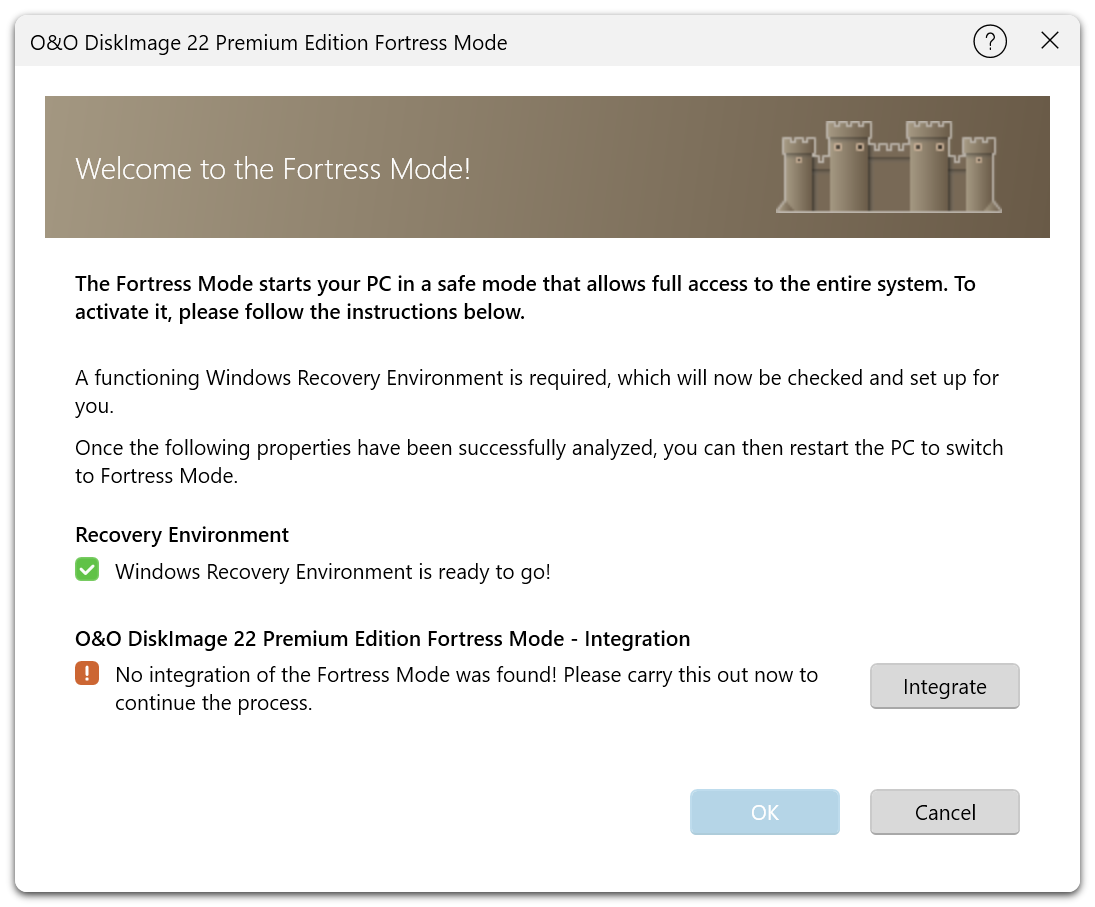
Set up and start Fortress Mode
- Open Tools on the start page and select Fortress Mode.
- The dialog checks whether a working Windows Recovery Environment is available.
- If Fortress Mode is not integrated yet, select Integrate.
- Select OK and restart the PC to switch to Fortress Mode.
Set up Fortress Mode before you need it. It depends on a working Windows Recovery Environment (WinRE) on the local disk; if the system disk fails, you need the startup medium instead.
Startup medium
A startup medium starts a PC that has no working operating system and runs O&O DiskImage from a recovery environment based on Windows PE, so you can restore the whole computer or the system partition from a backup.
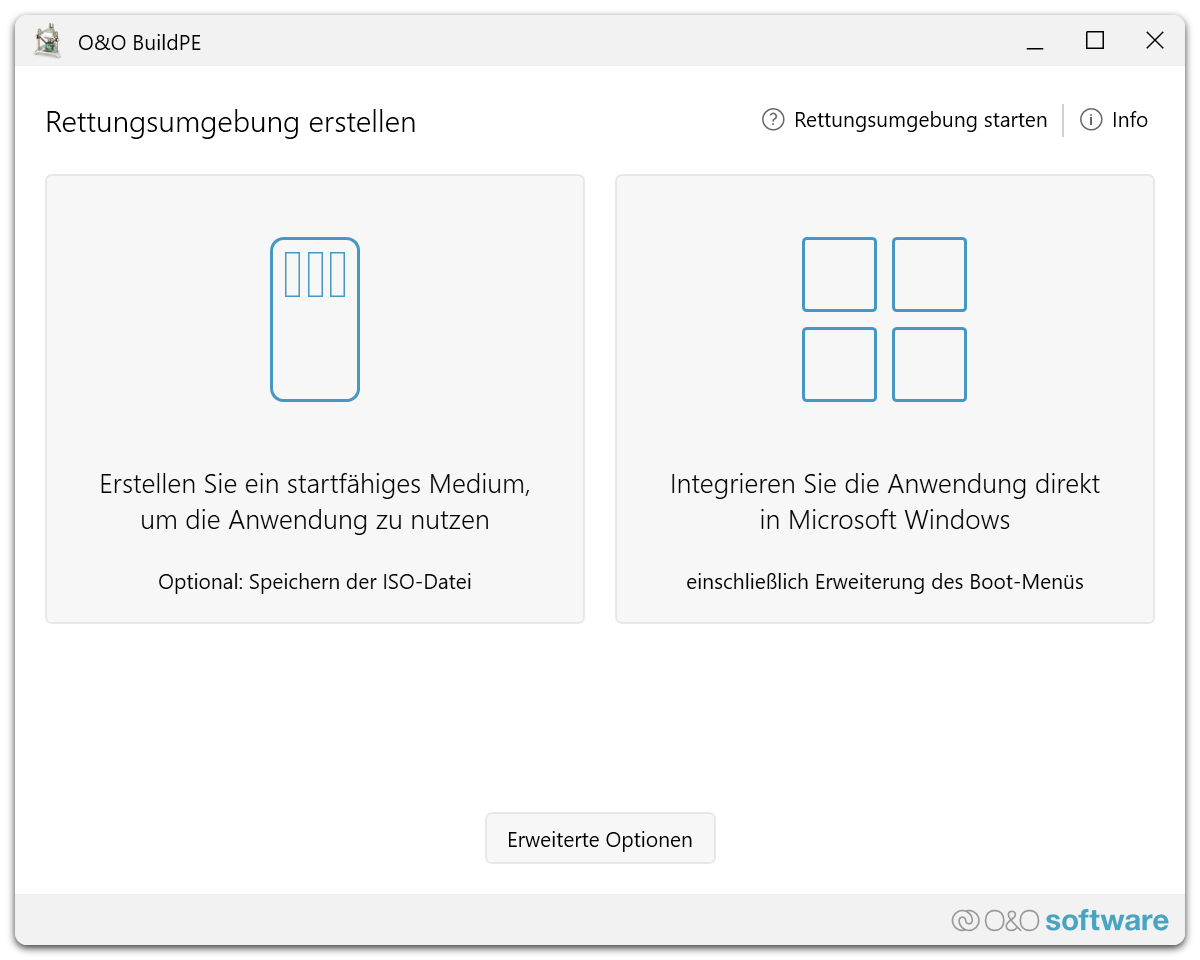
Create a startup medium
- Open Tools and select Creating a Startup Media. O&O BuildPE starts.
- Choose one of the options:
- Create a bootable medium to use the application: creates a bootable USB stick, CD/DVD or ISO file. Optionally, save the ISO file for later use.
- Integrate the application directly into Microsoft Windows: adds the recovery environment to the Windows boot menu, so it can be started without an external medium.
- Follow the steps of O&O BuildPE.
Advanced options offers the expert mode, a cleanup before the creation, the integration of O&O Syspectr, and the log files.
The selected medium is completely overwritten. Back up any data on it first, and do not use the drive that holds your only backup.
Create the medium while the PC still works, and test that the PC starts from it and can reach the backup. Recreate the medium after major Windows updates or an upgrade of O&O DiskImage, so it contains current drivers and components.
Start the PC from the medium
- Connect the USB stick or insert the CD/DVD and start the PC.
- Open the boot menu of the PC, or change the boot order in the BIOS/UEFI setup, so the medium is started first. The documentation of the mainboard manufacturer describes how.
- In the recovery environment, select the language and region, load additional drivers if a device is missing, and accept the license terms. O&O DiskImage starts.
Notes for the start:
- Secure Boot may have to be disabled so that the Windows PE medium can start.
- Start the PC in the same boot mode (UEFI or Legacy/CSM) in which the medium was created.
- Windows PE often uses the English (US) keyboard layout. Switch the layout in the start dialog before entering passwords or paths.
- Some PCs start a USB stick only from USB 2.0 ports. If the stick is not detected, use another port or recreate the medium.
- The boot order chosen in the boot menu usually applies to the current start only.
Work in the recovery environment
- If a hard disk, RAID array, NVMe controller or network adapter is not detected, its driver is missing. Load it in the O&O System Settings dialog on the Drivers tab from a USB stick or another drive. Copy the storage, network and chipset drivers of the PC to a USB stick in advance, so they are available in an emergency.
- If the backup is in a network directory, the network adapter must be recognized; load its driver if necessary.
- Have the recovery key of BitLocker-protected drives ready. Encrypted volumes can only be used after they have been unlocked.
- Drive letters can differ from those in Windows. Identify disks by their name, size and content before restoring.
- Keep the password of an encrypted backup available. The recovery environment needs an internet connection for activation and updates.
See Restore drives for the restore itself.