Backup sources
A source is the data a backup protects. Choose Back up your PC, Back up drives or Back up files on the start page.
Entire PC
Back up your PC backs up the entire computer including the system partition – Windows, applications, settings and personal data. Use it as the starting point for system recovery and as the first backup of a new PC.
The backup uses the Used sectors technology, so only the parts of the disks that contain data are backed up, and compresses the data. See Backup options.
Drives and partitions
Back up drives creates an image of selected drives or partitions. Use it when you want to protect certain data or partitions rather than the whole system.
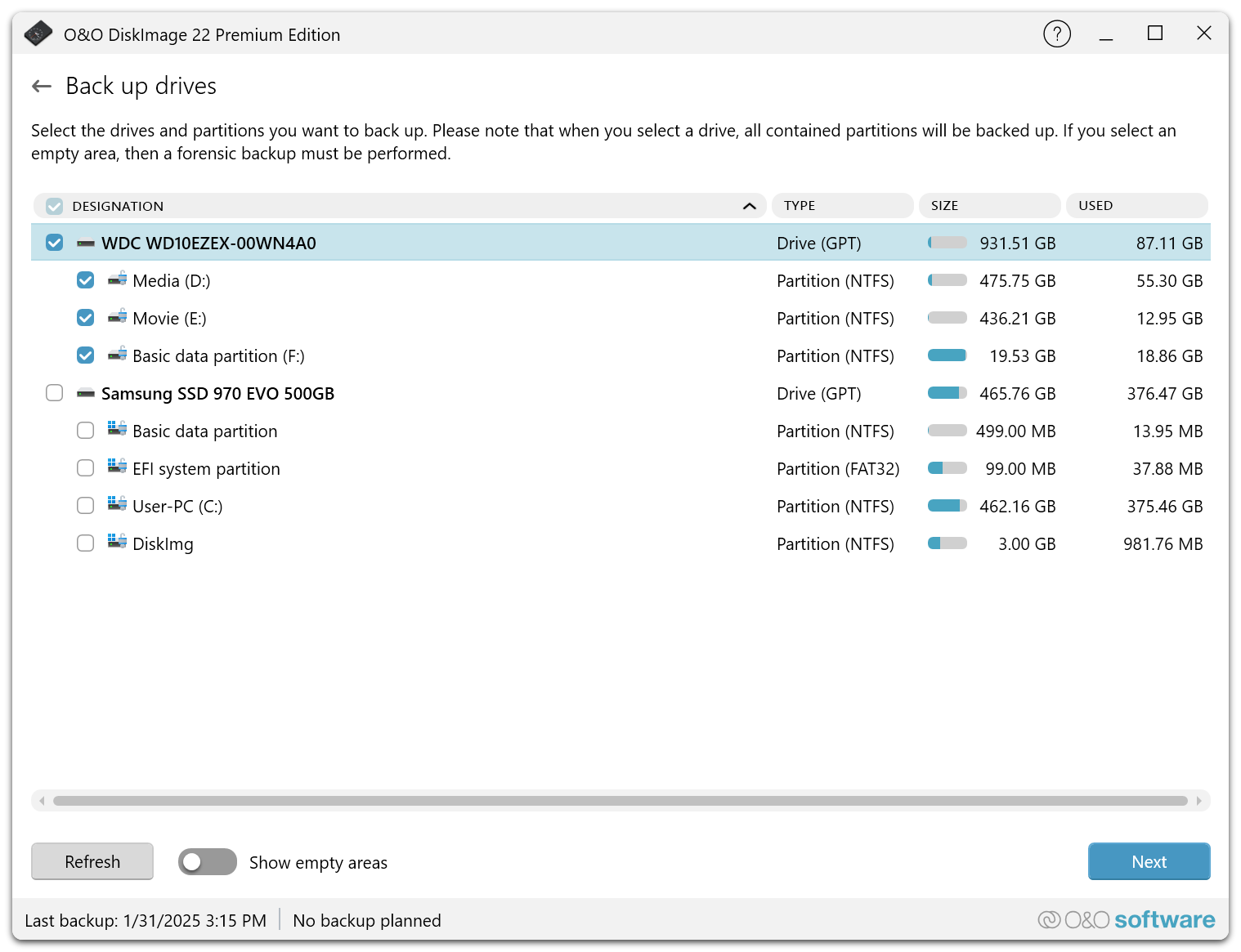
- Selecting a drive selects all of its partitions. The list shows the type, size and used space of every entry; Refresh reads the drives again.
- Show empty areas also lists unpartitioned areas. If you select an empty area, the backup must be a forensic backup, because there is no file system whose used sectors could be read.
- A partition with an unknown or unsupported file system is backed up forensically as well.
Files and folders
Back up files backs up selected files and folders, for example documents, photos or project folders, without creating an image of the whole drive. Navigate through the file system and select individual files or entire folders.
A file backup contains only the selected files. To restore Windows and the installed applications, you need a backup of the PC or of the system drive.
Exclusions
Files and folders on the Exclusion list under Settings are left out of every backup, for example temporary files or media that are already backed up elsewhere. See File names and exclusions.