The first backup
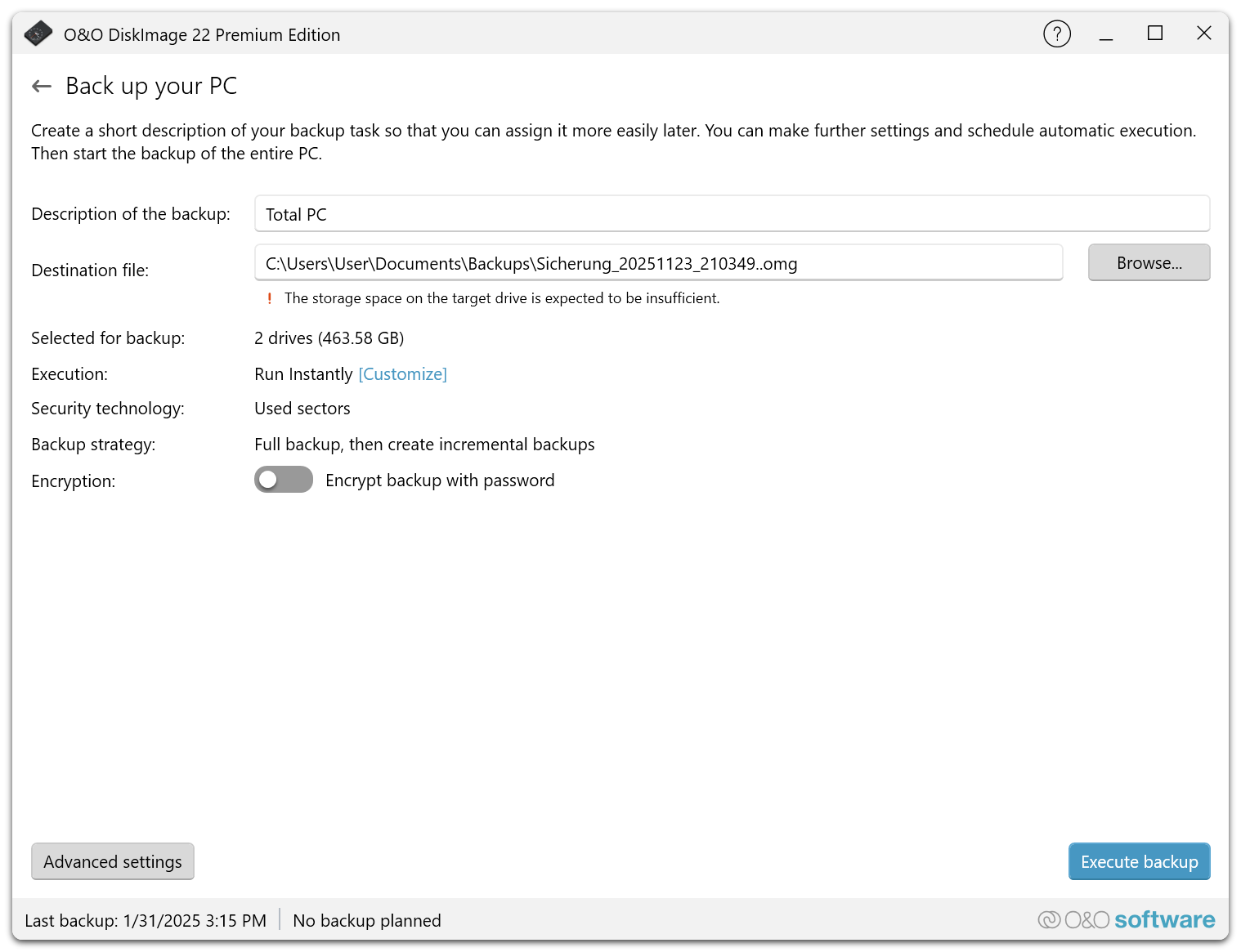
Every backup starts on the start page with one of three entries. The following backup page brings together the description, the destination file, the execution and the most important options.
Choose what to back up
| Entry on the start page | Use it for |
|---|---|
| Back up your PC | Windows, applications, settings and personal data – the entire PC including the system partition. |
| Back up drives | Images of selected drives or partitions. |
| Back up files | Selected files and folders, for example documents and photos. |
For Back up drives, select the drives or partitions in the list and then select Next. Selecting a drive selects all of its partitions. For Back up files, navigate through the file system and select the files and folders.
See Backup sources for what each choice contains.
The backup page
| Field | Meaning |
|---|---|
| Description of the backup | Name of the backup. By default it contains the creation date; enter a name that reflects the content if you prefer. |
| Destination file | Path and name of the backup file. Browse... opens a folder dialog. A note warns if the target drive is expected to run out of space. |
| Selected for backup | The number and size of the selected drives, or the selected files and folders. |
| Execution | Run Instantly by default. Customize opens the schedule. See Schedules and automation. |
| Security technology | The backup technology, by default Used sectors. |
| Backup strategy | The default strategy, for example Full backup, then create incremental backups. |
| Encryption | Encrypt backup with password protects the backup. Keep the password in a safe place: an encrypted backup cannot be restored without it. |
Advanced settings opens the options of this backup, such as compression and backup technology. The defaults for all new backups are set under Settings. See Backup options.
Start and check the result
Select Execute backup. The duration depends on the size of the selected drives or files.
After completion, the start page shows the backup under Last performed backup, together with its execution setting. Open Restore backups and select Show reports to check the report of the backup. See Reports and logs.
Next steps
- Schedules and automation – run the backup automatically.
- Manage backups – rerun, move or delete the backup.