Introduction
This guide explains how to back up a Windows PC, restore data, duplicate drives, and prepare for recovery with O&O DiskImage 22 Premium Edition.
A backup is the insurance for your data: if a disk fails, malware strikes, or Windows no longer starts, you restore the PC from the backup instead of starting over. Back up regularly and keep the backups on a separate storage medium.
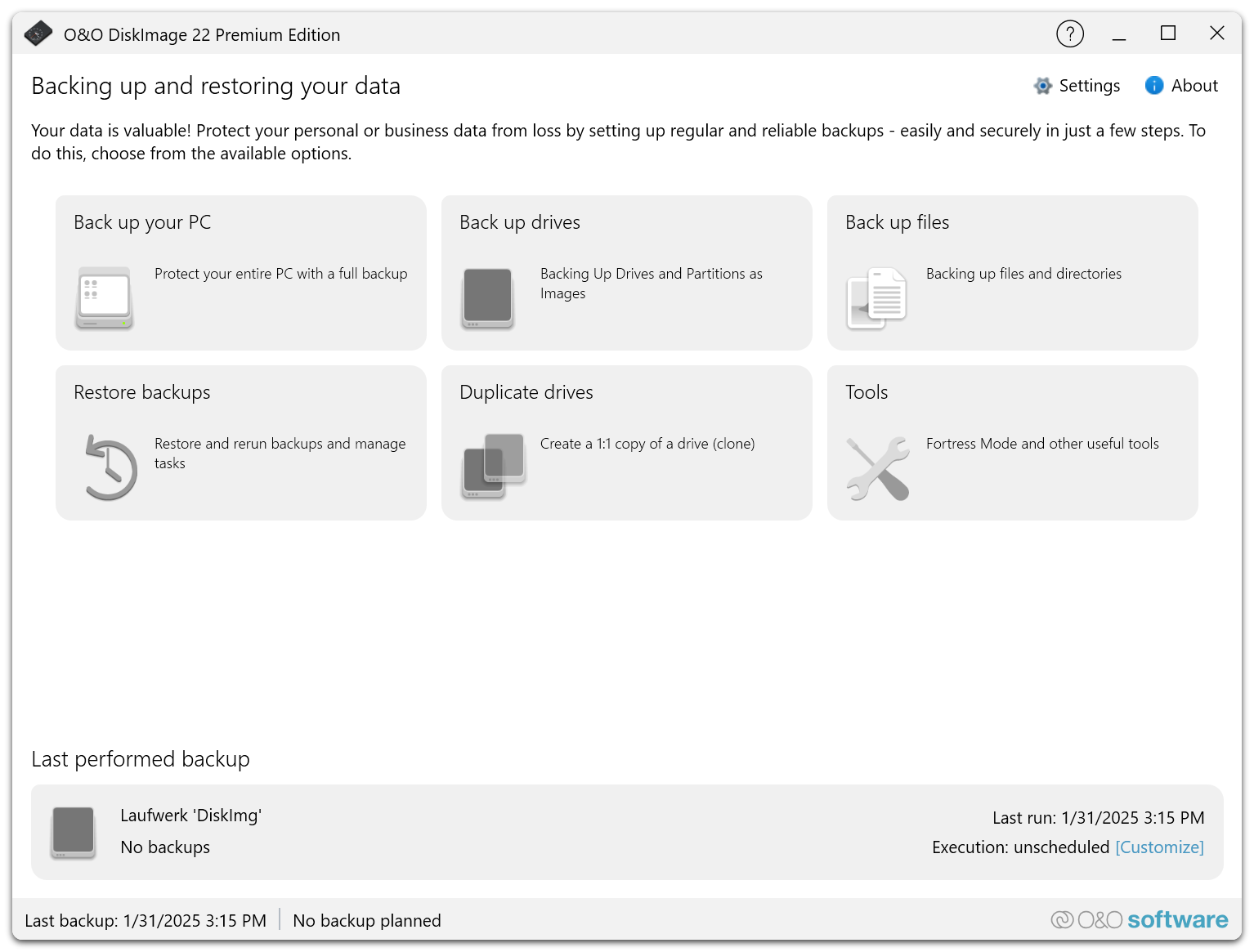
What you can do
- Back up the entire PC, selected drives and partitions, or individual files and folders.
- Automate backups with a schedule – once, hourly, daily, weekly or continuously – or start them when the backup drive is connected.
- Choose a backup strategy: a full backup followed by incremental or differential backups, or full backups only.
- Restore partitions, drives or whole disks from a backup, and copy individual files from a mounted backup.
- Duplicate a drive 1:1 when replacing or upgrading a disk.
- Prepare recovery with Fortress Mode and a startup medium, so the system can be restored even when Windows no longer starts.
- Use the tools to check, mount, convert and import backups, check and repair Windows, and connect network directories.
Where to start
Follow Quick start and The first backup for the first run. Then read Backup options and Schedules and automation to adjust ongoing protection.
Before you need to restore Windows, set up Fortress Mode and a startup medium.
Editions and license
This guide covers the Premium Edition for home users. The Professional, Server and Enterprise Editions add functions for business and server environments.
O&O DiskImage is commercial software. You can try it during the trial period; continued use requires a valid license. See Install and activate.