Tools
Select Tools on the start page. The tools support you in backing up and restoring data; select a tool and follow its instructions.
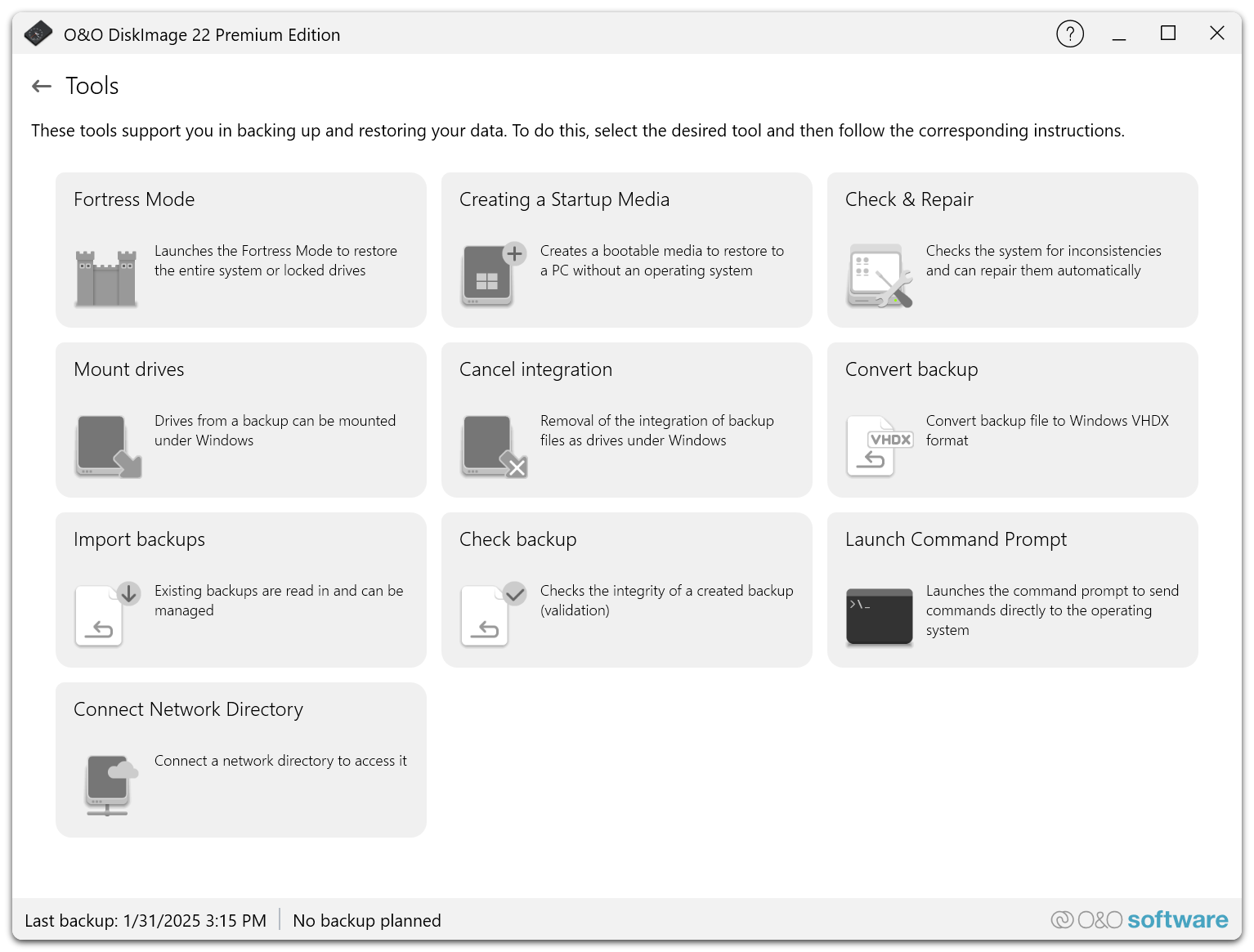
| Tool | Purpose |
|---|---|
| Fortress Mode | Starts the protected recovery environment to restore the entire system or locked drives. |
| Creating a Startup Media | Creates a bootable medium to restore a PC without an operating system. |
| Check & Repair | Checks the Windows system for inconsistencies and repairs them. |
| Mount drives | Mounts the drives of a backup as drives in Windows. |
| Cancel integration | Removes mounted backup drives again. |
| Convert backup | Converts a backup file to the Windows VHDX format. |
| Import backups | Reads existing backups so that they can be managed. |
| Check backup | Checks the integrity of a created backup (validation). |
| Launch Command Prompt | Opens the command prompt to send commands directly to the operating system. |
| Connect Network Directory | Connects a network directory to access it. |
Fortress Mode and startup medium
Fortress Mode and Creating a Startup Media prepare the recovery of the PC outside the running Windows system. See Fortress Mode and startup medium.
Check & Repair
Check & Repair checks the Windows system for inconsistencies and can repair them automatically. Depending on the amount of data and the type of disk, the check takes several minutes.
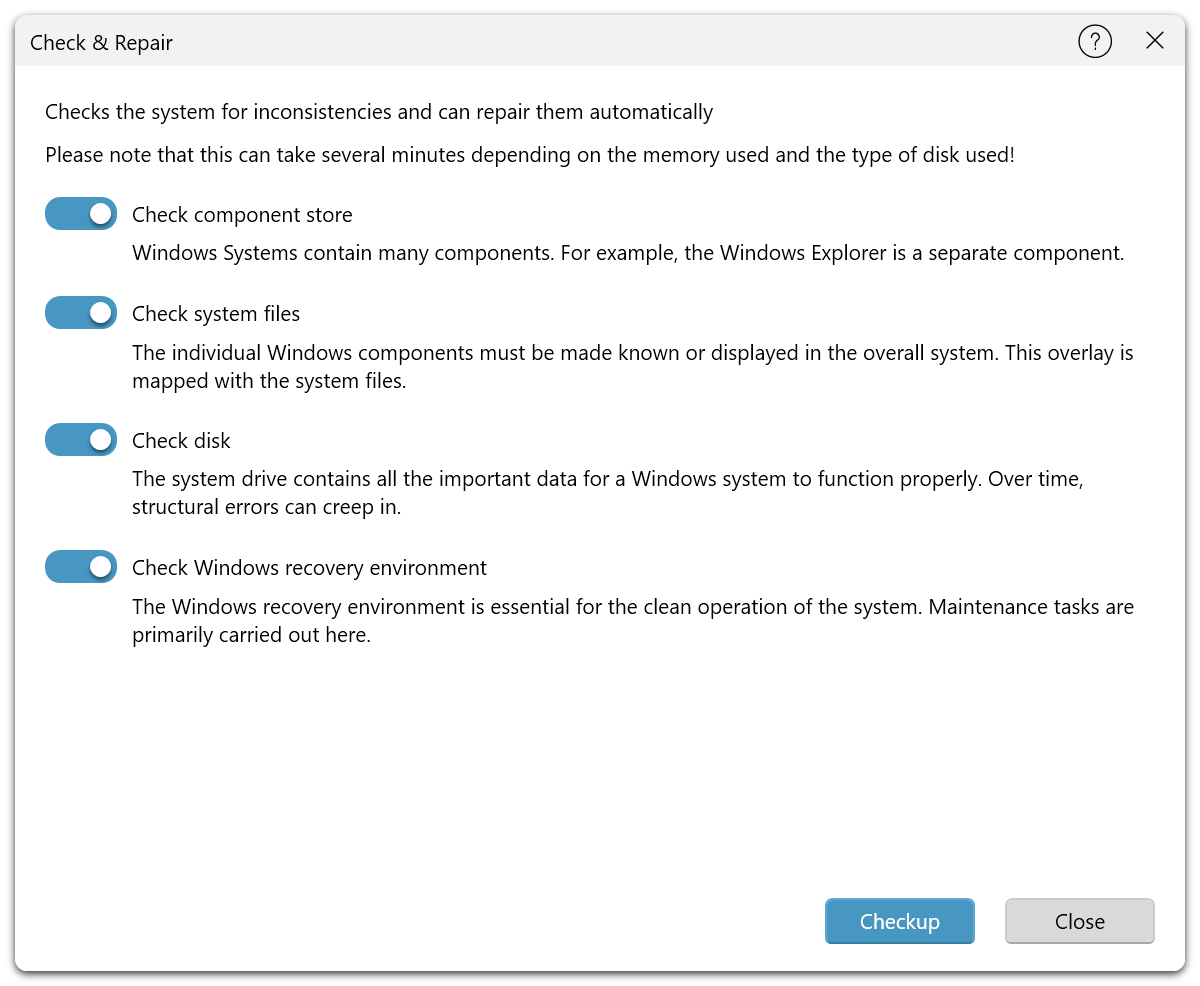
| Option | What is checked |
|---|---|
| Check component store | The Windows component store, in which the components of Windows are kept. |
| Check system files | The protected system files; damaged files are repaired. |
| Check disk | The structure of the system drive, in which errors can creep in over time. |
| Check Windows recovery environment | Whether the Windows Recovery Environment works; Fortress Mode depends on it. |
Enable the checks you need and select Checkup. Check & Repair checks Windows, not backup files; to check a backup, use Check backup.
Mount drives and cancel integration
Mount drives mounts a backup as a virtual drive in Windows, so you can copy files from the backup like from a normal drive, restore individual data, or compare the content of a backup. Cancel integration removes the virtual drive again without deleting any data. See Restore files.
Convert backup
Convert backup converts a backup file to the VHDX format of Windows. The result can be used as a virtual drive or in Hyper-V.
Import backups
Import backups reads existing backup files that are not registered in O&O DiskImage yet – backups from other PCs, older backups, or backups in network directories. Afterwards they are listed under Restore backups. See Manage backups.
Check backup
Check backup validates a backup file, so you know that it can be restored completely and without errors.
- Open Tools and select Check backup.
- Select the backup file to check.
- Start the check.
- Read the report that is shown when the check is finished.
The duration depends on the size and the storage location of the backup. To check every backup automatically after it is created, enable Validate backup after completion under Settings > Validation.
Launch Command Prompt
Launch Command Prompt opens the Windows command prompt, through which advanced commands can be sent directly to the operating system, for example:
chkdsk C: /f– checks and repairs the file system of a drivesfc /scannow– checks and repairs protected system filesdiskpart– manages disks and partitionsipconfig /all– shows the network configuration
Some commands delete data or change system settings. Only run commands whose effect you know.
Connect Network Directory
Connect Network Directory connects a shared network directory, for example on a NAS, so that backups can be stored there or read from there.
- Open Tools and select Connect Network Directory.
- Enter the network path and, if required, the login credentials.
- Confirm the connection.
The network directory must remain accessible and must allow writing. See Backup destinations.