Clone Drives
Cloning copies a source disk directly to a target disk. Use it when moving to another drive and you do not need a stored backup history.
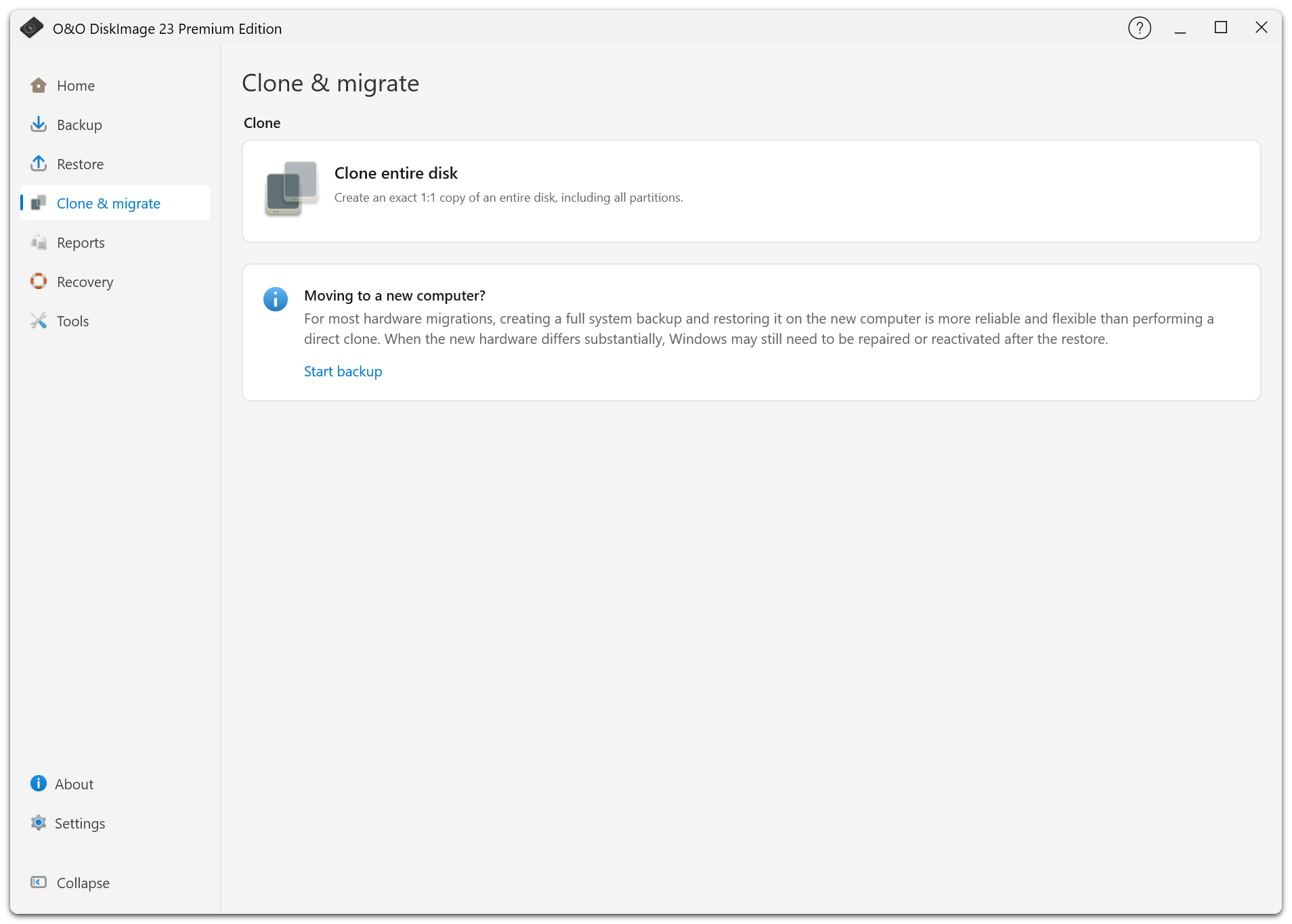
Clone A Disk
- Open Clone & migrate > Clone.
- Select the source disk.
- Select the target disk and review its layout.
- Check the overwrite warning carefully.
- Start cloning and review the result when it finishes.
The selected target's existing data is overwritten. The target must be large enough for the data and chosen layout. It cannot be the source disk or the disk containing the currently running Windows installation.
O&O DiskImage checks the target's identity again before writing. If disks have been swapped or reconnected since selection, select and confirm the intended target again.
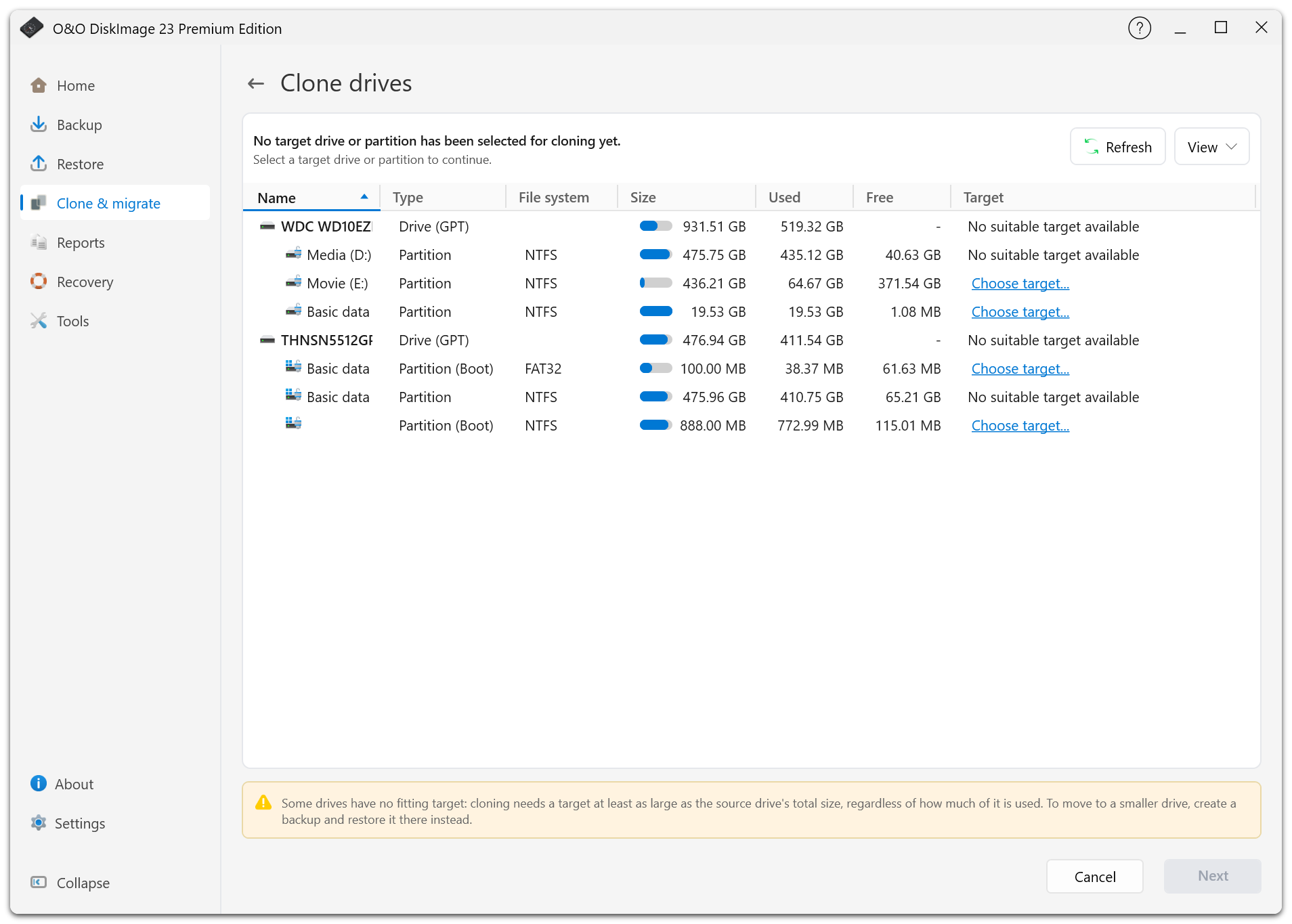
Clone Technology
Used-sector copying is suitable for ordinary migrations. Forensic modes copy unused sectors too and require enough capacity for the full source size.
After cloning a system disk, shut down before exchanging drives. Keep the original disk until you have confirmed that the new disk starts correctly and contains the expected data.
Trial And Recovery
Cloning is restricted in the trial; the page explains the restriction and provides purchase and activation links.
Do not restart into the recovery environment while cloning is in progress. Finish or cancel the operation first. If the target is the running Windows disk, perform the operation from an appropriate recovery environment.