Backup Destinations
The destination stores your backup. Choose enough space for the initial full backup, its history, and any temporary space needed during later runs.
Destination Types
| Destination | Use |
|---|---|
| Local or external folder | Stores the primary backup on a disk accessible to Windows. |
| USB drive | Stores the primary backup and can trigger a run when connected. |
| NAS / network share | Stores backups in a UNC folder such as \\server\share. |
| WebDAV | Receives a second copy after the primary backup is created. |
| S3-compatible storage | Receives a second copy in a configured bucket and path. |
For cloud protection, create the primary backup in a local or network folder and configure a second copy to S3 or WebDAV. Adding a cloud destination does not turn it into a folder that the imaging engine can write to directly.
Choose And Organize Destinations
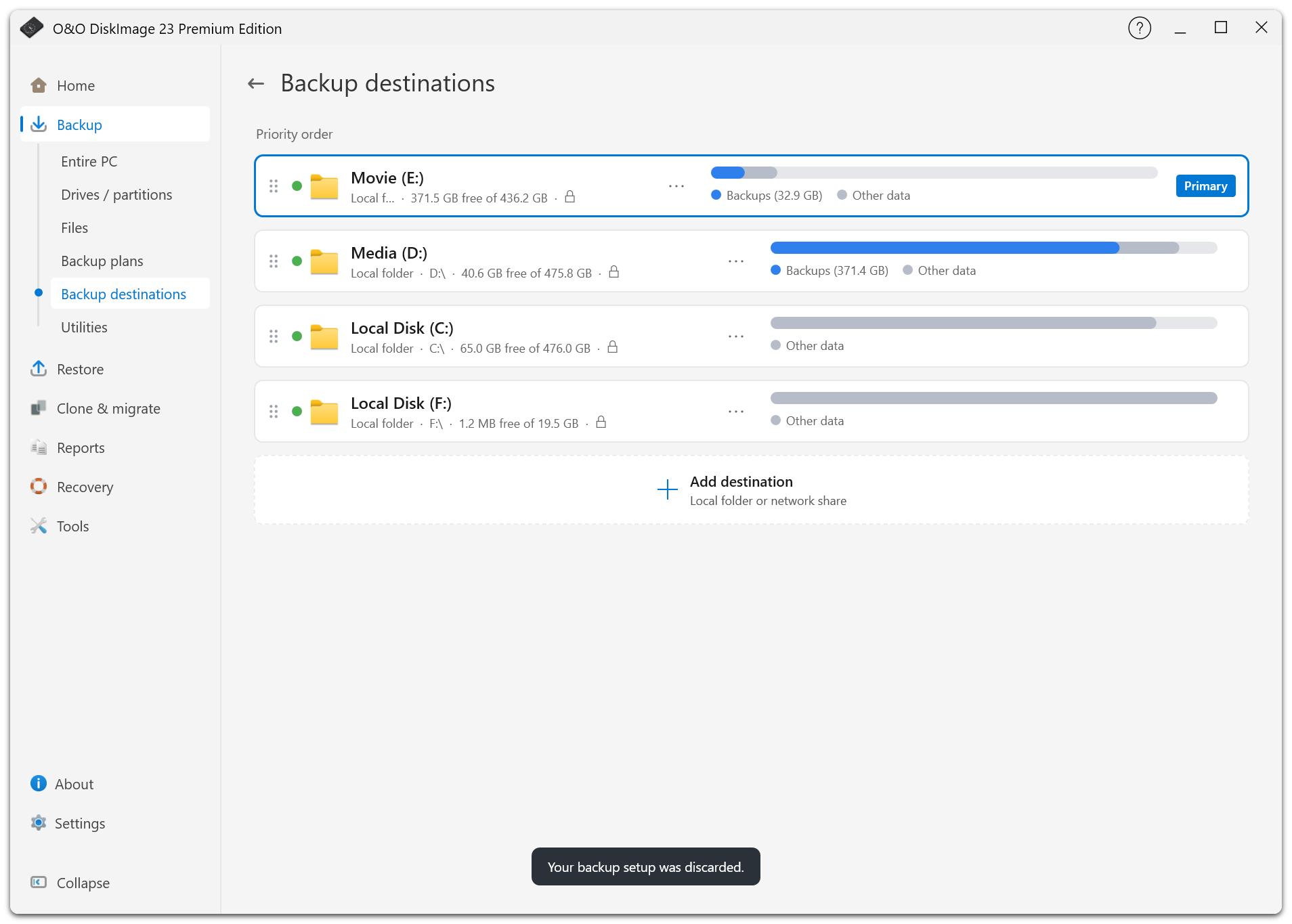
Open the backup destinations dialog to add or edit storage and set a primary destination. Availability, free space, total size, and backup usage are shown where the destination provides that information.
Drag destinations by their handles to change their order. For entire-PC backups, automatic suggestions favor external and network storage, then suitable other disks. The Windows disk is not suggested as a destination.
Store backups on a different physical disk from the data they protect. Another partition on the same disk will be lost if that disk fails.
Network Credentials
For a network share, enter its UNC path, username, and password. Credentials are stored through Windows Credential Manager and associated with the intended server.
Use Test connection after setup or a password change. Check both access and write permissions. Network paths must contain a valid server and share name.
S3 destinations need the endpoint, bucket, region, access keys, and any path prefix; WebDAV destinations need the server address and credentials. Cloud upload and proxy details are covered under Second Copy.
USB Drive Detection
O&O DiskImage uses available drive identity information, including serial number, volume name, size, and model. This reduces the risk of a different drive with the same letter triggering a backup.
Keep the notification-area application running for drive-triggered backups. You can disconnect an external backup drive after the backup and all copying have finished.
Space And Availability
Use the plan's history estimate to check whether the destination has enough room. Retention preserves required backup-chain files, so it may not immediately reclaim every older file.
Reconnect unavailable storage before restoring. If the original destination has failed, use an available second copy.