Your First Backup
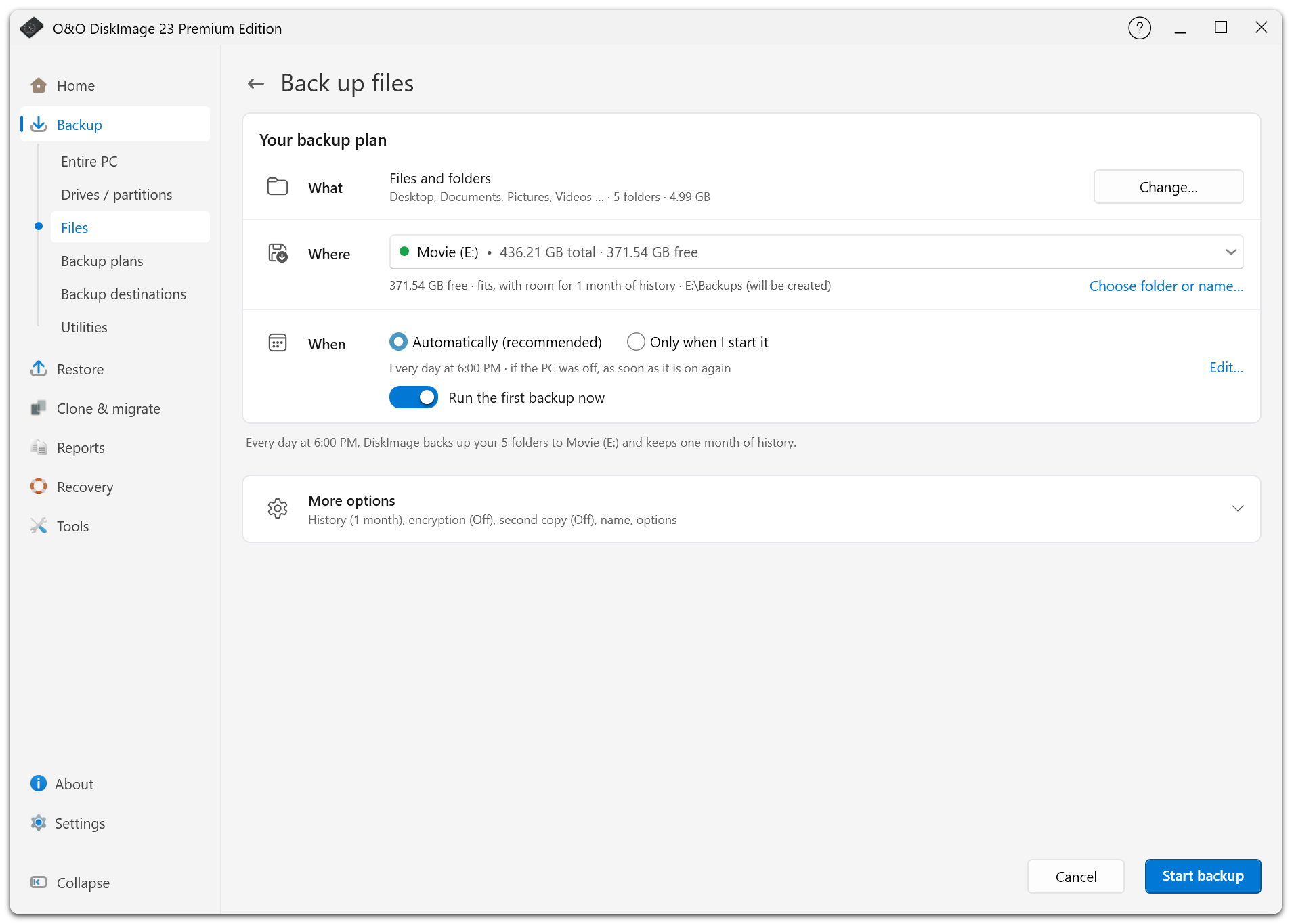
The backup plan page brings together What, Where, and When. Review these rows, adjust More options if needed, then start the backup or save the plan.
Choose What To Back Up
Under Backup, choose one of the source types in the navigation pane:
| Choice | Use it for |
|---|---|
| Entire PC | Windows, applications, settings, and personal data. |
| Drives / partitions | An image of selected disks or partitions. |
| Files | Selected files and folders. |
For drives or files, select the sources before reviewing the plan. You can return to the selection using Change… in the What row.
Choose Where To Store It
Choose an external drive or a network share with enough space. For an entire-PC backup, O&O DiskImage suggests external or network storage first and does not suggest the Windows disk.
Enter network credentials when prompted and test the connection. Under Where, you can also set up a second copy, including an upload to S3 or WebDAV after the primary backup is created.
Choose When It Runs
New plans start with Automatically (recommended). For an external drive, the backup runs when the drive is connected, at most once a day. Otherwise it runs daily at 18:00 and catches up missed runs.
Use Edit… to change the schedule, or select Only when I start it. Leave Run the first backup now selected if you want an immediate backup as well as an automatic plan.
Review More Options
- History: choose how far back you want to restore and review the storage estimate.
- Encryption: set a password before the first backup.
- Validation: check the finished backup for integrity and readability.
- Name: choose how the plan appears in the plan list.
- Format and other options: adjust compression, naming templates, exclusions, backup technology, and reports.
See Backup Options for restrictions and details.
Start And Check The Result
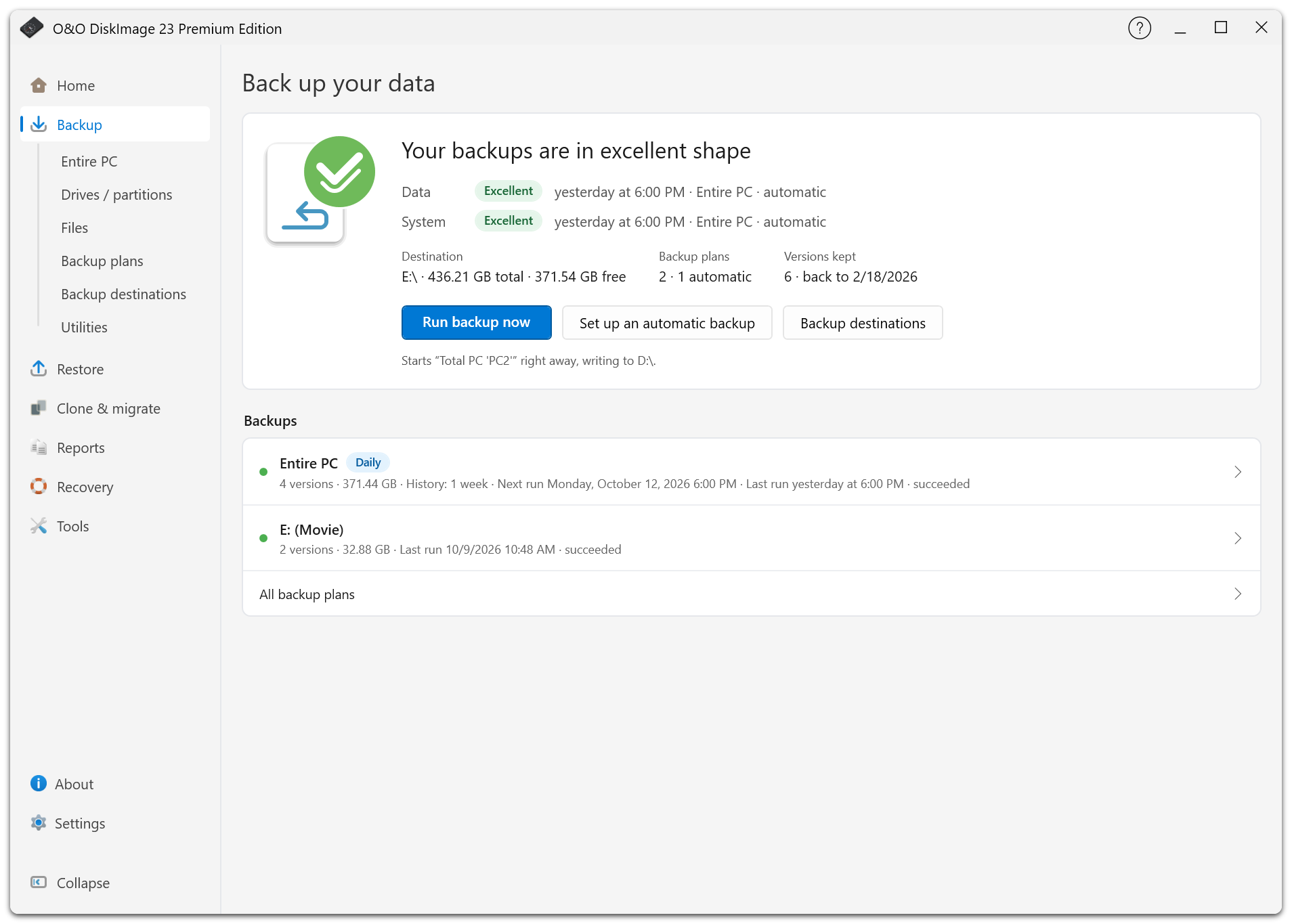
Select Start backup to run now, or Save plan if the first run should wait for its schedule. The progress window shows the current operation and allows cancellation. Its compact view keeps the status and action buttons visible.
After completion, open Reports and review any warnings. If you enabled a second copy, check its result too: a successful primary backup does not mean the copy has finished uploading.
The plan list lets you change the schedule or start another run later.