Quick Start
Create a backup first, then prepare a way to restore Windows if it can no longer start.
Before You Start
Connect an external backup drive or prepare a network share. Keep enough space for the initial full backup and later versions, and connect a portable PC to power.
Create Your First Backup
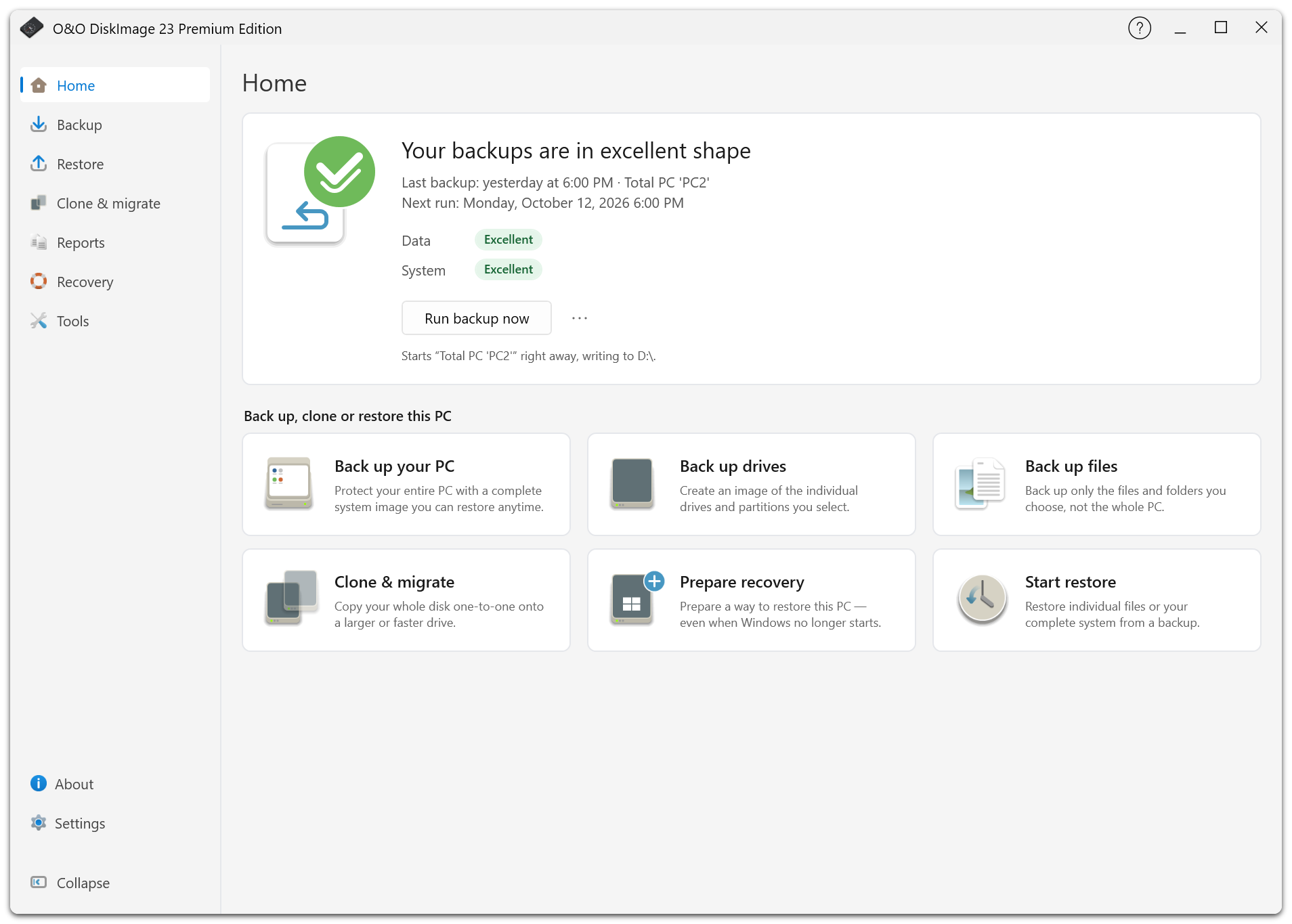
- Open O&O DiskImage 23 Premium Edition.
- Choose Backup > Entire PC.
- Review What and choose the destination under Where.
- Review When. Automatic backup is enabled by default: on connection for an external drive, or daily at 18:00 for other destinations.
- Open More options to review history, encryption, and validation. Set a password now if you need encryption.
- Choose to run the first backup now and select Start backup.
- Open Reports after completion and check the result and any second-copy warnings.
A Practical Starting Point
| Setting | Starting point |
|---|---|
| Scope | Entire PC |
| Destination | External drive or NAS |
| History | One month, if the storage estimate fits |
| Method | Automatic |
| Format and technology | O&O DiskImage format, used sectors |
| Compression | Standard Lempel-Ziv |
| Validation | Enabled |
| Second copy | Another disk or a remote destination |
You can adjust the plan later. See Your First Backup for the available controls.
Prepare For Recovery
Open Recovery to set up the local recovery environment or create bootable startup media. Test that the PC can start from your chosen recovery option and that you can reach the backup.
The status cards on Home and Restore summarize backup protection, available history, and recovery startup options. Follow their suggestions if a backup is missing or the recovery environment needs to be rebuilt.