Backup Plans And Saved Backups
A plan stores the source, destination, schedule, and options. A backup set groups that configuration with its saved versions. A run is one execution; its result and report describe what happened.
Backup Plans
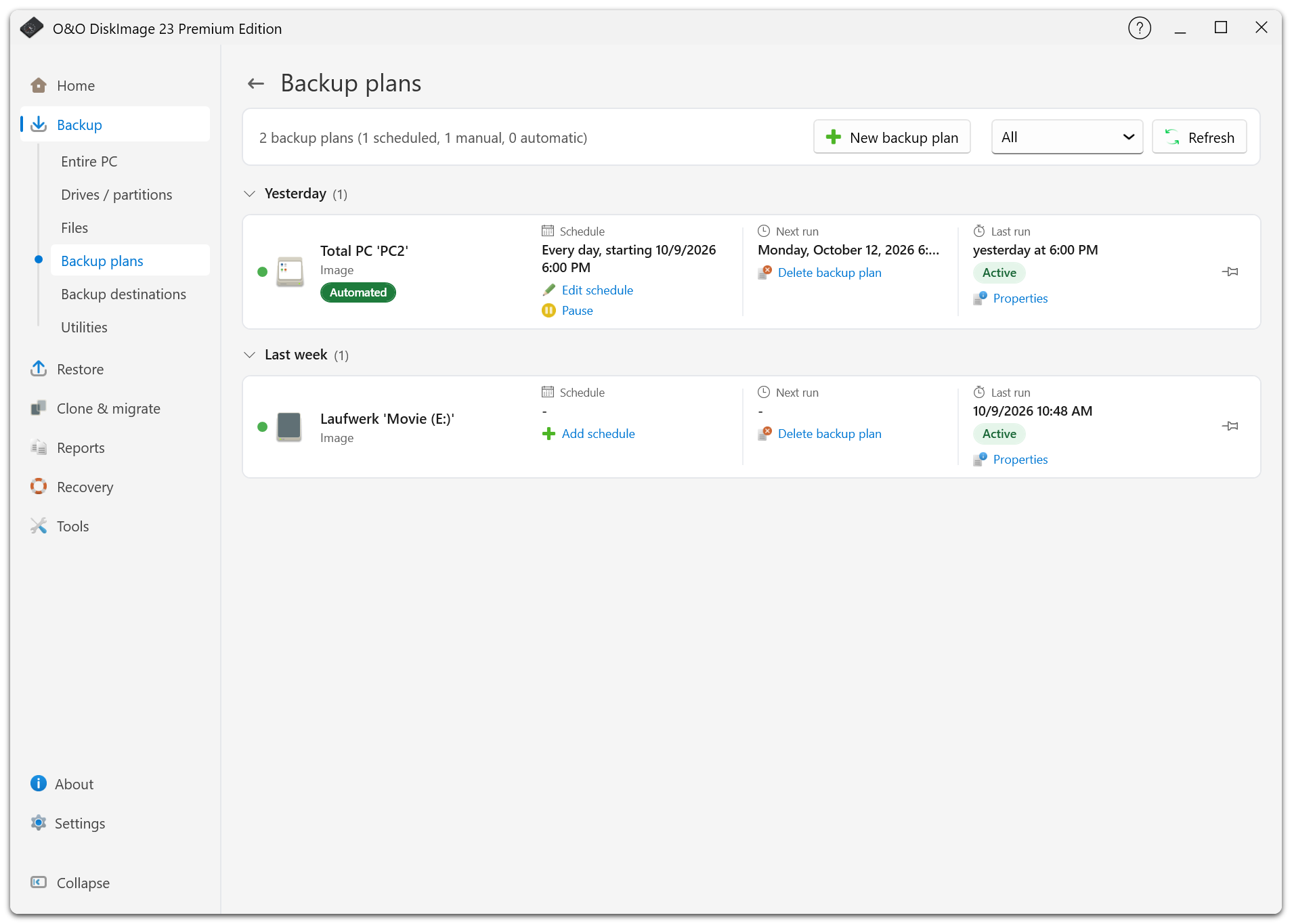
Open the plan list under Backup to create a plan, start an existing one, or change its settings. A plan can appear before its first run; new plans without backups are listed under Today.
The card's Properties action opens the plan page. You can rename the plan, edit its schedule and history, or change drive and file sources. Changing sources makes the next run a full backup. Cancelling the page discards your edits.
Format, backup technology, exclusions, and encryption are locked once saved versions exist, even when their storage is offline. Create a new plan to change those options.
Start A Backup
Use Back up now to start the existing plan directly. If you need a new independent chain, choose the one-time full-backup action on Home, the plan page, or the notification-area menu. Later runs use the plan's normal method again.
The application shows progress and cancellation for scheduled and drive-triggered backups as well as manual ones.
Saved Backups
Open Restore > All saved backups to select a version and restore it, inspect its information, or manage its files. The history shows retention reasons and planned removals; individual versions can be kept permanently.
Unavailable storage and missing files are shown differently. Reconnect a disconnected destination. If a file has actually been deleted, remove its obsolete entry only when you no longer need it. An available second copy may still provide the version.
Move Or Delete Backups
Use the application's move and delete actions to keep the plan and file locations in step. Both operations show progress and can be cancelled; after cancellation, inspect the result because some files may already have been processed.
Deleting files is permanent. Removing an earlier backup can also affect later versions that depend on it. Review the confirmation rather than deleting individual chain files in Explorer.
Deleting a plan and deleting its saved files are separate actions. Read the confirmation to see which information and files will remain.
Add An Existing Backup
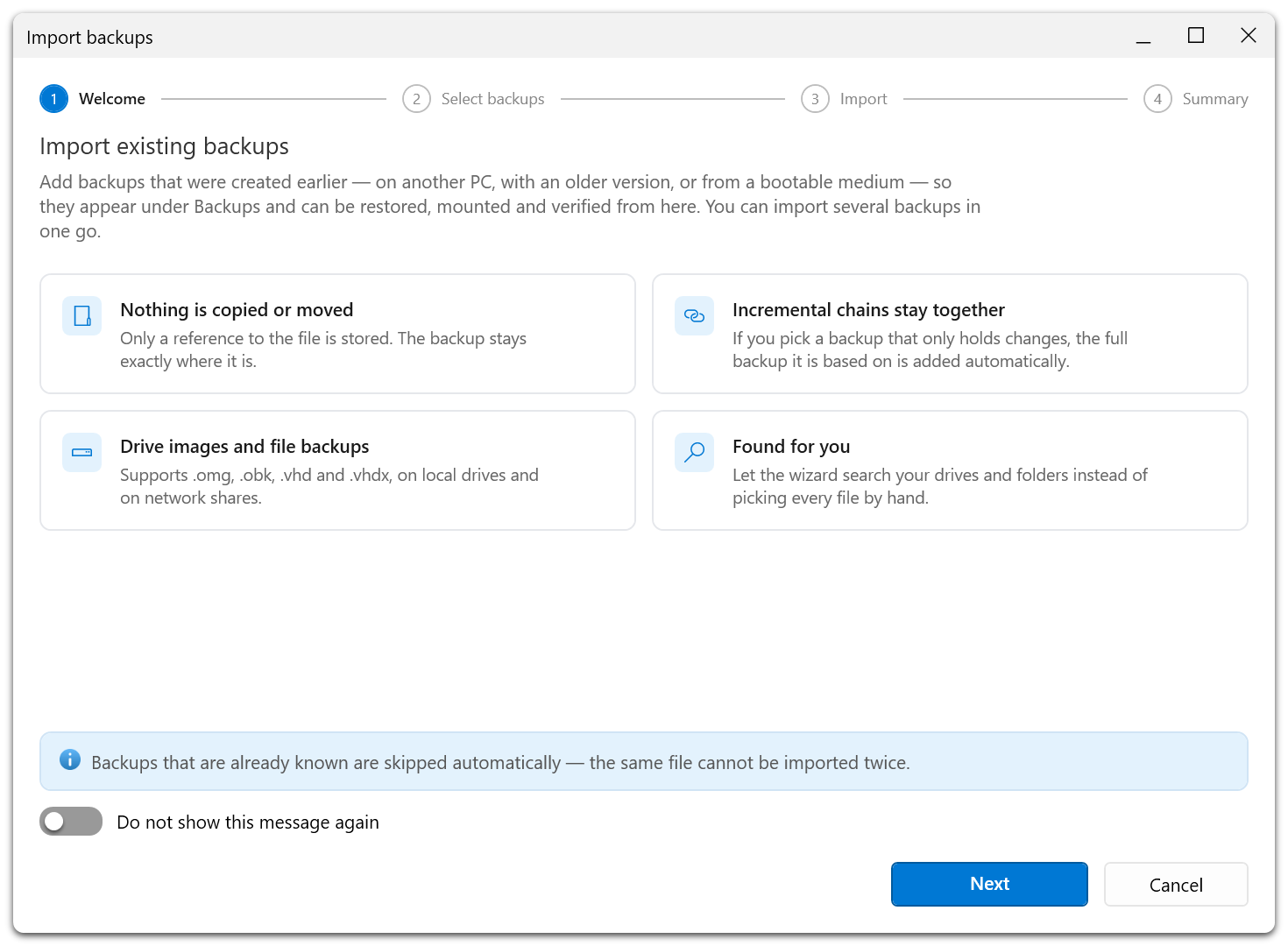
The former import action is now Add an existing backup. Find it under Backup > Utilities, Restore > Utilities, or Tools.
Choose the backup file and review its information in the wizard. O&O DiskImage adds it to the saved-backup list. Keep any full and incremental files required by that version together and accessible.