Reports And Logs
Reports record individual operations. Logs provide additional detail when troubleshooting.
Reports
When report generation is enabled, O&O DiskImage records the source, destination, method, data volume, duration, result, and any warnings or errors. Scheduled runs also distinguish the planned time from the actual start.
Use Reports to open details, view a report in a text editor, save a copy, or delete a report. Deleting a report does not delete its backup.
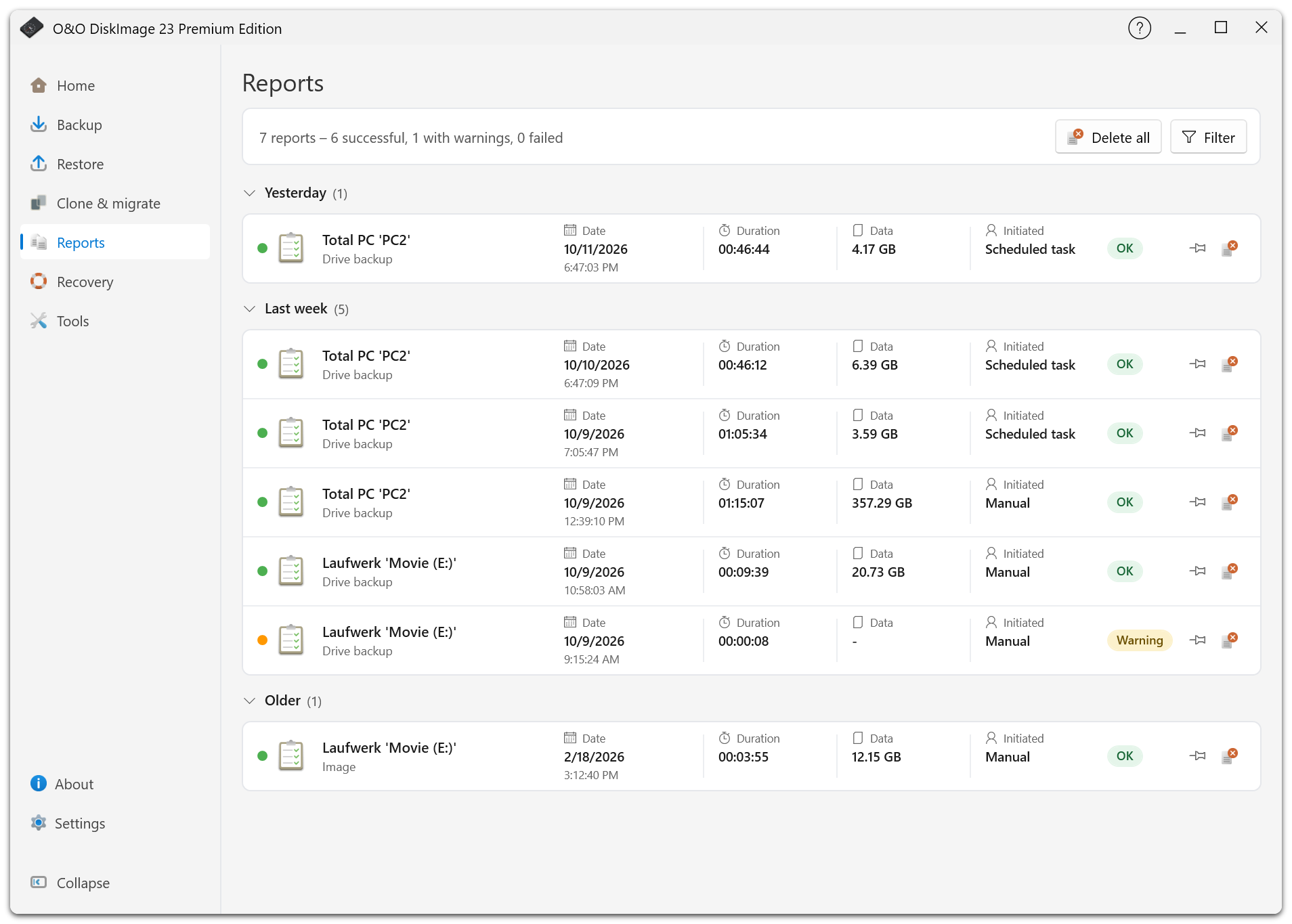
Understand The Result
| Status | Meaning |
|---|---|
| Successful | The operation completed without reported issues. |
| Completed with warnings | The result needs attention; read the warning. |
| Failed | The operation did not complete successfully, even if no backup version was created. |
| Cancelled | The operation was stopped before completion. |
If an incremental or differential run becomes a full backup, the report explains why. Possible reasons include the history's full-backup interval, changed sources, or an unavailable previous version. Scheduled runs also show this explanation in the notification area.
Second copy missing means the primary backup is usable but its copy failed or was cancelled. Fix the destination problem and use Retry copy. An upload may still be running after the primary backup finishes.
Reports show the active history settings and removed versions. Entire-PC backup reports also identify destination disks left out of the sources.
Logs
Application logs record events; engine logs provide lower-level imaging details for support. Configure them under Settings > Logging. Some changes require a restart.
In the recovery environment, logs are kept away from a volume being overwritten. After a failed operation, the application attempts to copy the logs beside the backup so they can be inspected after restarting.
Email Notifications
Under Settings > Notifications, configure email notifications and send a test message. The background service sends the messages, including failures from unattended runs. Successful-run notifications are optional.
Contacting Support
Include the product and Windows versions, the failed operation's report, the source and destination types, and whether the run was manual, scheduled, or drive-triggered. Add logs if requested, and say whether the problem occurred in normal Windows or the recovery environment.