Tools
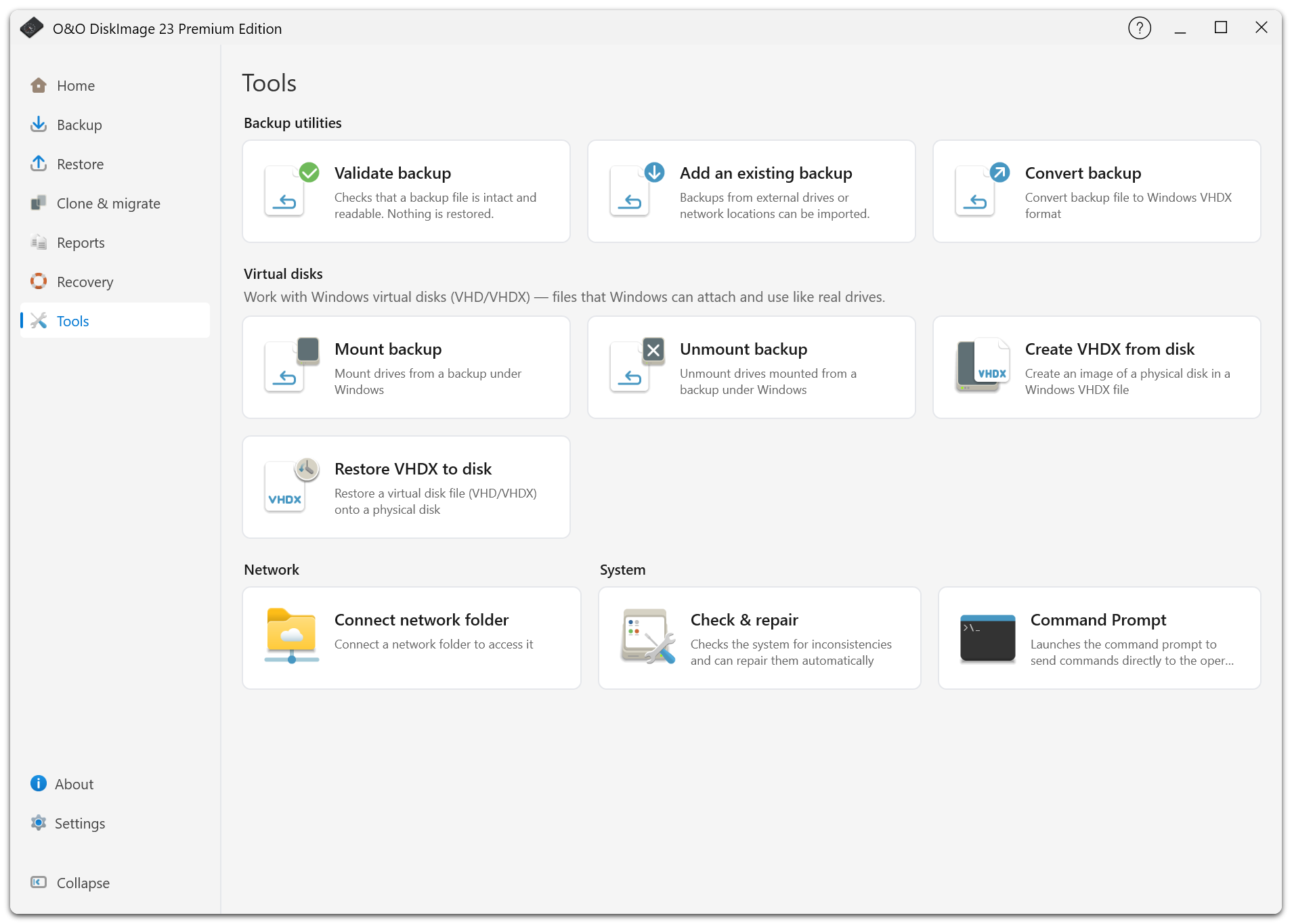
Utilities are available from Tools and from the Utilities entries under Backup and Restore.
Where To Find A Tool
| Location | Actions |
|---|---|
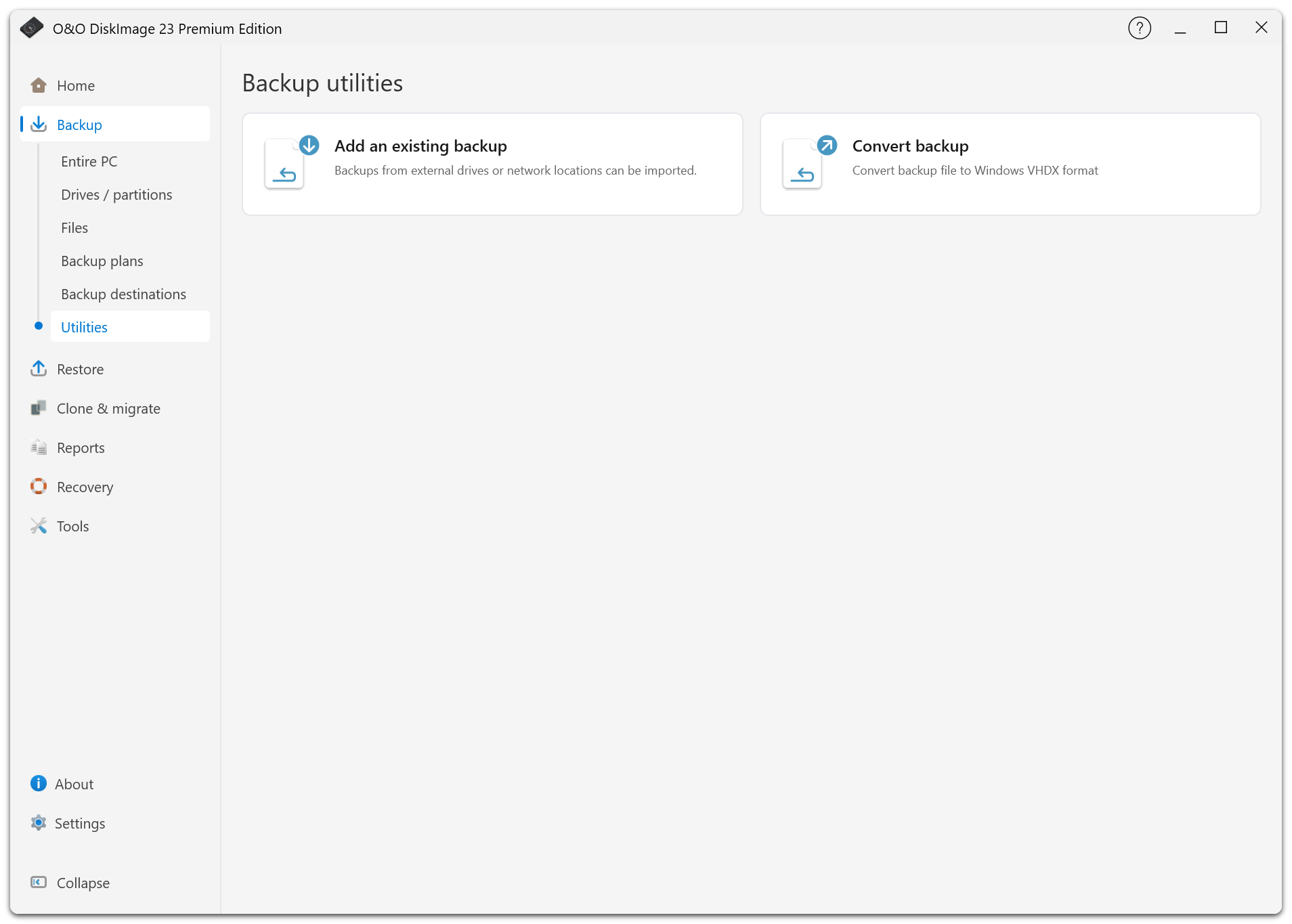
| Backup > Utilities | Add an existing backup; convert a backup to VHDX. |
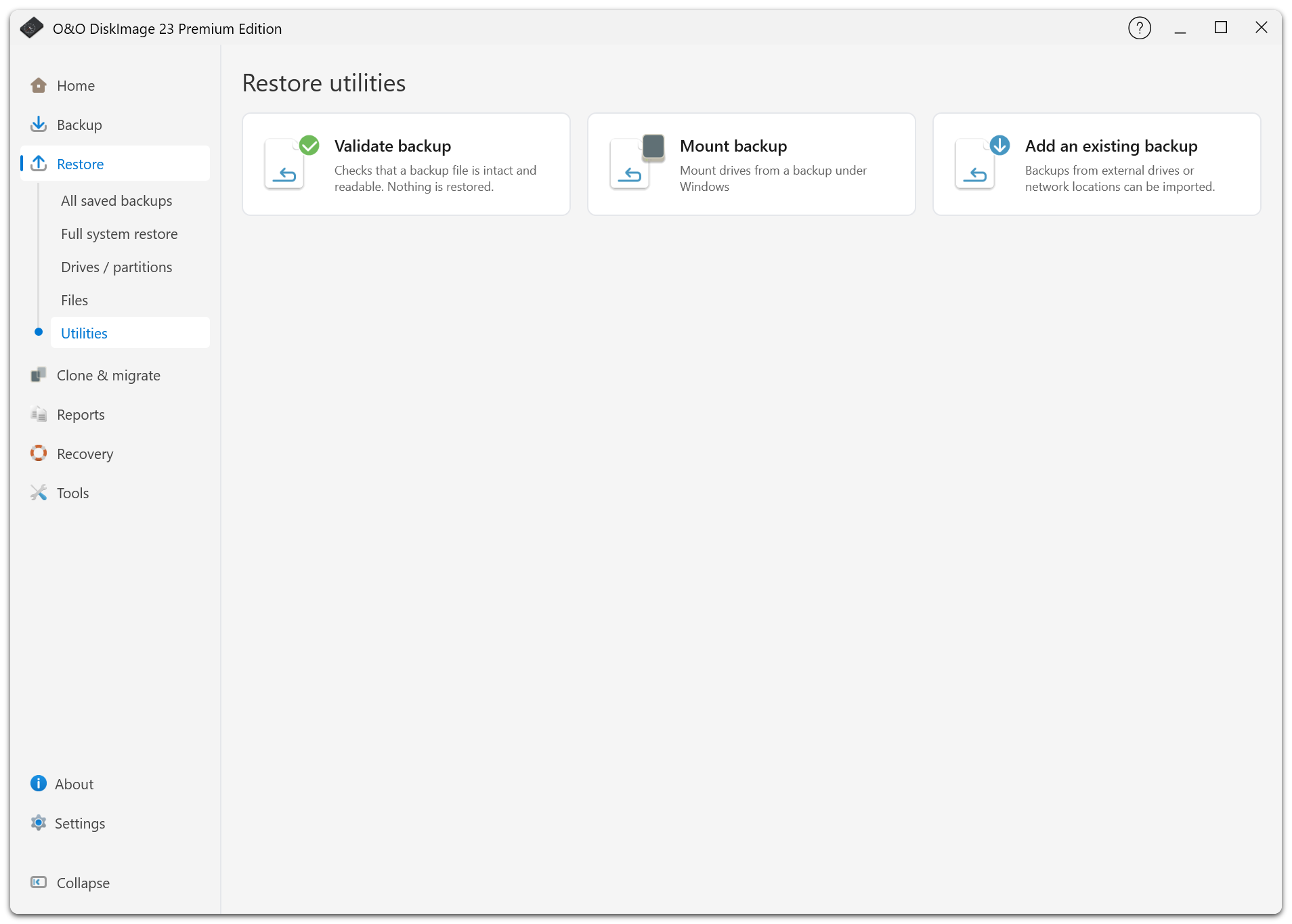
| Restore > Utilities | Check a backup; mount a backup; add an existing backup. |
| Tools > Backup Utilities | Validate a backup; add an existing backup; convert a backup. |
| Tools > Virtual Disks | Mount or unmount a backup; create VHDX from a disk; restore VHDX to a disk. |
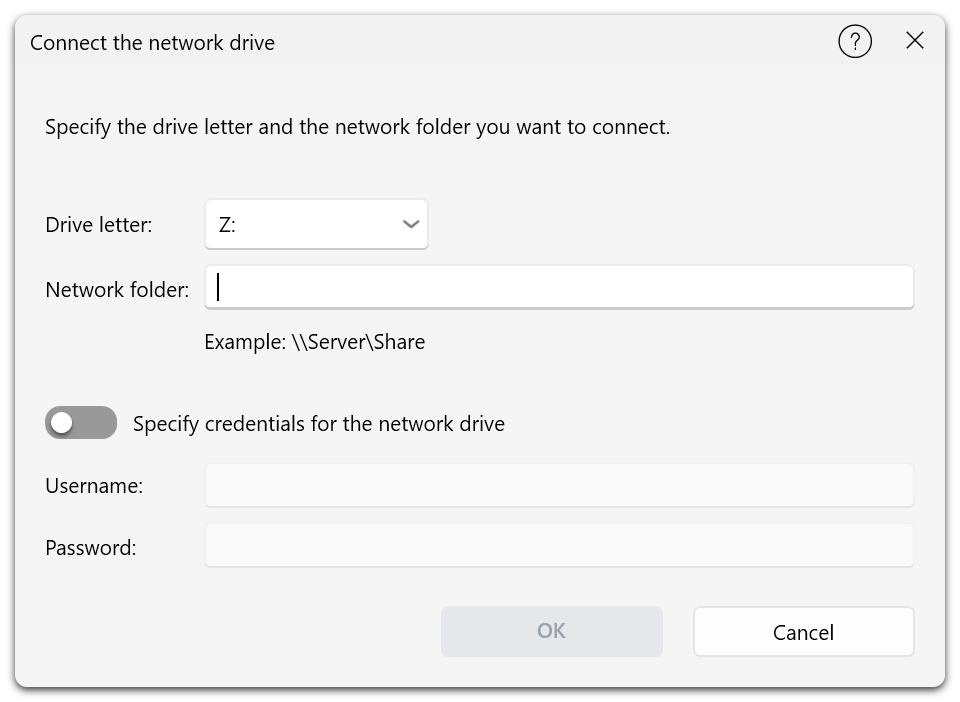
| Tools > Network | Connect a network folder. |
| Tools > System | Check & repair; Command Prompt. |
Some tools are restricted in the trial. The page identifies these tools and offers purchase and license-activation links. Tools unavailable in the recovery environment are hidden.
Check A Backup
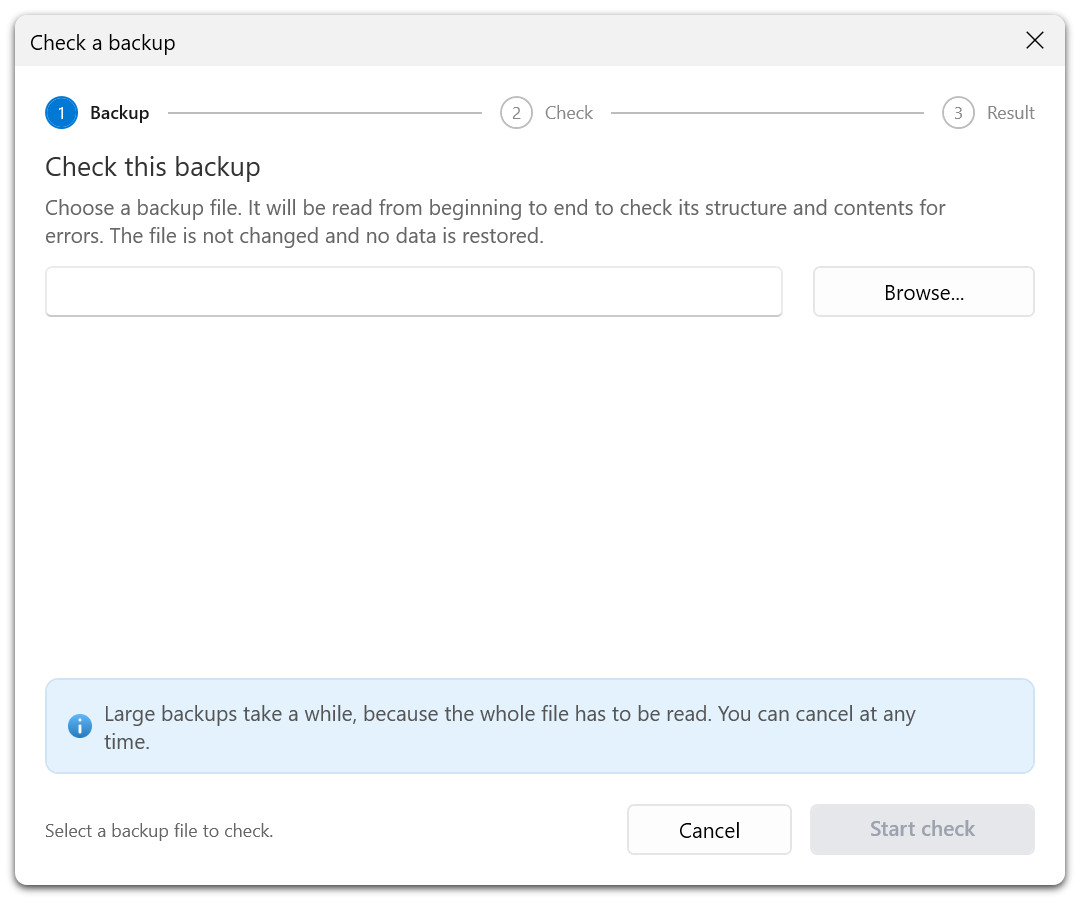
The validation wizard reads the backup to check its integrity and readability. The backup file is not changed and no data is restored. Select a file, enter its password if needed, start the check, and review the result.
A cancelled check has not verified the unread portion. If verification fails, keep another usable copy and investigate the storage or file problem before relying on that backup.
Add An Existing Backup
This replaces the former Import backups action. The wizard reads the selected file's information and adds it to the saved-backup list. See Backup Plans And Saved Backups.
Mount And Unmount Backups
Mounting exposes a supported image as a read-only Windows drive so you can browse or copy its files. File-backup containers cannot be mounted; use Restore Files instead.
Supported virtual disks include VHD/VHDX and Hyper-V checkpoints. Keep all parent files available for a differencing disk. A VHD/VHDX backup can be mounted on the original PC while the source disk is online.
If the backup is already mounted, use the existing mount or unmount it first. Unmount drives you no longer need to release their drive letters. Unmounting remains available in the trial.
Convert A Backup
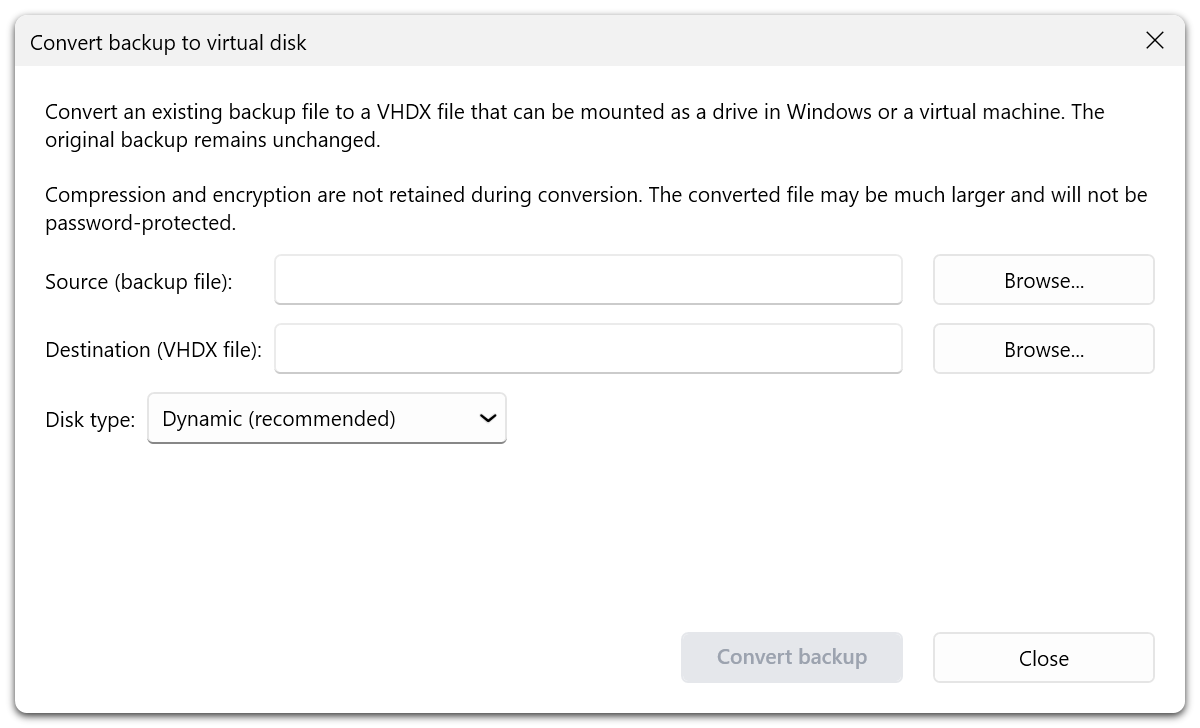
Convert backup creates a Windows VHDX file from a supported backup; the original remains unchanged. Compression and password encryption are not retained, so allow enough space and protect the resulting file appropriately.
A backup containing only the EFI or System Reserved partition without the rest of its disk cannot be converted. Use an image of the whole disk.
Create VHDX From Disk
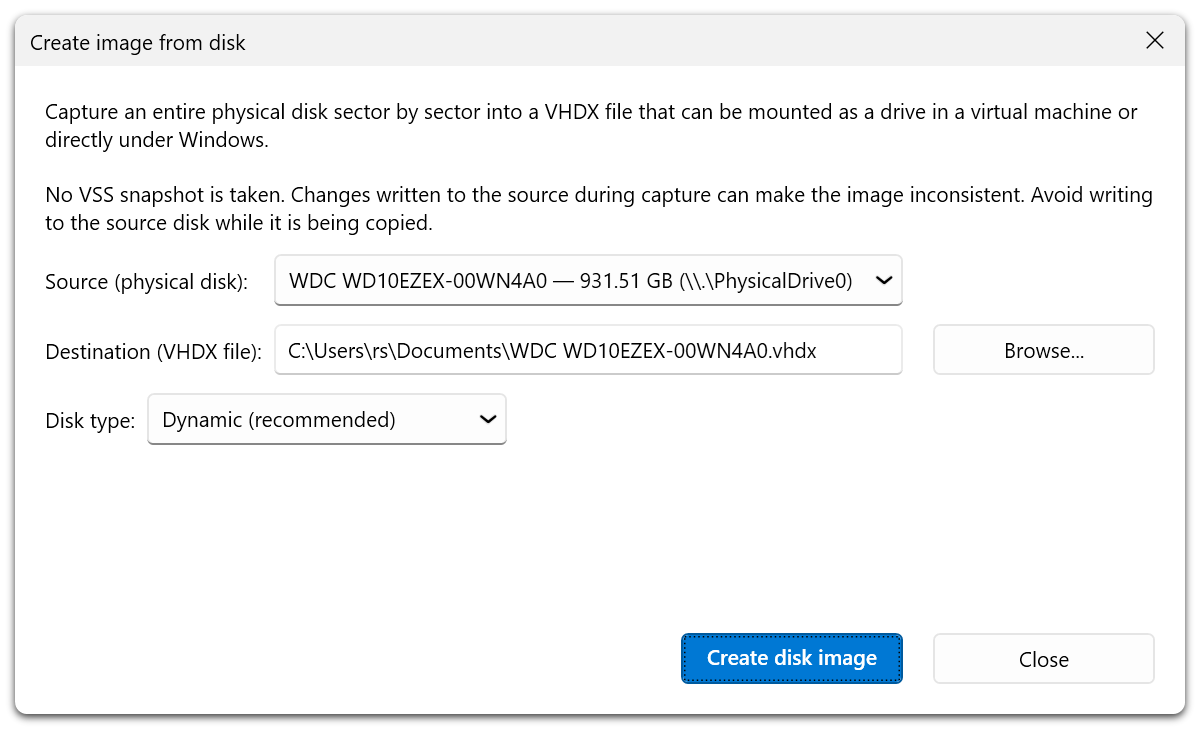
This tool captures an entire physical disk into a VHDX file without creating a reusable backup plan. It does not take a VSS snapshot. The source must not be in use, and the destination must be on another physical disk. Use the normal O&O DiskImage backup workflow for a running system.
Restore VHDX To Disk
This tool writes a supported VHD/VHDX file to a physical disk and replaces its partition table and data. It cannot target the running Windows disk or the disk holding the source file. Incompatible sector sizes are rejected before writing.
The source disk identifier is preserved by default for bootability. Change the identifier only if the restored disk must coexist with the original on the same computer. For a guided restore from a managed backup, see Restore Drives.
Check & Repair
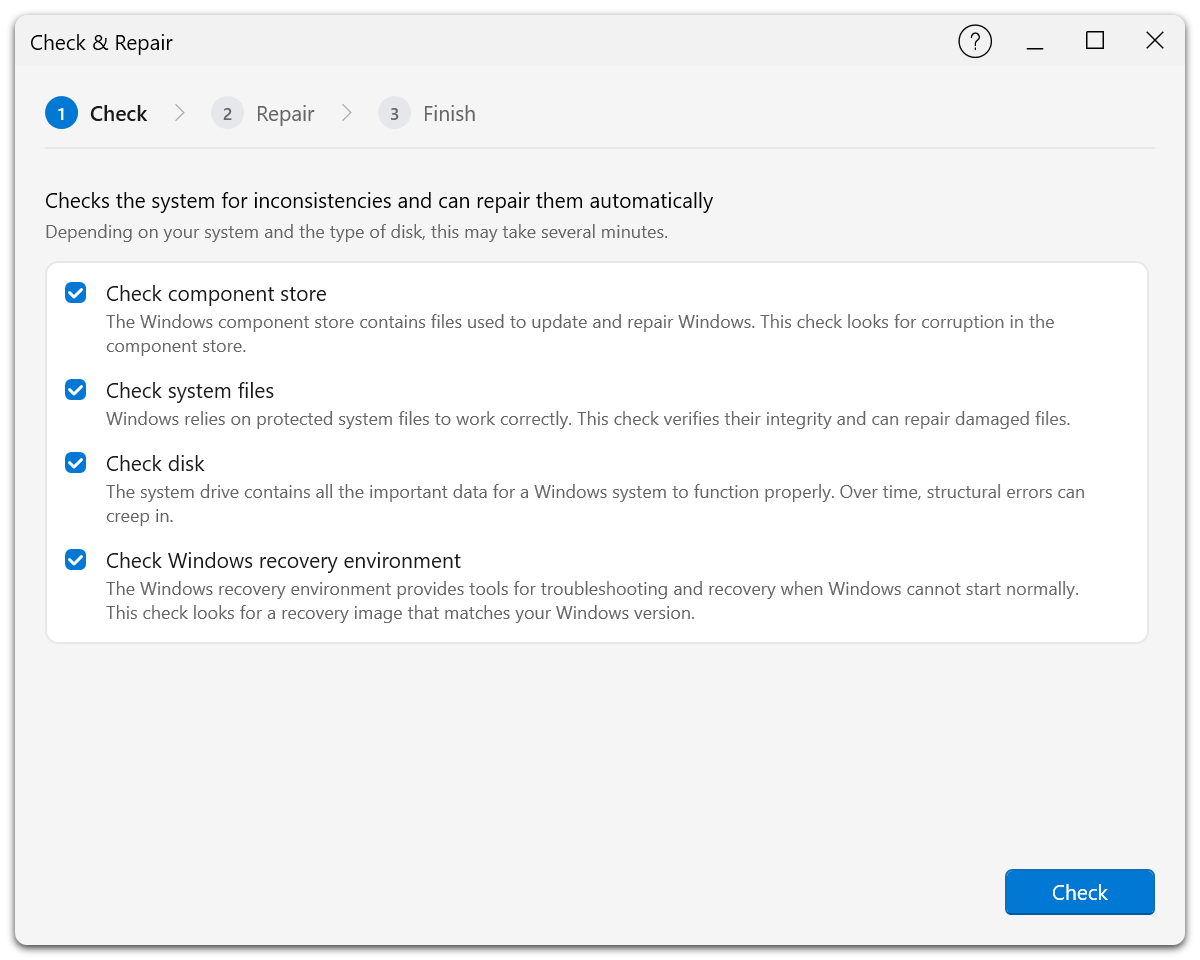
Tools > System > Check & repair checks the Windows system, including system components, system files, the file system, and the recovery environment, and offers repairs where supported. Follow the wizard and review each result.
This tool does not repair O&O DiskImage backup containers. To assess a backup file, use the validation wizard. If a backup is damaged, use another verified version or copy.
Connect A Network Folder
Enter a UNC path and credentials to connect a share to a drive letter. See Backup Destinations for stored credentials and connection tests.
Command Prompt
Opens the Windows command prompt for diagnostics and support work.