Restore Files
Restore all files or select individual files and folders from a file backup or supported disk image. File restore is also available for VHD backups created by O&O DiskImage.
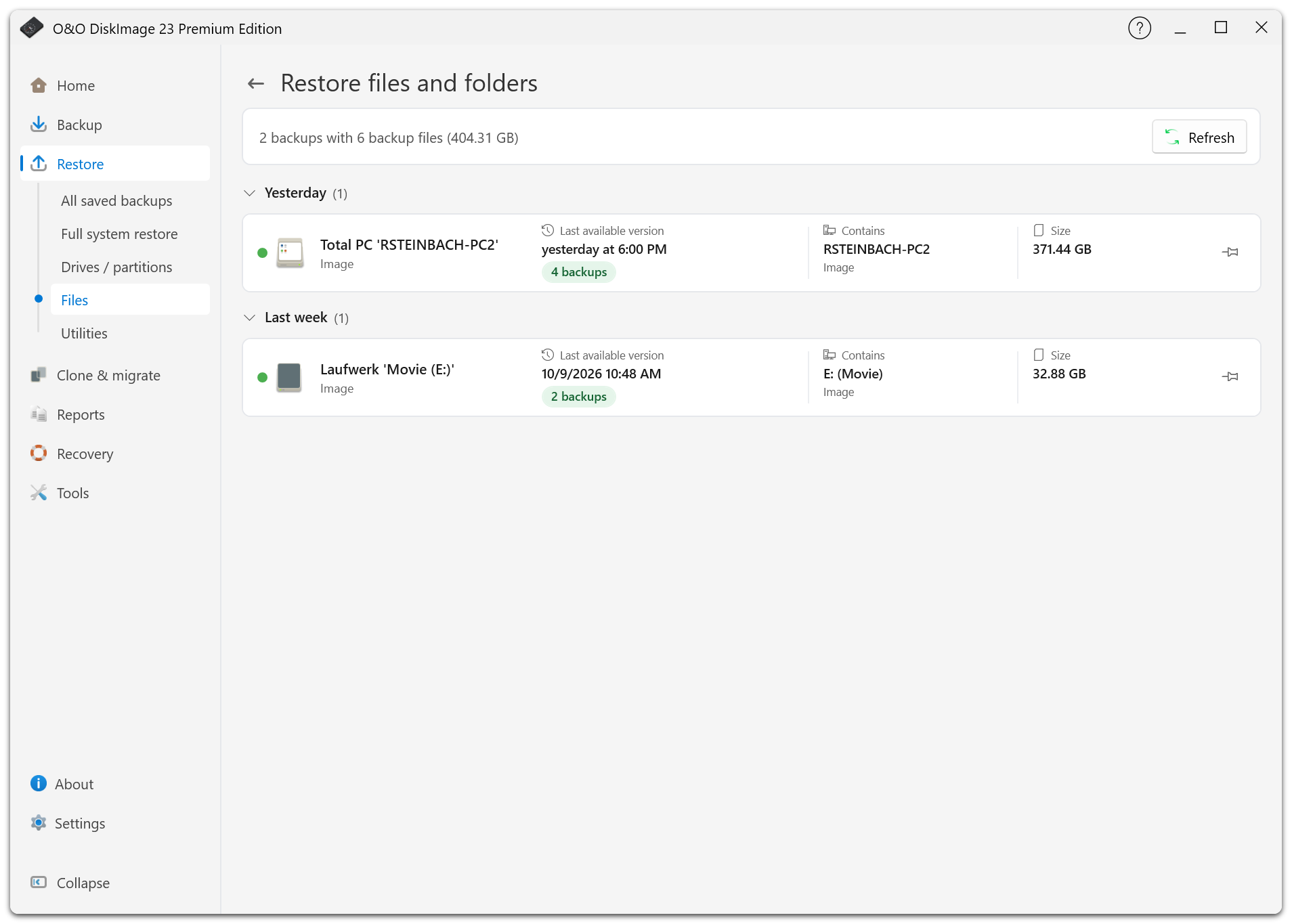
Restore Files And Folders
- Open Restore > Files, or select a backup under All saved backups and choose its file-restore action.
- Choose the version you need.
- Enter the original backup password if prompted.
- Select all available files or choose individual folders and files.
- Select the destination folder and review the summary.
- Start the restore and check its result.
The overview's Restore files and folders action opens the latest available backup directly. Choose a version from the saved-backup list if you need a different date.
Only files present in the backup are offered. Excluded files and folders cannot be restored from it. Loading a large image's file tree may take time.
Destination Folder
Restore to a separate folder when you want to compare files before replacing current data. Restoring to the original location can overwrite existing files. Check the destination and available space first.
Default folder-name templates are under Settings > Defaults for restores > Folder names. The file-restore progress window shows the operation and allows cancellation. After completion, review the report and open the restored files you need.
Restore From Another Copy
If the primary file is unavailable, select an available second copy. A cloud copy is downloaded with its required dependencies before restore. See Second Copy.
Mount An Image Instead
For supported disk images, mounting gives read-only access in Windows Explorer and lets you copy individual files. File-backup containers cannot be mounted.