Restore Overview
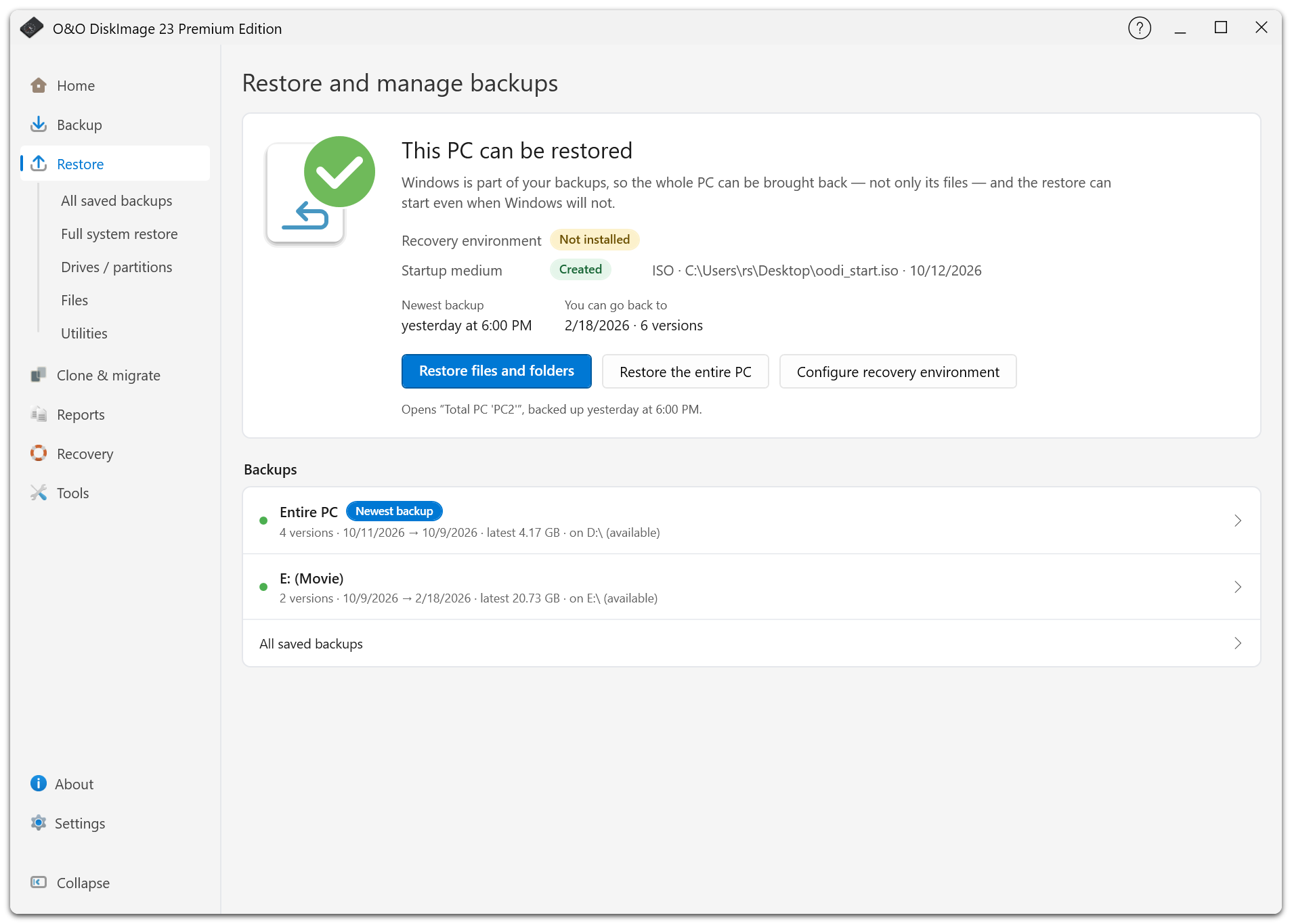
Choose Restore to recover files, partitions, or whole disks. The status card shows whether a Windows backup and recovery startup options are available.
Find A Backup
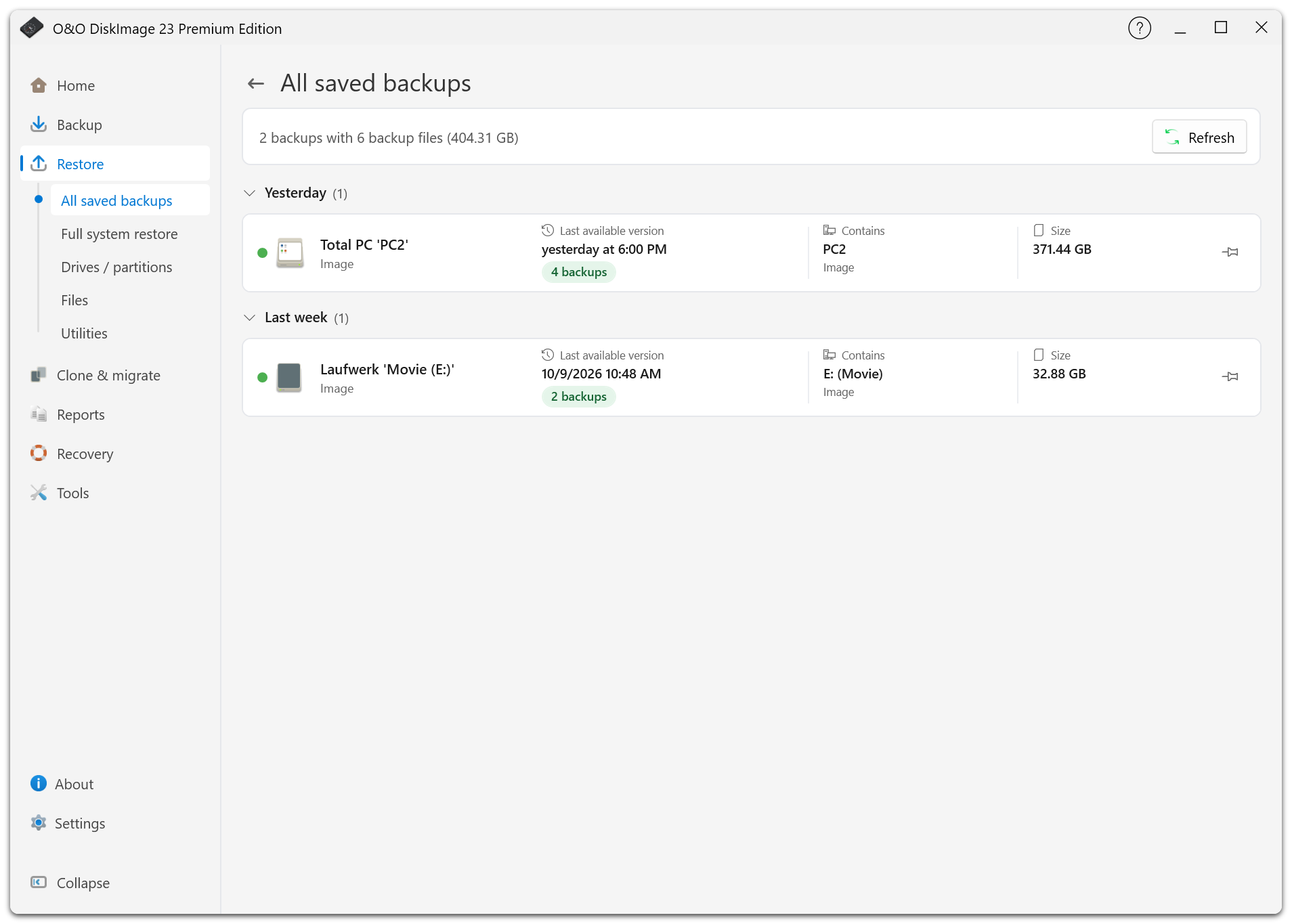
Restore files and folders on the overview opens the latest available backup directly. To choose an older version or another backup, open All saved backups or the relevant source type in the navigation pane.
Backups on disconnected storage remain visible. Reconnect the destination, or use an available second copy. Cloud-only versions must be downloaded before restore.
If the backup is not listed, choose Add an existing backup under Restore > Utilities. Keep the full backup and any required change backups available.
Choose A Restore Type
| Type | Purpose |
|---|---|
| Files | Restore selected files or folders from a file backup or supported image, including VHD backups created by O&O DiskImage. |
| Drives / partitions | Restore image contents to selected disks or partitions. |
| Mount a backup | Browse a supported image as a read-only drive and copy files in Explorer. |
| Full system restore | Restore Windows from the local recovery environment or startup media. |
Before You Start
Enter the original password if the backup is encrypted. File restore can overwrite existing files in the chosen folder; drive restore overwrites the selected target disk or partition.
Check the target in the summary and confirmation. A restore cannot overwrite the disk holding its own source file. If that disk cannot be identified, move the file to a known separate disk or a network share and try again.
For the running Windows disk, use the restart offered by Full system restore or the target selection dialog. If local recovery is unavailable, use bootable startup media.