Create a boot medium
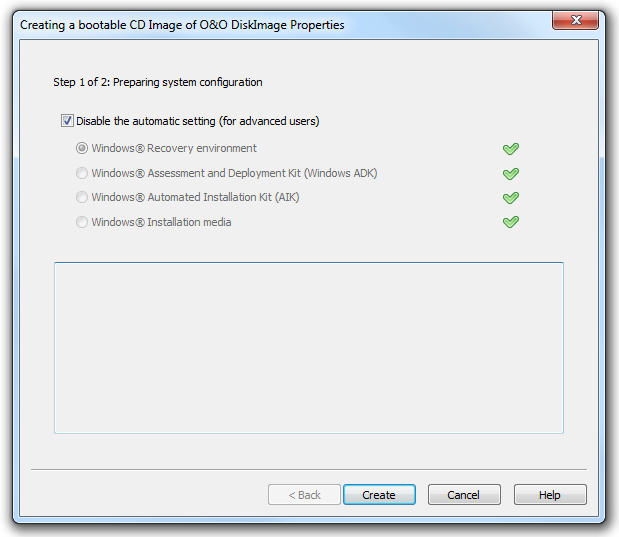
Creating a bootable disk with O&O DiskImage is possible by going to the menu item "Tools"/"Create bootable disk…". This feature detects those options available for creating a bootable disk within the system. It will then copy all the files that are required for doing this. To begin the process, click "Create". Once this step is successfully completed, click "Next" to reach the second page of the wizard.
The current options available for creating will be identified with a green check. Those options not available, because their components are either not installed or not recognized, will be displayed in red.
When enabled, automatic prioritization guarantees that the best option for creating will be selected automatically. Select "Disable the automatic setting" if you wish to use another option. Once this is done, the various options available for creating will be displayed for selection.
The program will first try creating a bootable disk using the Windows® recovery environment. When this isn’t possible, it will use the "Windows Assessment and Deployment Kit (ADK) for Windows®". The Kit contains a combination of tools that can be used for personalizing, evaluating, and preparing Windows operating systems for use on new computers. Microsoft® has made the Kit available for download under http://www.microsoft.com/en-us/download/details.aspx?id=30652 . As an alternative, you can also use the "Windows® Automated Installation Kit (AIK) for Windows®" to create a bootable disk. "Windows® Automated Installation Kit (AIK) for Windows® 7" can be helpful when installing, customizing, and preparing operating systems from the Microsoft Windows® 7 and Windows Server® 2008 R2 families. It can be downloaded from Microsoft® under http://www.microsoft.com/en-us/download/details.aspx?id=5753.
As a last option, you can use the Windows® installation disk to create a bootable disk. If this option is selected, the Windows®installation disk itself will need to be directly inserted.
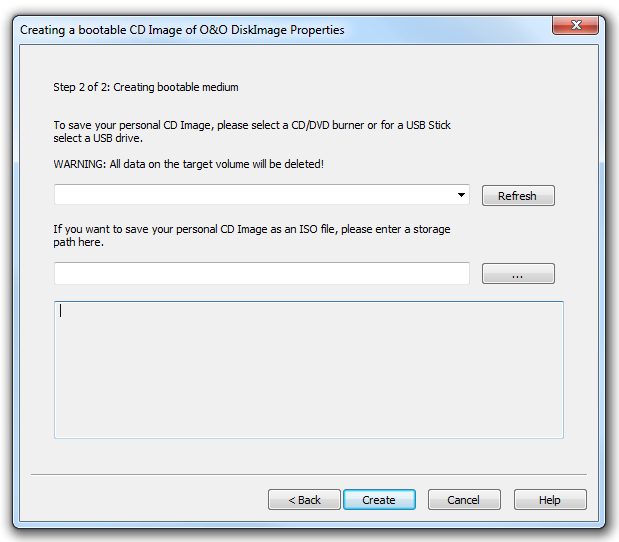
The next step will involve using the data detected to create a bootable disk. You have the option to burn the CD image onto a CD/DVD or copy it onto a USB stick. Select the CD/DVD burner or USB drive you want. You also have the option of saving the CD image as an ISO file for later use. This will require your entering a file name as well as a path. To complete creation, click "Create".
Boot medium with O&O BuildPE
You can also run O&O DiskImage without installation directly from a bootable medium. The boot medium is based on Windows PE and can be used for, among other things, restoring your entire computer or the system partition provided you have created a corresponding image.
If you purchased O&O DiskImage online, you've received an Email containing all the information you'll need for creating a bootable medium.
To create the medium, you'll need our O&O BuildPE program, a blank disk (CD-R, DVD, Blu-ray Disc or USB-Stick) and the needed hardware (burner for CD-R/DVD or Blu-ray).
You can learn more about creating a bootable medium with O&O BuildPE by visiting our website:http://www.oo-software.com/home/en/support/faq/oobuildpe/
If you're unsure, just contact our Support. We'll be happy to help you further. Remember to keep your license information handy:support@oo-software.com.