Views and Express view
You can change the O&O DiskImage interface according to your own preference. You have a choice of different views for each task.
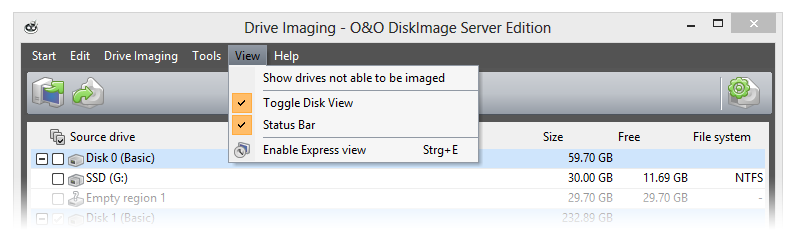
Show drives that cannot be imaged: all sectors of hard disk will be shown - even those that cannot be imaged.
Show disk view: a graphical view of the hard disk and the individual partitions will be displayed.
Status bar: displays the current status of a job.
Express view: Displays only the main features of O&O DiskImage.
Use Express view
The Express view provides a simple and intuitive way of using the main features of the program. You can use the Express view for creating, mounting, and restoring images. You can also switch easily from one view to another.
If you want to hide certain function from the user, you can disable them over the Registry entry ExpressFlags. For further information consult chapter Explaining the Registry entries.
Restoring the system partition is not possible while the computer's running.Use the boot medium for this and run O&O DiskImage directly from it.
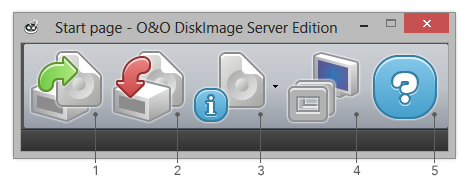
Key
- Create image - starts the imaging of one or more drives.
- Restore image - starts the restoration of the image.
- Read image information - displays detailed information about an image file. You can also use the drop-down menu (small arrow on the right) to mount and unmount an image from a drive.
- Restores the full view of O&O DiskImage's user interface.
- Displays the program's Help.
Status bar
The status bar informs you about O&O DiskImage's loading processes and activities.
Under View/Status bar you can hide or un-hide it.