Burn images to CD, DVD or Blu-ray
With the O&O DiskImage Writer (Burn Wizard) you can burn your image on CD/DVD/Blu-ray Disk (BD), create ISO files, burn ISO files and delete rewritable disks.
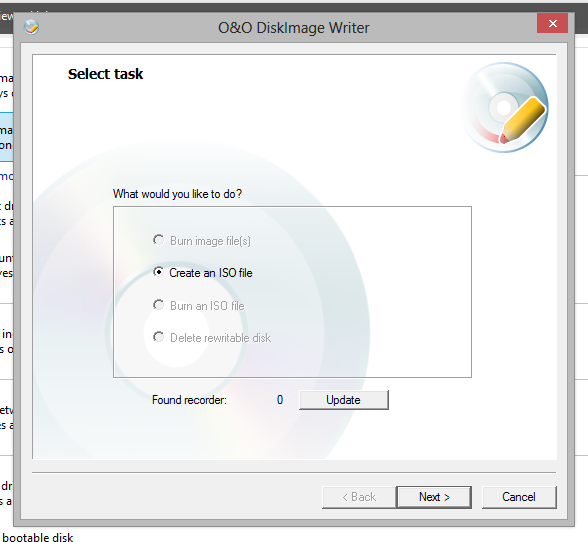
Burn image files on CD/DVD/Blu-ray
To save your image to CD/DVD/Blu-ray, you need to first create an image and save it on an internal or external drive*. Only then will it be possible to burn your image files (*.omg) or your virtual hard disk (*.vhd) to CD/DVD/Blu-ray. It is not possible to store an image or a virtual drive directly, i.e. without buffering it, on CD/DVD/Blu-ray.
Before starting the burn process, make sure that you have inserted an empty disk in the optical drive.
- Under Tools click Burn imaging file(s).
- Select the job Burn image file(s) in the O&O DiskImage Writer.
- Select your image file with Add. Depending on the size of the image file you can select one or more files.
- Then, click Next and follow the instructions in the dialog. Please also pay attention to the notices that appear.
- If one disk is not enough to hold your entire image, you can burn your image files one after another.
* Note for the creation of images: After selecting your drives for imaging, limit the image files to the size of your blank CD/DVD/Blu-ray underDrive imaging/Imaging options/Image file/File size. The image file will then be divided into several parts during the imaging process. The splitting of the image file at a later time is also possible, (See “Converting image file”).
When renaming individual parts of the image, it is recommended to keep the "number portion" of the file name (the number in parentheses) so that you can trace the order of the files and avoid problems when restoring the images at a later time.
In addition to CD/DVDs, the program also supports Blu-Ray Disks.
Create ISO file
- Under Tools click Burn image file(s).
- To create an ISO file, select Next in the O&O DiskImage Writer and then Create an ISO file.
- Then select the files via Add in the Windows-Explorer.
- Before following the dialogue further, check the path for saving the source file and pay attention to the occasional notes that appear.
Burn ISO file
- Under Tools click Burn image file(s).
- To burn an ISO file on CD/DVD, select Next in the O&O DiskImage Writer and then Burn an ISO file.
- Then select the files via Add in the Windows-Explorer.
- Before following the dialogue further, check the path for saving the source file and pay attention to the occasional notes that appear.
Delete rewritable disk
O&O DiskImage can help you delete rewritable disks.
- To delete a rewritable disk, under Tools/Burn image files select Delete rewritable disk in the O&ODiskImage Writer and follow the prompts in the dialog.