Select the search method
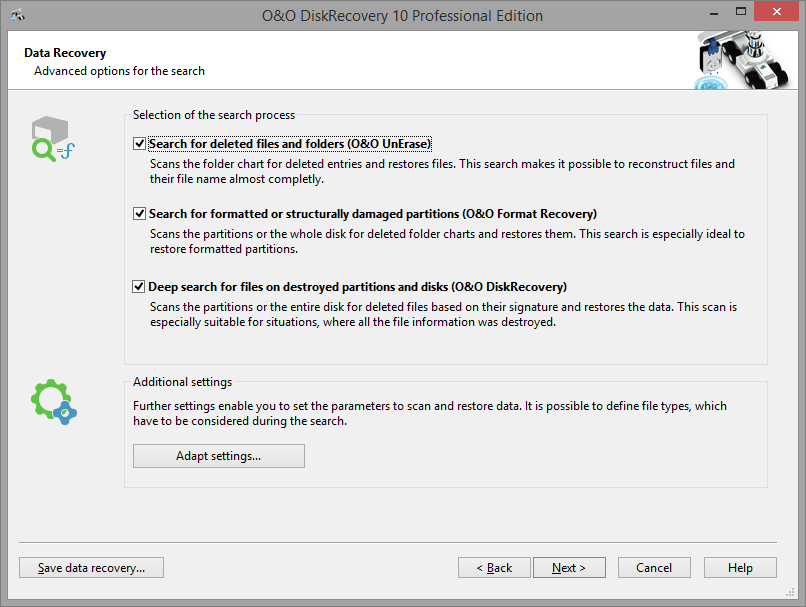
O&O DiskRecovery offers various search techniques in combination. The search techniques employ different search techniques to rescue data, which optimally complement each other.
As a rule, all search techniques are activated. In the search for deleted files all will be used for any inquiry. Depending on the size of the disk, this could take some time.
Selecting individual search techniques e.g. only O&O UnErase, offers the advantage that the search for deleted files is faster. If you are missing files after the first search run, you can use another search technique.
It is possible that not all scan processes will be fully run during a scan. This can be caused by the scan requiring an increased memory load. You’ll notice this when, for example, a higher number of files are found, or one of the three scan processes results in no found data at all. To avoid this, you should run a new scan and when doing so, disable one of the scan processes. You should either run O&O UnErase and O&O FormatRecovery OR O&O UnErase and O&O DiskRecovery.
O&O UnErase
The intelligent search algorithm enables a quick search run even through large hard disks. Even if some parts of your file have been overwritten with data, it is still possible to restore the other parts. Yet, it is also possible that not all deleted files are found.
O&O FormatRecovery
Compared to O&O UnErase and O&O DiskRecovery, O&O FormatRecovery is able to restore data, of which folder and structure information is missing completely. The advanced functions of the special search algorithm of O&O FormatRecovery makes it possible to locate and ignore the defect sector. As a result, it still possible to conduct a data rescue even if the disks is damaged.
O&O DiskRecovery
The search algorithm of O&O DiskRecovery scans all sectors of the hard disk, the memory card or the USB Stick for lost files. Even formatted or destroyed file systems have a good chance of having data reconstructed. After completing a scan, it is possible to preview the files that can be restored. O&O DiskRecovery supports various picture and text formats in the preview function (among other things JPEG, BMP, TIF an many more).
It is sensible to use all of three search techniques for the data rescue. Here are a few typical application examples to illustrate the differences between the software programs.
| O&O UnErase | O&O FormatRecovery | O&O DiskRecovery | |
|---|---|---|---|
| Files were accidentally deleted from the Recycle bin. |  | | |
| A drive was formatted. | | | |
| A virus or malicious software caused damage to some data and now some files or folders are missing. | | | |
| Windows announces the need to format the disk. | | | |
| The disk was formatted, the files were heavily fragmented. | | ||
| O&O UnErase did not produce the desired results. | | | |
| No file system is present on the drive. | | | |
| O&O FormatRecovery and O&O UnErase did not render the desired results. | | ||
| A new operating system was accidentally installed. | |
You can set further settings under Adapt settings.
Please bear in mind that the search techniques used by O&O FormatRecovery on e.g. hard disks encrypted with BitLocker, cannot reconstruct data.
Set up the search settings
After drive selection you will be able to define the settings that will have a huge effect on the precision and length of the scan. In addition you can lay down a minimum length for text files. However, the default settings are generally sufficient for most cases and therefore probably do not need to be changed.
If you have selected a device(hard disk, USB Stick etc.) and not a partition, you do not have the options O&O SmartScan and O&O RawScan at your disposal.
Maximum Scan Depth for Recovering Data (O&O DeepScan) Runs an even more precise scan when rescuing data and increases the rate of success for the restoration of the original file size. Also, very small files can also be found this way. This can increase the duration of the scan. Ignoring Existing Files (O&O SmartScan) Enables a faster scan and avoids the restoration of exisiting files. You will save later tedious comparisons and sorting of already existing files. Leaving Out the File System During the Scan (O&O RawScan) If the partitions, from which you want to restore data, was formatted, then the option O&O RawScan enables you to also restore these files. This can increase the duration of the scan. Specify size of files to be restored in O&O DiskRecovery This function limits the scanning sequence to notice only files smaller than a set number of Megabytes. This maximum value can be set anywhere between 1 and 1024 MB. By default, all recoverable files, regardless of their size, are scanned. Using this function will conserve system resources and possibly accelerate the entire scanning operation. Minimum Length for text files O&O DiskRecovery can recognize a number of different text files (HTML, source text files etc.). The default value of 512 characters means that all text files that consist of 512 characters or less will not be picked-up by the scan. If you would like to set this value lower, you can do so here. Minimum is a length of 16 symbols. The smaller the value, the longer the scan duration. 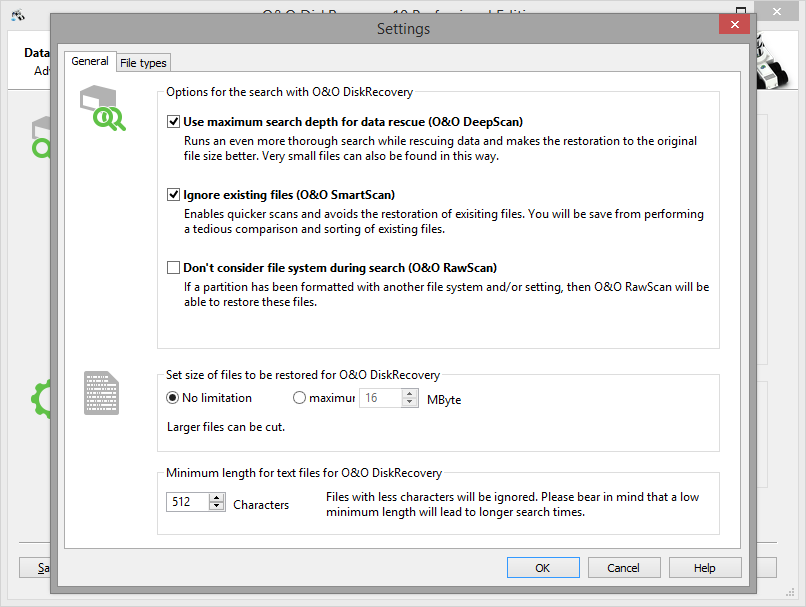
Filter by file type
It is possible to determine which types of files O&O DiskRecovery will scan for. By default all data types are considered. After the scan has been completed you will be able to select which files are to be restored. Because of this you may want to just leave the file type settings as they are. Clicking Next will initiate the data scan.
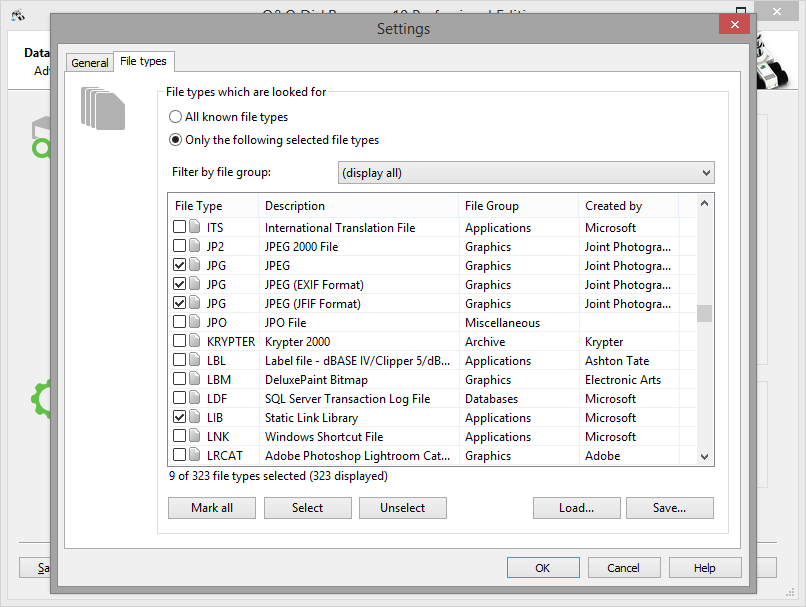
File Types
In the file type dialog box you can define which file type will be considered in the scan and will not. With the Filter you can customize the display to only show specific file type groups. To do this, just adjust the column headings to meet your sorting needs.
Please note that you must select at least one file type to continue with the scan.
Load and Save
In order to secure a specific group of file types for future scans, simply save this particular scheme. Later you can use the load function to change or use it again.
Selecting File Types
O&O DiskRecovery scans for all highlighted file types. All unselected file types are hidden. Normally, though, you can select all file types to be considered for the scan and filter those you do not want to recover after the scan result have been compiled.