Start and run the search
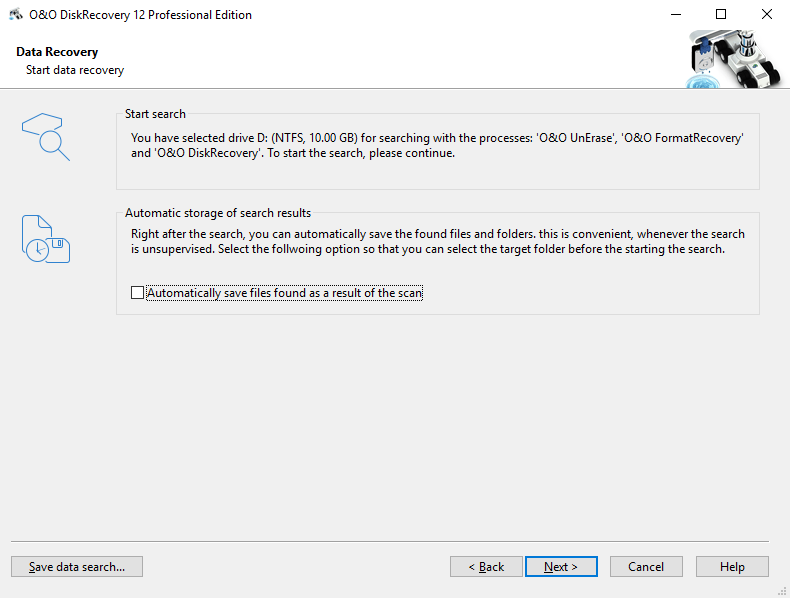
- Click on Next to start the search for deleted files.
Automatic saving of the search results
If you would like to execute an unsupervised scan, you can instruct O&O DiskRecovery to save all found files automatically after the scan and to finish the data rescue. This can save time. If you would like to select this option, your next step will be to define a target folder. Once this is completed, the scan will be initiated. More information on this can be found in the section entitled Saving Files.
This function is not available in the trial version and Personal Edition of the software.
Run the search
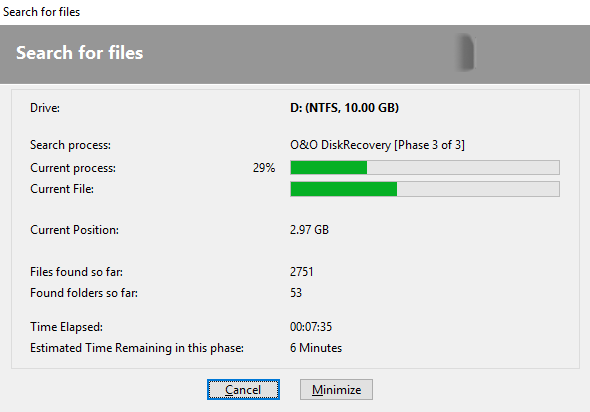
During the scan you will receive information regarding the O&O DiskRecovery scan by way of a status dialog box. In it you will find the overall progress of the scan, the progress pertaining to a specific file, and the number of files found to this point.
The elapsed time, as well as the estimated time remaining, can also be found here.
O&O DiskRecovery can be Minimized in to the System Tray. By clicking Cancel, you can stop the scan at any time. When the scan is interrupted you will be returned to the previous page of the assistant where you will be given the option of resuming the scan or running it again.