Manage individual deletion lists
O&O SafeErase offers various possibilities, to save different program activities as deletion lists. This makes it possible, to repeat selected activities analogous and with the same settings, e.g. with the selected deletion method, without needing to enter activity settings again.
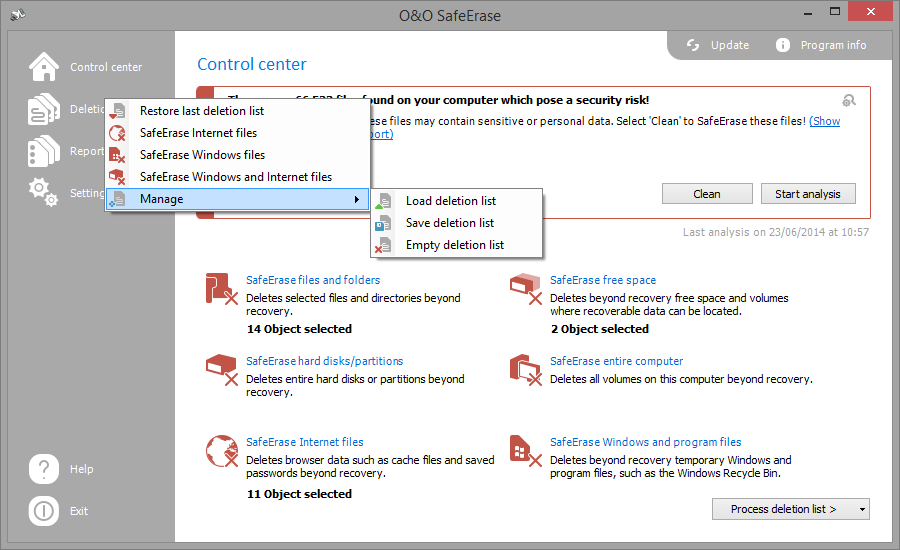
Use preset deletion lists
Preset deletion list are available as default. If you select a deletion list from it, the corresponding activity will be enabled on the start page. Then you can continue the deletion by clicking on Run.
- Select the Deletion list on the menu bar to the left, e.g. delete Internet files.
- Then click on Run.
- Then select a deletion method.
- Start the deletion process with SafeErase now.
SafeErase Internet files
Permanently deletes all temporary Internet files created by Windows and programs.
SafeErase Windows files
Deletes all temporary files in the temporary folder.
SafeErase Windows and Internet files
Permanently deletes temporary Internet files as well as Windows and program files.
Save deletion list
During the deletion dialog you have the possibility to save selected activities as deletion list. If you want to repeat the activity you can just load the deletion list and won't have to enter all the settings twice.
- Select any activity on the start page, e.g. SafeErase temporary Internet files.
- If you want, you can specify your setting in each activity window. You can for example, exclude certain files from the deletion.
- After selecting the objects to be deleted click on Add to deletion list in the Run now drop down menu. Alternatively you can also click on the Deletion lists in the left menu row and under Manage click on Save deletion list.
- In case you haven't entered a storage location for the deletion list, you will be prompted to do so. Then, return to the start page.
- Via Run now you will get to the selection of the deletion method and continue with the deletion.
Restore last deletion list
If you want to reload your last specified settings, click on Deletion lists and then on Restore last deletion list on the menu bar. All settings of the last selection will be applied and you can continue with the deletion.
The selection will be erased, when you shut down O&O SafeErase.
Empty deletion list
If you want to reverse your last specified settings, click on Deletion lists and then on Manage/Empty deletion list. All selected deletion settings will be removed.