Use O&O SafeErase via the context menu
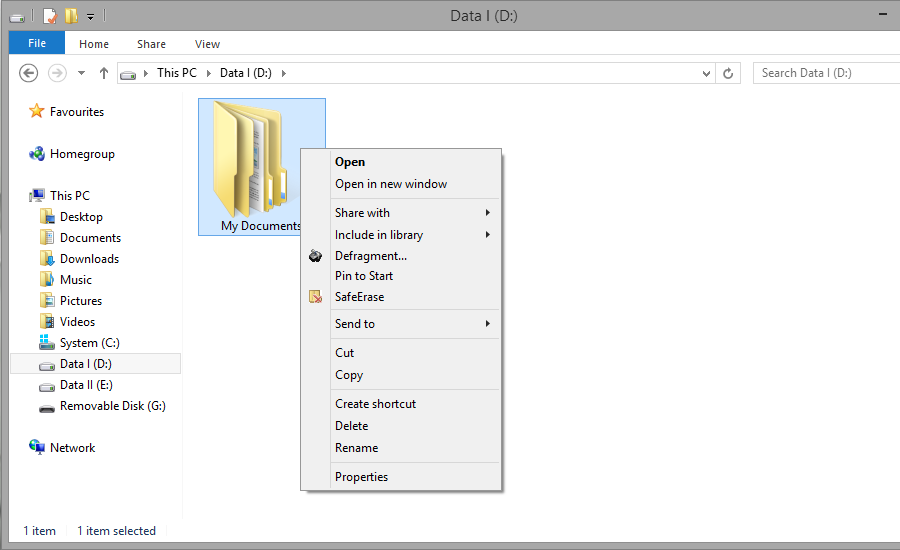
O&O SafeErase integrates itself into your Windows Explorer. You can access O&O SafeErase via right-clicking. Select one or more deletion objects and right-click them.
- The entry SafeErase allows you to start O&O SafeErase.
- After selecting the deletion method you can start the deletion with SafeErase now.
Delete files and folders via the context menu
To delete files or folders, right-click on them and select SafeErase – exactly like the Windows entry "Delete".
- O&O SafeErase will then ask you to proceed selecting the deletion method. More about this can be found in the chapter regarding Deletion methods.
- SafeErase now starts the deletion process.
If you would like to delete more than one file, hold down the 'Ctrl' key and highlight the files with the left mouse button.
Delete hard disks and partitions via the context menu
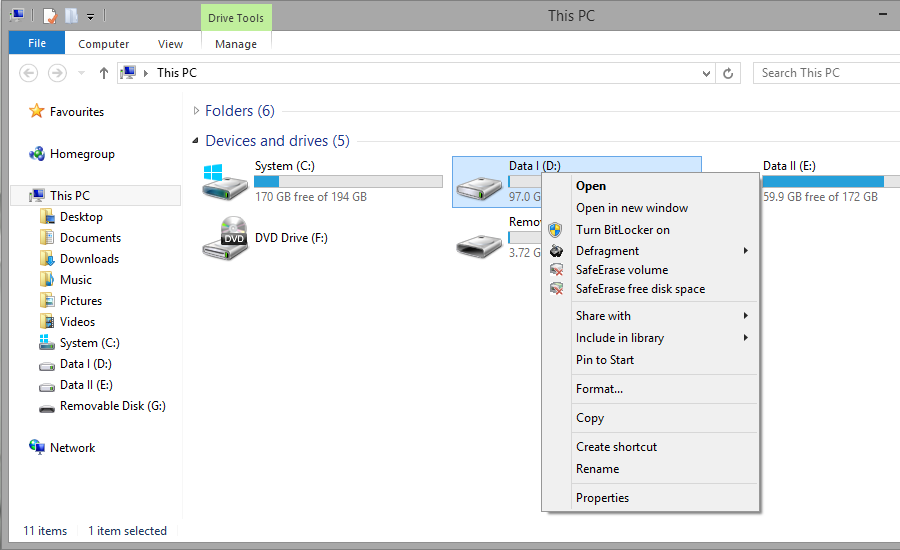
Simply find the partition in Windows Explorer you would like to SafeErase and right click on it.
- Select the menu entry SafeErase volume.
- O&O SafeErase will then ask you to proceed selecting the deletion method. More about this can be found in the chapter regarding Deletion methods.
- SafeErase now starts the deletion process.
Please bear in mind that this process might take up some time depending on the deletion method and the size of the partition.
After the partition has been permanently deleted it is necessary that you reformat the partition in order to use it again. More information about the formatting of a hard disk drive can be found in the Window's Help file.
Delete data later via the context menu
Data deleted with Windows does still exist on your computer. Windows makes these areas available to be rewritten as free space on the hard disks. To make sure that all old deleted data cannot be restored anymore, delete the free space with O&O SafeErase.
- To do this, select the function SafeErase free disk space by right-clicking on the drive where you would like to wipe the free space.
- O&O SafeErase will then ask you to proceed selecting the deletion method. More about this can be found in the chapter regarding Deletion methods.
- SafeErase now starts the deletion process.
The higher the level of security and the more free space for deletion, the longer the deletion process will take.
No existing files or data will be deleted, rather specific pieces of data that are marked free on the hard disk. After this process has been completed, you will not longer be able to restore this data ever again.
Delete data from the Recycle Bin via the context menu
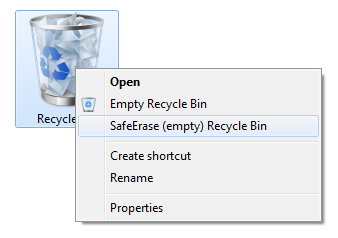
Select the Recycle Bin and right-click on it to view the context menu. There you can click on SafeErase (empty) Recycle Bin.
- O&O SafeErase will then ask you to proceed selecting the deletion method. More about this can be found in the chapter regarding Deletion methods.
- SafeErase now starts the deletion process.
Windows diverts only a set amount of disk space to the Recycle Bin. When the total size of it files excess this set amount, the oldest data are deleted. This deletion method, however, is still the Windows' standard and therefore not secure. In case files were deleted from the Windows Recycle Bin, this function would be the only possibility to make sure they were securely overwritten.