Settings
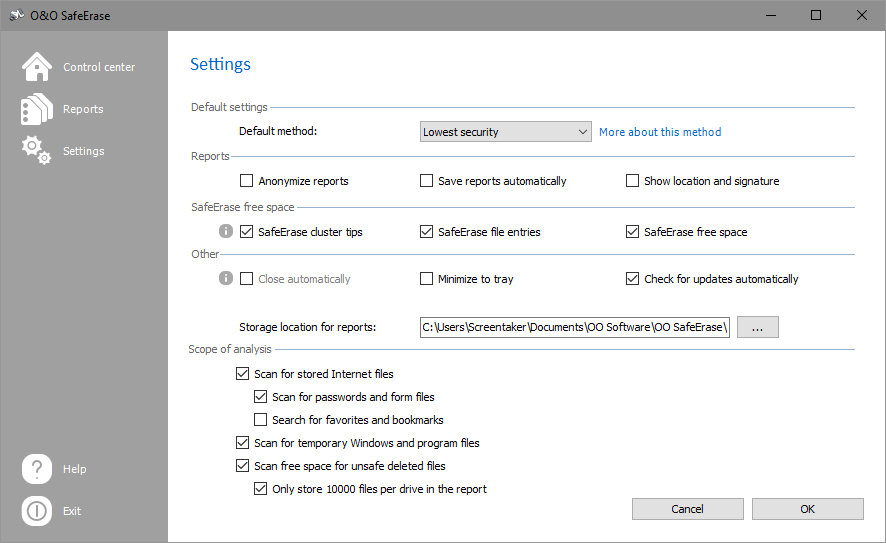
If you want to change the default settings, click in the left menu row on Settings. In the settings dialogue you have the possibility to change the preset deletion method, automatically check for updates, reports settings, the deletion of free space as well as the behavior of O&O SafeErase.
Set the default method
In the settings dialogue you can change the default preset for the Deletion method.
- Select a method from the drop-down menu, which should be used as default for deletions.
To apply the settings, confirm the dialog with OK.
Change settings for reports
Click on Settings/Reports in the start page to find these options.
Save reports automatically
When enabling this option, reports will be stored automatically after program execution in and accessed in the report list.
Anonymize reports
If you select this option, all names of the deleted files will not be listed in the report.
Show location and signature
If this option is enabled, the signature and the location will be displayed at the end of a report. These fields may be used to certify the data destructing in written form.
To apply the settings, confirm the dialog with OK.
Change settings for deleting free space
You have the possibility to set advanced settings for the deletion of the free space under Settings/SafeErase free space
SafeErase cluster tips
Clusters are the smallest hard disk units, where data can be saved. An entire unit will be occupied, even if the file is smaller than the smallest cluster. For example, if the smallest unit is 64 Kbytes in size and the file to save only 5 Kbytes small, the remainder of the hard disk unit will stay unused and there can be no access to it. Yet, file fragments of previously deleted files might still be located in this "free" area.
SafeErase MFT entries
For NTFS-file systems you can SafeErase the MFT entries (Master File Table). Every file is represented in the MFT by an entry. While using MFT entries, it is possible for data rescue programs to find and restore previously deleted data. To avoid this security loophole, O&O SafeErase offers the possibility to delete these entries. This way, unauthorized persons cannot reconstruct your data even with special software. In FAT file systems this setting deletes all FAT entries.
SafeErase free space
Deleted files are not really gone forever. When files are deleted, the area on the hard disk where the deleted data is recorded is simply marked by the operating system as free and open for the placement of other data. If this doesn't happen, data can be found and read. Therefore, it is important to SafeErase this free space.
To apply the settings, confirm the dialog with OK.
Change other settings
Under Other in the settings dialog you can change the way SafeErase operates.
Close automatically
If you enable this function, then O&O SafeErase will be closed once it finished with the deletion, if activated by right-clicking). If on the other hand enabled via the user interface, O&O SafeErase will return to the start page after the deletion. Please bear in mind that you can only enable this function, if the function Save reports automatically is enabled in the settings dialog, since the reports will not be saved otherwise.
Minimize in tray
If this function is enabled, then O&O SafeErase will be displayed in the Tasktray when next minimized.
Storage location for reports
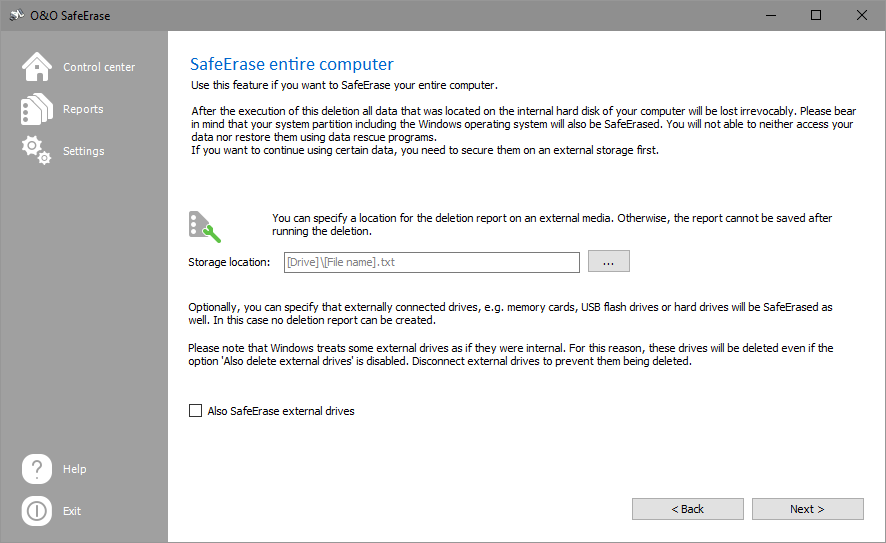
Here you can enter the target path, where the deletion reports for O&O SafeErase should be saved. If you want to delete the entire computer make sure that the storage location of the report is located on an external drive. Otherwise the report cannot be saved and will be deleted as well.
To apply the settings, confirm the dialog with OK.
Settings for the scope of analysis
You can select, which file type should be considered in the analysis.
- Check the box next to the file type you want to scan for. Files that have been stored on your PC by the internet browser will be searched for.
Scan for stored Internet files
Files are searched for, which have been stored by your Internet-Browser onto your computer. They might include Cookies, favorites, temporary files, passwords and form data.
Scan for Password and form files
The scan will filter for Internet files, form data and passwords, which have been stored via your Internet-Browser, e.g. the password for your Email account or access data to your online banking. This option is disabled as default.
Scan for temporary Windows and program files
The analysis also includes temporary created files. These are created most often by Windows and other programs to relieve the memory, e.g. during an installation created in a folder.
Scan free space for unsafe deleted files
Free space is scanned for files, which have been already deleted "normally". These files are not visible under Windows anymore; yet, they it may be possible to restore them using data rescue programs.
Only store 10000 files per drive in the report
Only 10000 files will be stored in a report per drive.