Settings
If you want to change the settings governing the general behavior of O&O SafeErase, you can do so via the "Settings" item in the menu bar. You can customize O&O SafeErase for general behavior, default behavior, reporting and analysis.
General settings
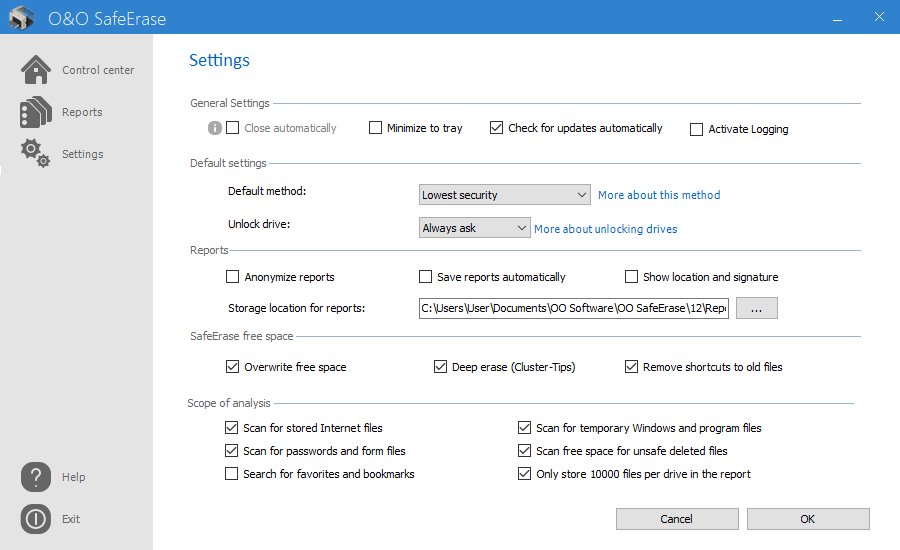
The general settings of O&O SafeErase can be found initially in the settings area. Here you can change the behavior of O&O SafeErase itself.
You can choose the option Close automatically, which closes the UI when deleting via context menu automatically after a successful deletion. If you select Minimize in Tray, the UI will be minimized to the lower right of the taskbar, the so-called Tray, rather than appearing directly on the taskbar. By default, O&O SafeErase automatically checks for updates, which you can also switch off in this area. It is also possible to enable logging. This is always useful if O&O SafeErase does not display the desired behavior and you would like to work together with our problem-solving support team. If you experience problems with your computer itself, more useful information can be found in the log on this too.
Please note:
To enable logging, the UI needs a reboot which will be offered to you directly after activating or deactivating the option, but you can also do this later if you do not need a log for the current session.
Default settings
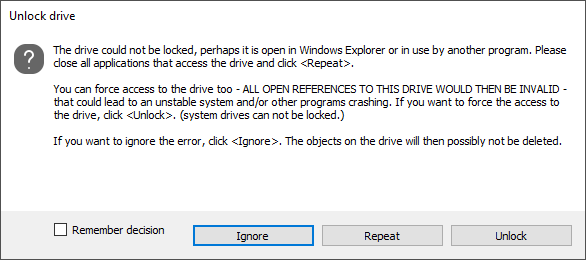
As of version 12.3 it is possible by default to answer the request for unlocking drives. This is found under "Default settings", where in addition to the standard method the option "Unlock drive" is also available. Here you can set the answer for the "Unlock drive" dialog for all operations. At the beginning this setting is set in such a way that, as previously, you will always be asked whether the drive should be unlocked. However, it is also possible to set it up so that drives are always unlocked, or that locked drives are always ignored.
Please note:
The forced unlocking of a drive that is in use can lead to data loss or inconsistencies! Only use this setting if you are sure that the corresponding drive does not contain any important data.
The option Default methods gives you the choice of specifying which method to use for each deletion process. However, you can still adjust the method directly for individual deletions.
Further settings
Reports
The “Reports” section in Settings includes all relevant options for saving and handling reports. Here you can decide whether reports are to be anonymized, i.e. file names and paths are replaced by *, whether reports should always be automatically saved and whether the location and signature should be visible on the reports.
Delete Free Space
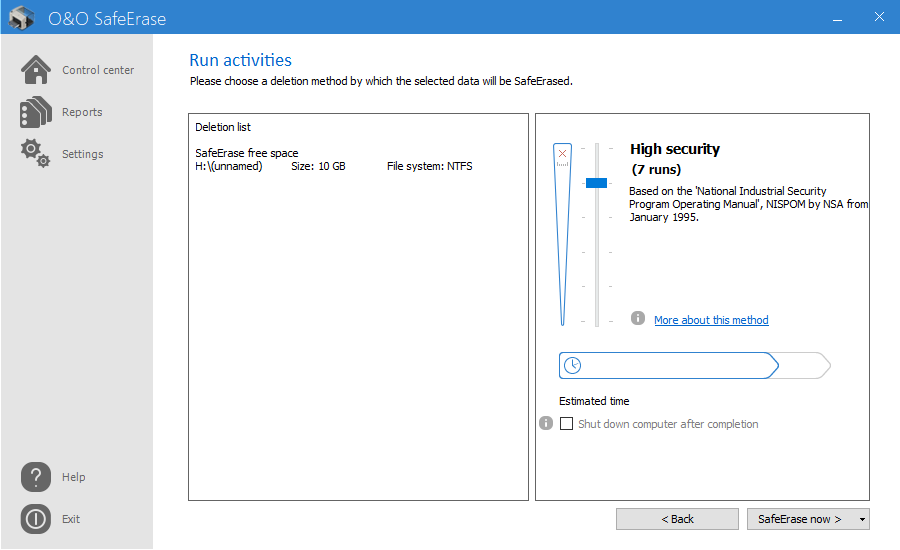
Because the deletion of free space involves a number of tasks, you have the option of selecting or deselecting individual tasks. If you’re deleting free space to permanently remove data and increase security, it’s better not to deselect tasks.
Overwrite free space
Deleting a file means only that it will no longer be displayed and the sector where it’s located will be marked as free. At some point that sector needs to be used again and so the file will be overwritten. Because of this, as long as the file has not been overwritten, it can be restored. O&O SafeErase resolves this problem by overwriting whatever the system marks as free space.
Remove links to old files
NTFS formatted file systems have a Master File Table or MFT which saves information to your files (FAT entries do the same for FAT file systems). Using entries in the MFT, it’s possible find the sectors where files are or were located. Data recovery programs use these links to restore data. What’s good for data recovery programs is bad for your security which is why O&O SafeErase deletes obsolete entries in the MFT (or in the FAT).
DeepErase
Remnants of previously deleted files can, in the worst of cases, still be found in the smallest hard disk units (called clusters). That’s why even these tiny units need to be cleaned up to guarantee maximum security. So-called cluster tips can be accumulated while a system’s being used which explains why an initial DeepErase can take some time to complete. The duration will be reduced dramatically the second time. Running deep deletion on a regular basis will require just a fraction of this time.
Analysis
The analysis is a very comprehensive search for files that could endanger you or your privacy. However, as it can also include the deletion of form data and passwords, as well as various other files of the browser or Windows, you have the possibility to select or deselect different functions within the analysis. For example, if you do not want your saved passwords to be deleted during the analysis, you can adjust this here.
Scan for stored Internet files
Files are searched for, which have been stored by your Internet-Browser onto your computer. They might include Cookies, favorites, temporary files, passwords and form data.
Scan for Password and form files
The scan will filter for Internet files, form data and passwords, which have been stored via your Internet-Browser, e.g. the password for your Email account or access data to your online banking. This option is disabled as default.
Scan for temporary Windows and program files
The analysis also includes temporary created files. These are created most often by Windows and other programs to relieve the memory, e.g. during an installation created in a folder.
Scan free space for unsafe deleted files
Free space is scanned for files, which have been already deleted "normally". These files are not visible under Windows anymore; yet, they it may be possible to restore them using data rescue programs.
Only store 10000 files per drive in the report
Only 10000 files will be stored in a report per drive.