Settings
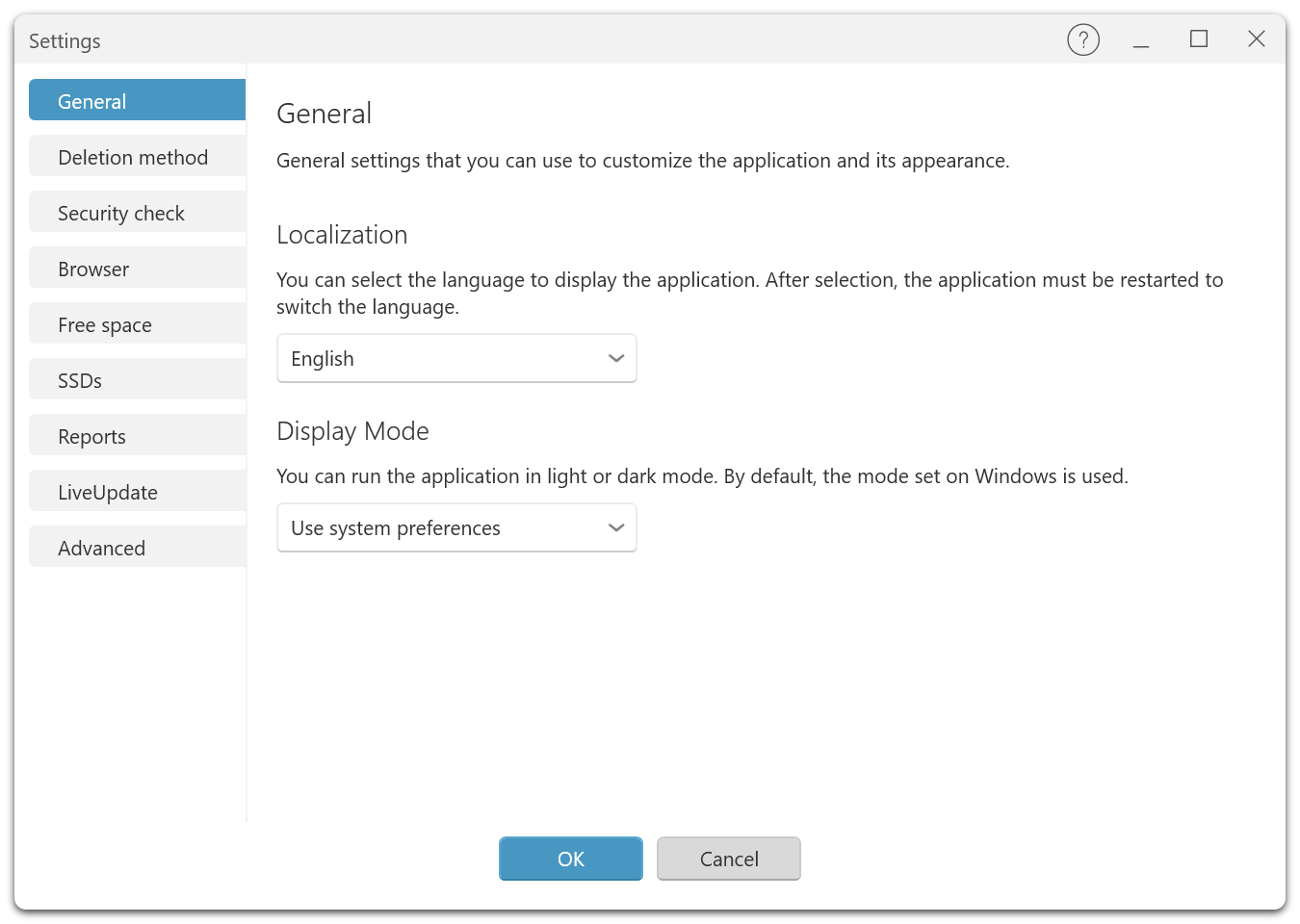
The settings of O&O SafeErase are divided into four main sections: General, Reports, Scan, and Defaults. Below is an overview of each section and its functions:
General
General settings that allow you to customize the application and its appearance.
-
Language: Select the language of the user interface.
-
Display Mode: You can run the application in light, dark, or high-contrast mode.
Deletion Methods
- Default Deletion Method: Define the preferred method that will be automatically applied for each deletion process.
Security Check
-
Security Check Options: Specify which types of data should be analyzed.
-
Free Space: Analyze and erase free disk space to ensure deleted data cannot be recovered.
-
Internet Traces: Remove temporary browser data such as history, cache, and cookies.
-
Windows and Program Files: Delete temporary files created by Windows or other applications.
Browser
- Supported Browsers: Select which browsers should be included in the cleanup process.
Free Space
-
Erase Free Disk Space: Scans and overwrites free space on all drives.
-
Securely Erase Free Space: Reliably prevents the recovery of deleted data.
-
DeepErase in Clusters: Cleans even the smallest storage units (clusters) for maximum security.
-
Remove Links to Deleted Files: Deletes outdated entries in the MFT or FAT, making data recovery more difficult.
SSDs
-
Erase Solid-State Drives (SSDs): Enables special functions for SSDs.
-
Erase SSDs with SolidErase: Uses the manufacturer-specific Secure Erase function to securely wipe SSDs without causing unnecessary write cycles.
Reports
-
Automatically Save Reports: Enable automatic saving of all deletion reports.
-
Anonymize File and Directory Names: Replaces file names and paths in reports with placeholders (*).
-
Maximum Number of Entries in Report: Limit the number of stored files per report (up to 10,000).
LiveUpdate
-
Automatically Check for Updates: The program checks for new versions on startup.
-
Do Not Show Current Update Again: Hides notifications for a specific update.
-
Do Not Show Any Updates: Disables update notifications entirely.
Advanced Settings
-
Unlock Drive: Specify whether drives should be automatically unlocked (Warning: may cause data loss).
-
Minimize to System Tray: Keep the application running in the background.
-
Close Application after Context Menu Deletion: Automatically exit after performing a deletion from the context menu.
-
Write Application Log: Creates a detailed log of program activities.
These settings provide comprehensive control over how O&O SafeErase handles and protects data. It is recommended to familiarize yourself with the impact of these options before making changes.