Installation and licensing
The installation of O&O SafeErase is very simple. Please follow the steps below:
- Turn on the computer on which you would like to install O&O SafeErase.
- Login as a local Administrator.
- Insert the data medium with the required software in its respective disk drive, e.g. your CD-ROM drive, or start the installation file provided (SETUP.EXE).
- Please follow the installation guide and confirm the End-User license Agreement (EULA). Please read it carefully before the installation - it is binding.
- To complete the installation of the program, please restart your computer, if you have not been prompted to do so already.
Information about licensing
In order to activate the product after installation or to gain access to the Full Version at a later time, you must possess a valid license key. This license key is also called a registration code, serial number, or product ID.
O&O SafeErase needs to be licensed per computer; in other words, you have to purchase a license for each computer where you want to employ O&O SafeErase.
If you do not enter a valid license key, you will only be able to use O&O SafeErase as a trial version with a limited functionality.
If you would like to implement O&O SafeErase in your company or as a technician for your customers, then please contact one of our resellers or our Sales Department.
Enter license
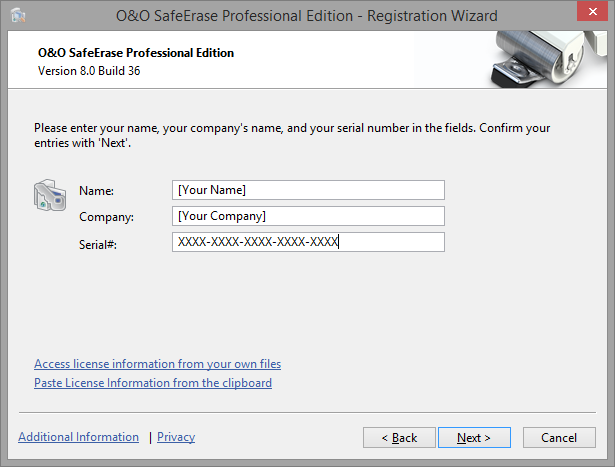
The dialogue for registration always appears automatically at the start to guide you if you are using an unregistered version or have entered the registration code incorrectly.
- The registration wizard allows for a simple registration process.
- When you select the option I want to enter my license, a dialog box will appear where you can enter the registration code you received when purchasing the software.
If you have purchased the download version of the software, please enter the license information (name, company and license key), just as they are written in the confirmation E-Mail you received.
If you have purchased the box version of the software, please enter the license key as it is written on the license card included. In addition, please enter your name and if needed your company. - Please make sure that you do not confuse the digit “1” with “I” or enter any empty spaces where they don’t belong.
- Press Next to save the registration data or Cancel to leave the dialog window without saving the data.
- When you have correctly entered the license code you will receive a confirmation in the dialog window.
If you encounter problems while entering your license key, please contact our Support: support@oo-software.com
If you do not enter a valid license key, you will only be able to use O&O SafeErase as a trial version with a limited functionality.
Online registration
To register online, you'll need the license key you received when you purchased the program.
To register online, start. The questions related to online registration always appear at the start, provided you haven’t registered online.
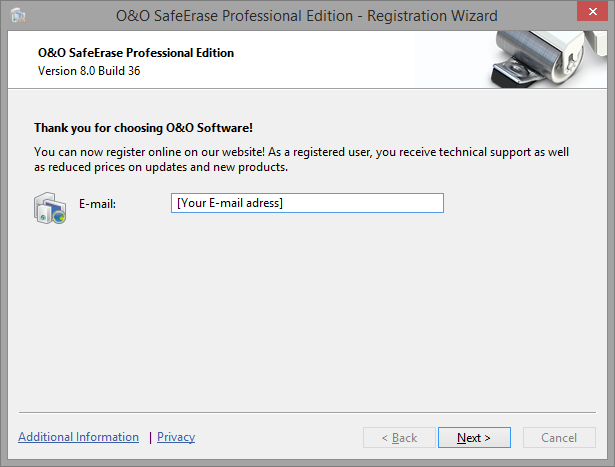
What are the advantages of online registration? Online registration gives you the benefit of having your customer data kept safely in our files, which means we can provide you with even better service. If, for example, you accidentally lose your license key, we can quickly resend it to you without any problem. The license key is needed for using the full version of a program, getting updates, and for reinstalling the program when you make a new setup of your computer.
Further advantages will let you:
- Be supplied with the latest information about our products
- Make free updates on new versions of purchased items (minor updates)
- Upgrade to a new version at a special discount price (major update)
- Obtain support from our customer service
How do I register online?
If O&O SafeErase 7 was purchased on our Online Shop, you’ve automatically registered with us. If O&O SafeErase 7 purchased at a retailer, you will be asked if you want to register while entering the license information. You then have the option of either registering immediately or at another time. All you’ll need is a functioning Internet connection and a valid license key.
You may also complete the registration form right here:
http://www.oo-software.com/register
Just return the completed online form by clicking “Send” and you’ll be eligible to take full advantage of our O&O Customer Service.
Updates
By clicking Update, you can check if you're using the latest version of the program. If a newer program version is available, you can select to find out about it on our website.
So-called"Minor Updates" (Version 5.0 to 5.1, 5.2,etc.), where smaller changes in the program have been made, are free. "Major-Updates", such as from version 5 to 6, must generally be purchased.
- If you decide to upgrade, download the current program version from our website under (Downloads) and save the installation file on your computer.
- Your license data will normally be saved during Minor Updates so you won't have to enter them again after a successful installation. To be on the safe side, we do recommend keeping your license key for the current version within easy reach - just in case you run into trouble.
- "Major Updates" will require the new license that you receive upon purchasing the software.
To install an update, please do the following:
- Double-click the O&O SafeErase installation file to start the new installation.
- Follow the installation dialogs.
- Once finished, the new version is fully installed.
- Restart the computer when prompted to do so.
- Before starting O&O SafeErase for the first time enter your license key when prompter to do so.
If you do not have your license key at hand, contact our Support: support@oo-software.com
Information about your installed program version and the license data (if you have it) can be found under Program info.

You won't be able to use the Update function if you're using O&O SafeErase as a component of a Boot CD, such as O&O BlueCon.
Uninstall
To remove O&O SafeErase from your PC, please follow the instructions below:
- Open the Control Panel in the Windows start menu and then click on Software.
- Select O&O SafeErase from the list and then click on (depending on the OS) Uninstallation or Add/Remove.
- Confirm the uninstallation. You'll receive a confirmation notice when uninstallation is completed. When prompted, restart your computer.
Trial version
If you do not have a valid license key, you will only be able to use O&O SafeErase with a limited functionality range.