AI Removal
The AI Removal feature provides a comprehensive, three-layer approach to removing Microsoft Copilot and Recall components from your system. It is accessible from the AI tab in the main window and combines the O&O ShutUp10 settings engine, the O&O AppBuster engine, and the O&O SafeErase engine into a single workflow.
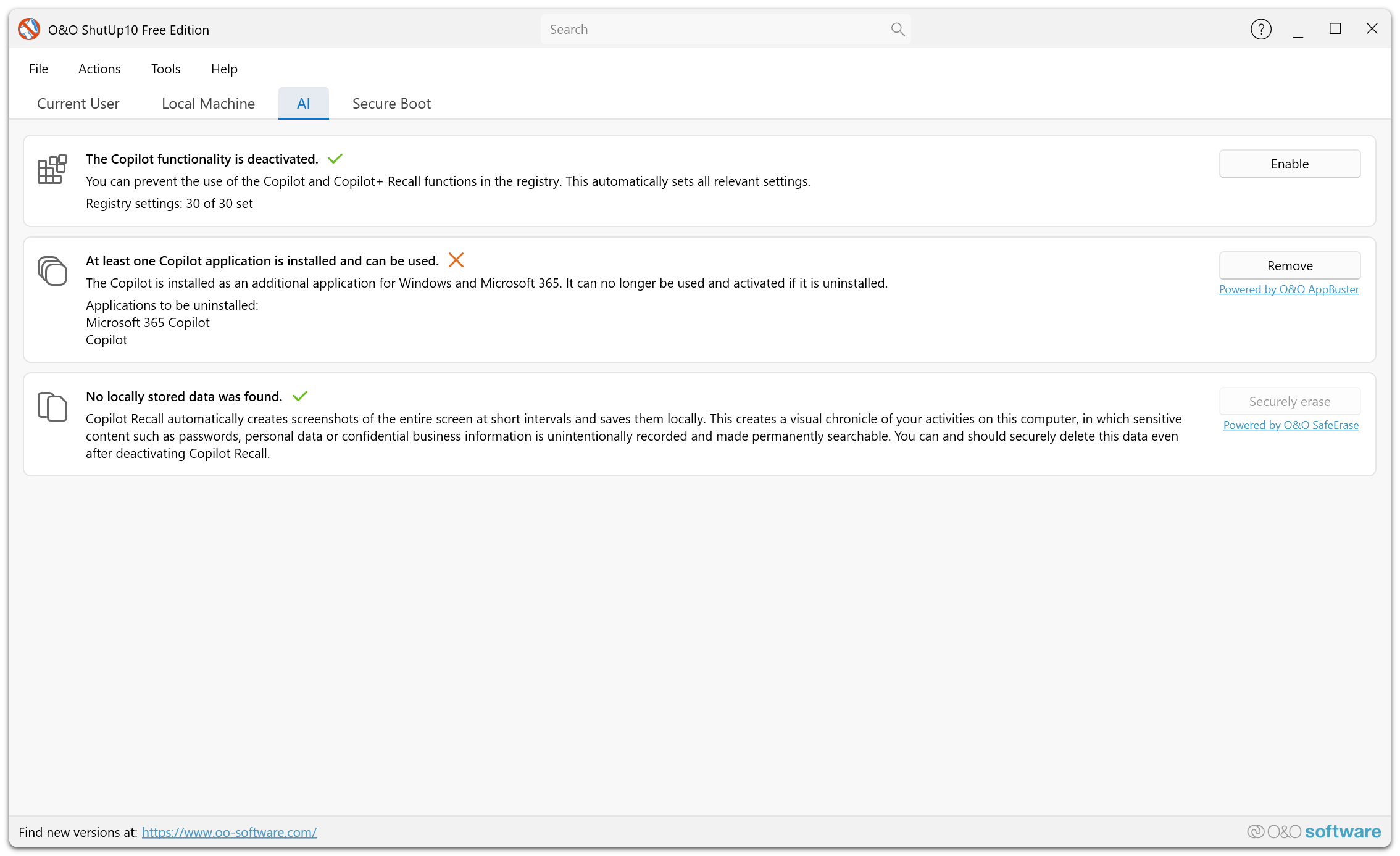
Free Edition:
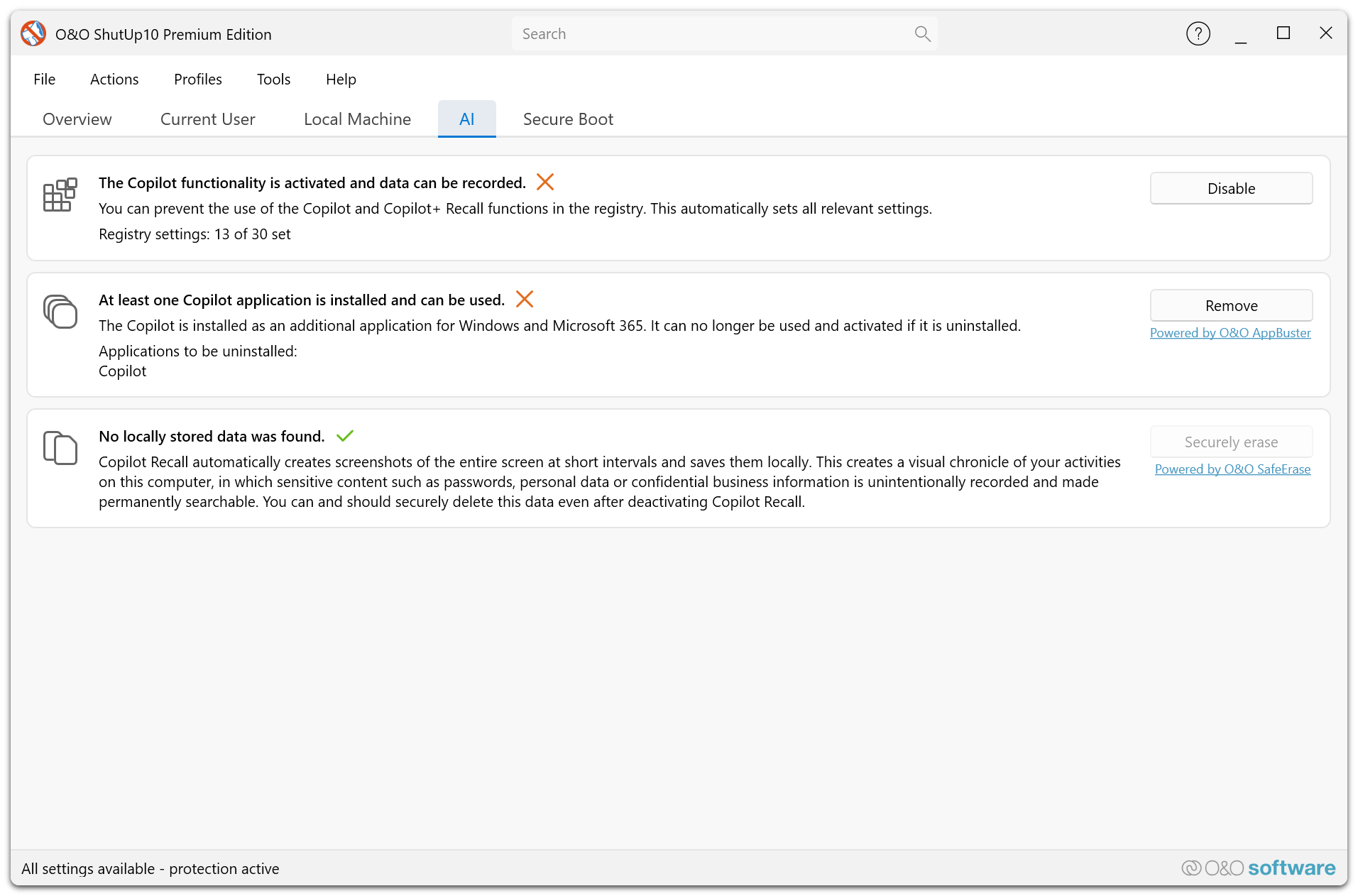
Premium Edition:
Windows Copilot+ Recall automatically captures screenshots of your activity at regular intervals, stores them locally, and uses AI to make that history searchable. The AI Removal feature lets you address every layer of this functionality: the registry settings that enable it, the applications that power it, and the data it has already stored on your device.
AI Settings
The first layer controls the Windows registry settings that govern Copilot and AI functionality. These are a bundle of the regular O&O ShutUp10 privacy settings from the Microsoft Copilot (in Windows) category, presented together for convenience.
What the settings control
| Setting | Effect |
|---|---|
| Disable the Windows Copilot | Fully disables the Copilot AI assistant in Windows. |
| Disable Recall enablement | Prevents Copilot+ Recall from being activated on your device. |
| Disable AI data analysis | Stops Windows from using AI to analyze your data locally. |
| Disable the Copilot button from the taskbar | Removes the Copilot button from the Windows taskbar. |
| Disable the Image Creator in Microsoft Paint | Disables AI-powered image generation in Paint. |
| Disable the Cocreator in Microsoft Paint | Disables the AI-powered Cocreator feature in Paint. |
| Disable AI-powered image fill in Microsoft Paint | Disables AI-powered generative fill in Paint. |
How it works
- The AI tab displays a status showing how many AI-related settings are currently disabled (e.g., "5 of 8 disabled").
- Click Disable to apply all recommended AI settings at once.
- These settings modify the Windows registry in the same way as toggling them individually in the main settings list.
Because these are standard O&O ShutUp10 registry settings, they can be re-enabled at any time — either by toggling individual settings back in the main settings list, or by re-running the AI settings with the opposite configuration.
If you only want to disable Copilot and Recall without removing applications or data, applying the AI settings alone is sufficient and fully reversible.
AI App Removal (O&O AppBuster)
The second layer removes Copilot-related applications from your system using the O&O AppBuster engine. This detects and uninstalls Microsoft Copilot+ applications that are installed as Windows Store apps.
What it does
- Scans your system for installed Copilot+ applications (both per-user and machine-wide installations).
- Displays the names of any detected Copilot applications.
- Removes the applications when you click Remove.
Detection
The AI tab shows the current status:
| Status | Meaning |
|---|---|
| Applications listed by name | One or more Copilot+ apps are installed on your system. |
| "No Copilot applications were found" | No Copilot+ apps are currently installed. |
Warning — This action cannot be undone by the application
Removing Copilot+ applications is a permanent, one-way operation within O&O ShutUp10. Once the applications are uninstalled, they cannot be reinstalled by this application. To restore them, you would need to reinstall them manually through the Microsoft Store or by resetting Windows components.
Secure Deletion of Recall Data (O&O SafeErase)
The third layer securely deletes the data that Copilot+ Recall has already stored on your device, using the O&O SafeErase engine.
What is stored in the Recall folder
Windows Copilot+ Recall stores its data in the CoreAIPlatform.00 folder within your local application data directory (%LOCALAPPDATA%\CoreAIPlatform.00). This folder contains:
- Screenshots — Periodic captures of your screen activity taken at regular intervals.
- OCR text data — Extracted text from the captured screenshots, used to make your activity searchable.
- Index databases — Search indexes that allow Recall to find and display past activity.
- AI model data — Local AI processing artifacts used for on-device analysis.
This data can contain highly sensitive information: passwords visible on screen, private messages, financial data, personal documents, and anything else that was displayed on your screen while Recall was active.
How it works
- The AI tab scans the Recall data folder and reports the number of files and directories found, along with their total size.
- If no Recall data exists, the status shows "No locally stored data was found."
- Click Remove completely to securely erase all detected Recall data.
The secure deletion uses the O&O SafeErase engine, which overwrites file contents before deletion, ensuring the data cannot be recovered using file recovery tools.
Warning — This action cannot be undone in any way
Secure deletion with O&O SafeErase is permanent and irreversible. Unlike standard file deletion (where data may remain recoverable on disk), secure erasure overwrites the file contents with random data before removing them. Once the Recall data is securely erased, it cannot be recovered by any means — not by O&O ShutUp10, not by Windows, and not by any data recovery tool.
Only proceed if you are certain you no longer need any of the data stored by Recall.
Complete AI Removal
For maximum protection, you can execute all three layers together in a single operation. When you choose to deactivate all components, a confirmation dialog asks:
"Are you sure you want to disable all components?"
Confirming this will:
- Disable all AI-related registry settings (reversible).
- Remove all detected Copilot+ applications (not reversible by the application).
- Securely erase all Recall data stored on the device (permanently irreversible).
Status Overview
The Premium Edition overview tab includes an AI status indicator that provides a quick summary of your Copilot+ removal status:
| Component | Status values |
|---|---|
| Settings | "X of Y disabled" |
| Applications | "Not installed" or "X installed" |
| Recall Files | "No files detected" or "Files detected" |
The overall status is shown as:
| Overall status | Meaning |
|---|---|
| All Copilot+ components removed | All settings disabled, no apps installed, no Recall files. |
| Partially removed | Some components have been addressed, but not all. |
| Copilot+ components active | No removal actions have been taken. |