Settings Dialog
The Settings Dialog centralizes all application configuration options in a single, tabbed interface. It is accessible from View → Settings… in the main menu.
Overview
The Settings Dialog replaces the previously scattered configuration options that were available across different menus. All changes are persisted immediately when you click OK, and visual changes (theme, color scheme) are applied in real time.
General Tab
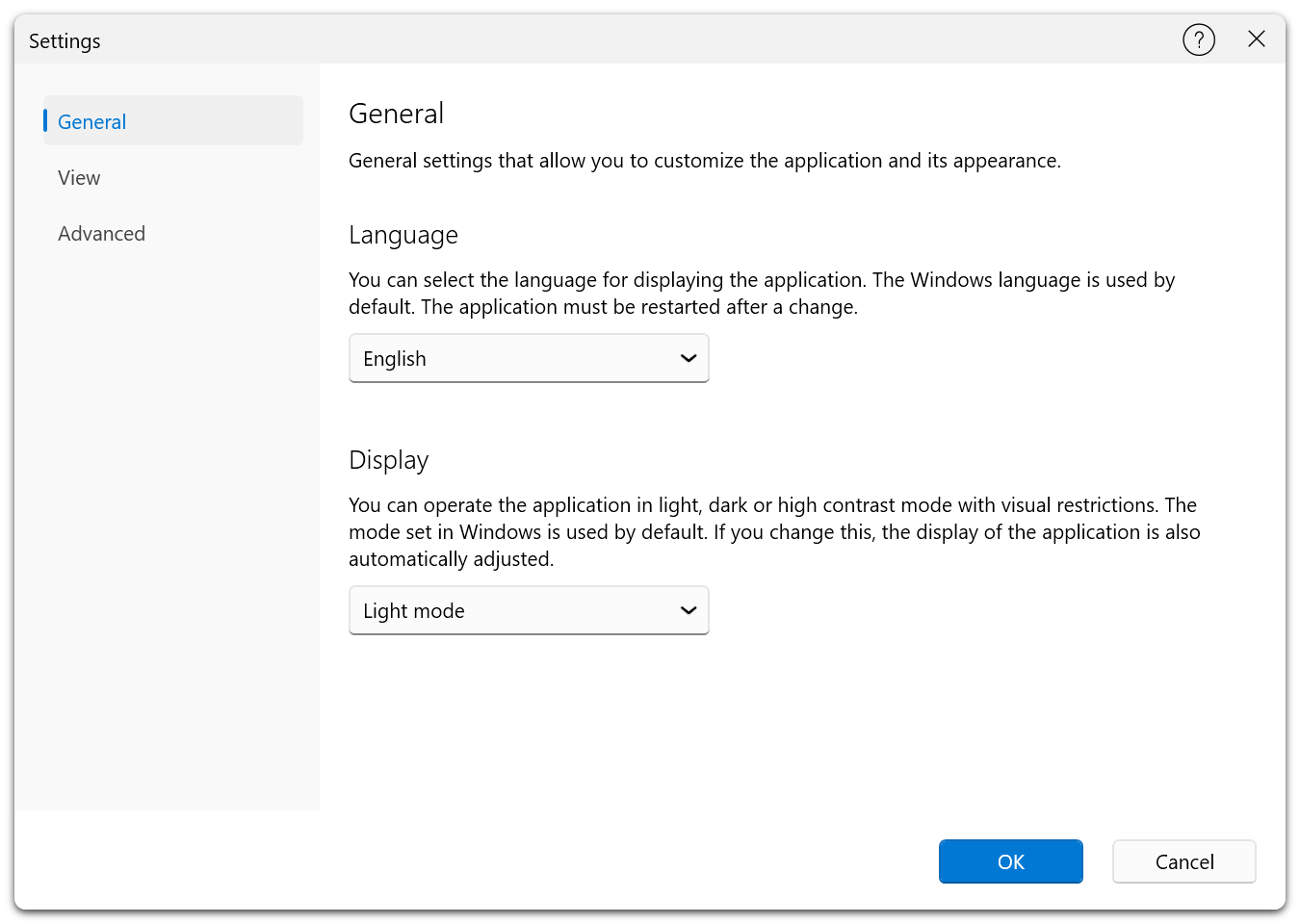
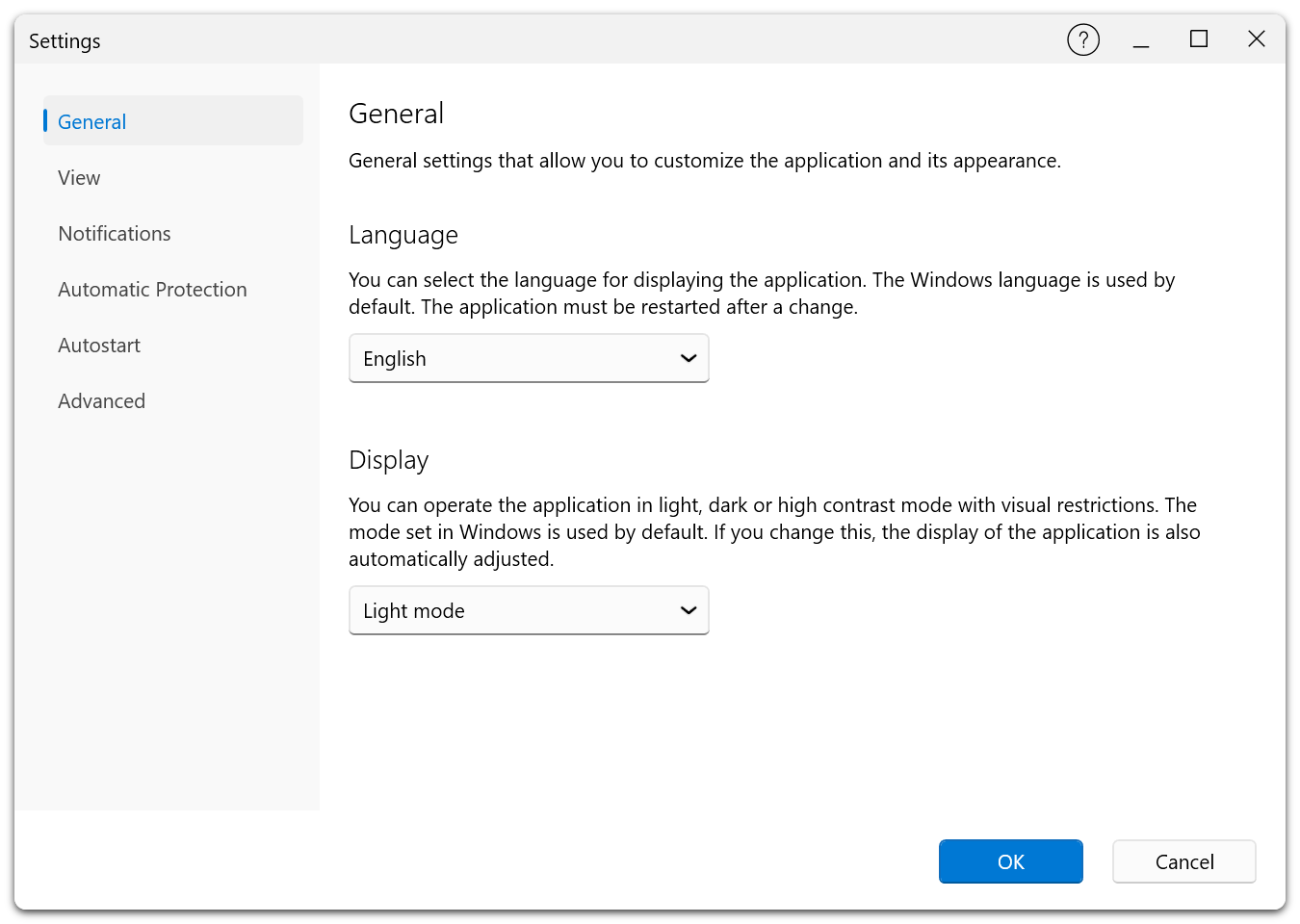
General settings that you can use to customize the application and its appearance.
Free Edition:
Premium Edition:
Language
Select the display language for the application. Available languages include English (default), German, Spanish, French, Italian, Japanese, Russian, and Chinese. Changing the language requires an application restart.
App View Mode
Choose the application theme:
| Option | Description |
|---|---|
| System | Follows the current Windows theme (light or dark). |
| Light | Forces a light appearance. |
| Dark | Forces a dark appearance. |
| High Contrast Black | High-contrast theme with a black background for accessibility. |
| High Contrast White | High-contrast theme with a white background for accessibility. |
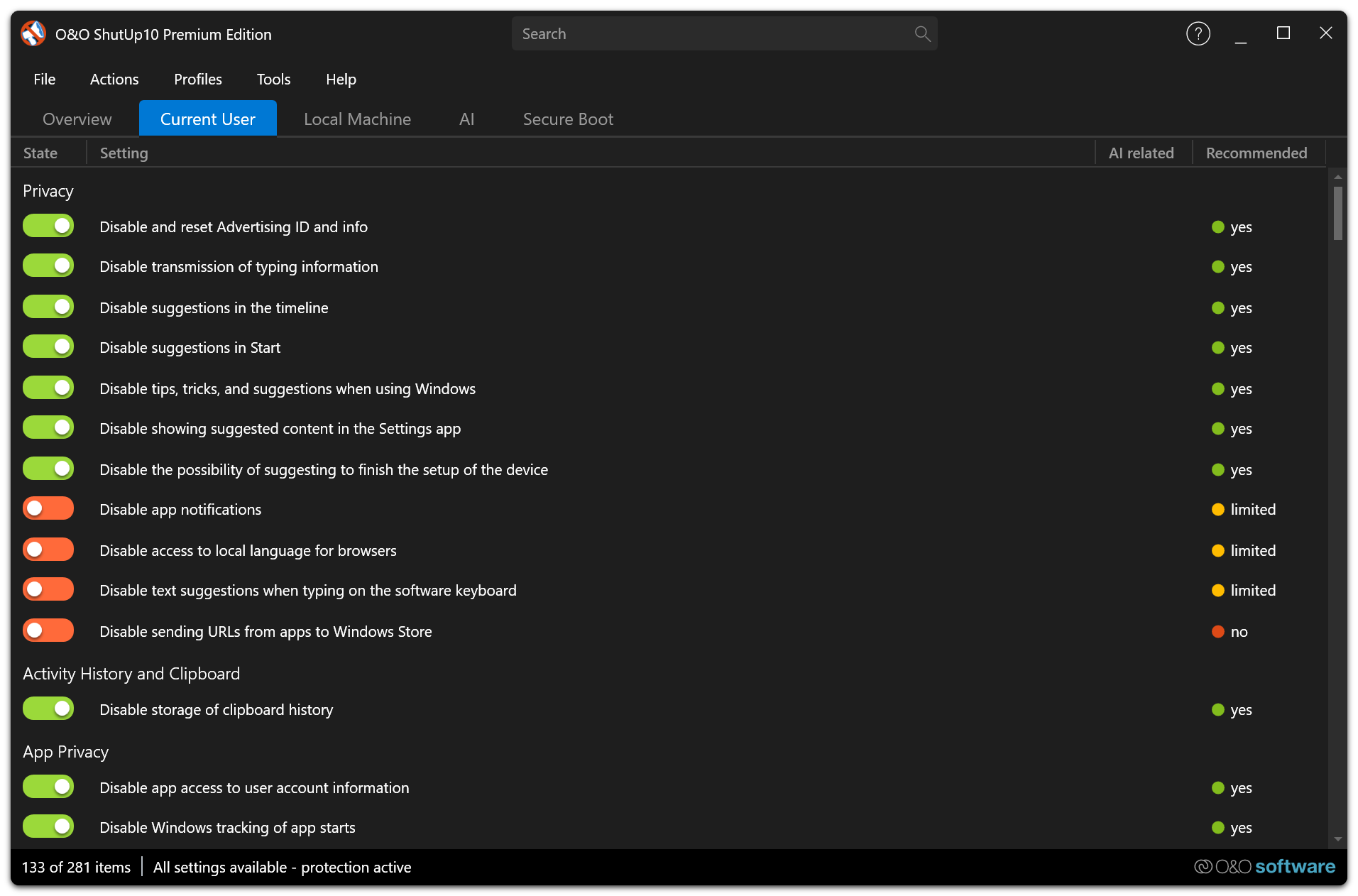
Theme changes are applied immediately without restarting the application.
View Tab
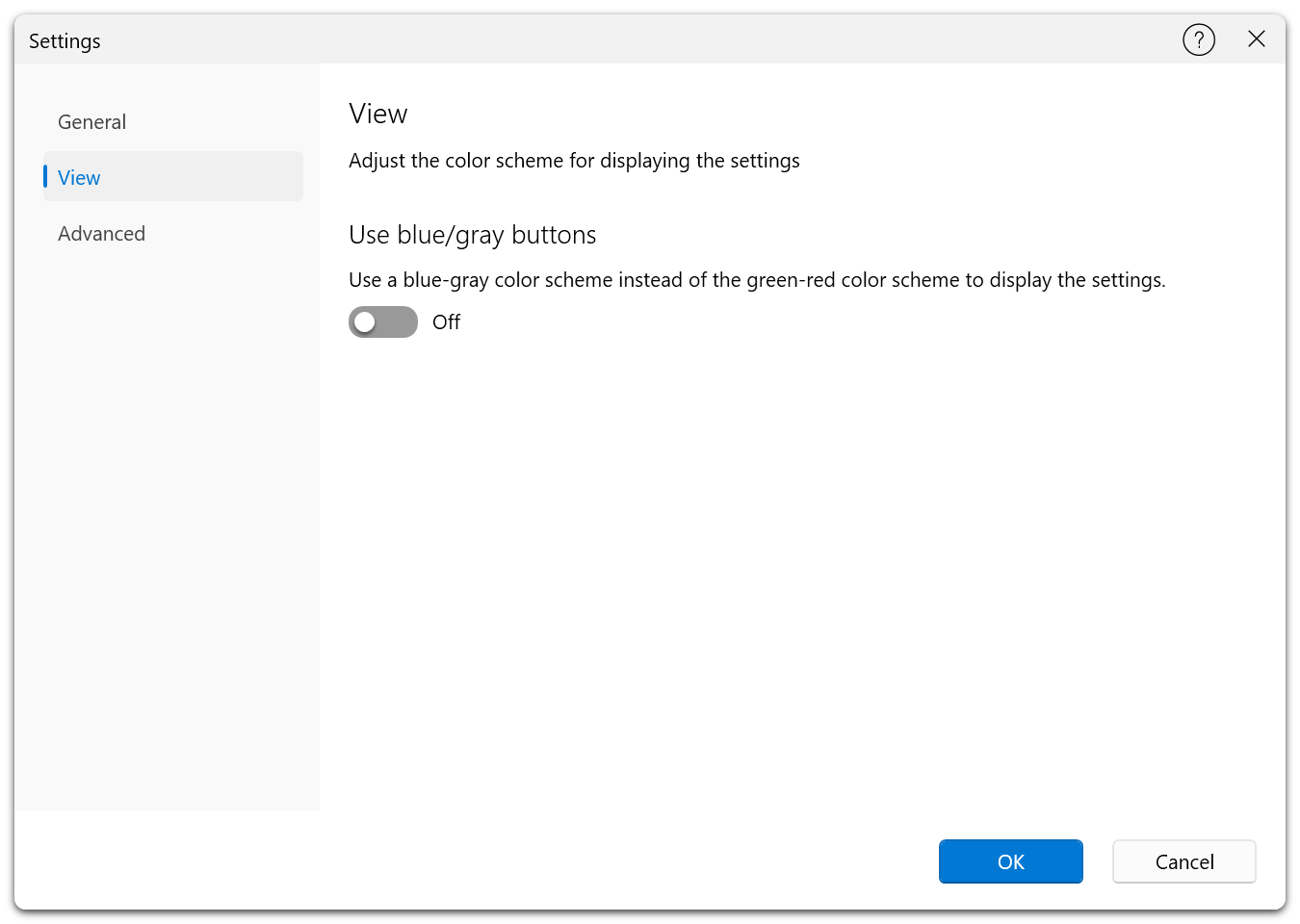
Adjust the color scheme for displaying the settings.
Free Edition:
Premium Edition:
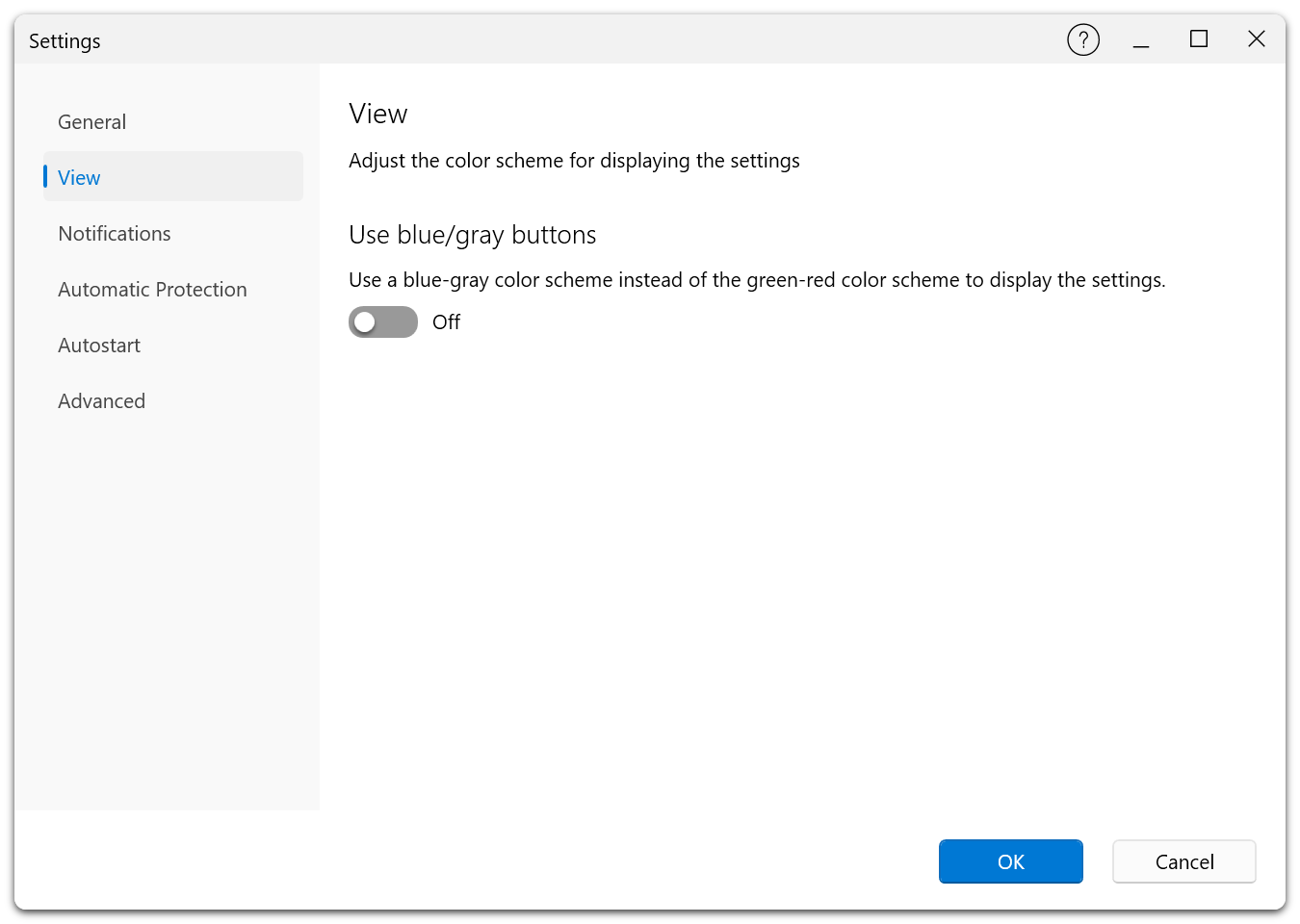
Use Blue/Gray Buttons
Toggle between two color schemes for the settings toggle switches:
- Green/Red (default) — Green indicates an active (privacy-protecting) setting; red indicates an inactive setting.
- Blue/Gray — A neutral color scheme using blue and gray tones.
The color scheme change is applied in real time.
Notifications Tab Premium
Configure how and when Windows notifications are shown for background automatic protection events.
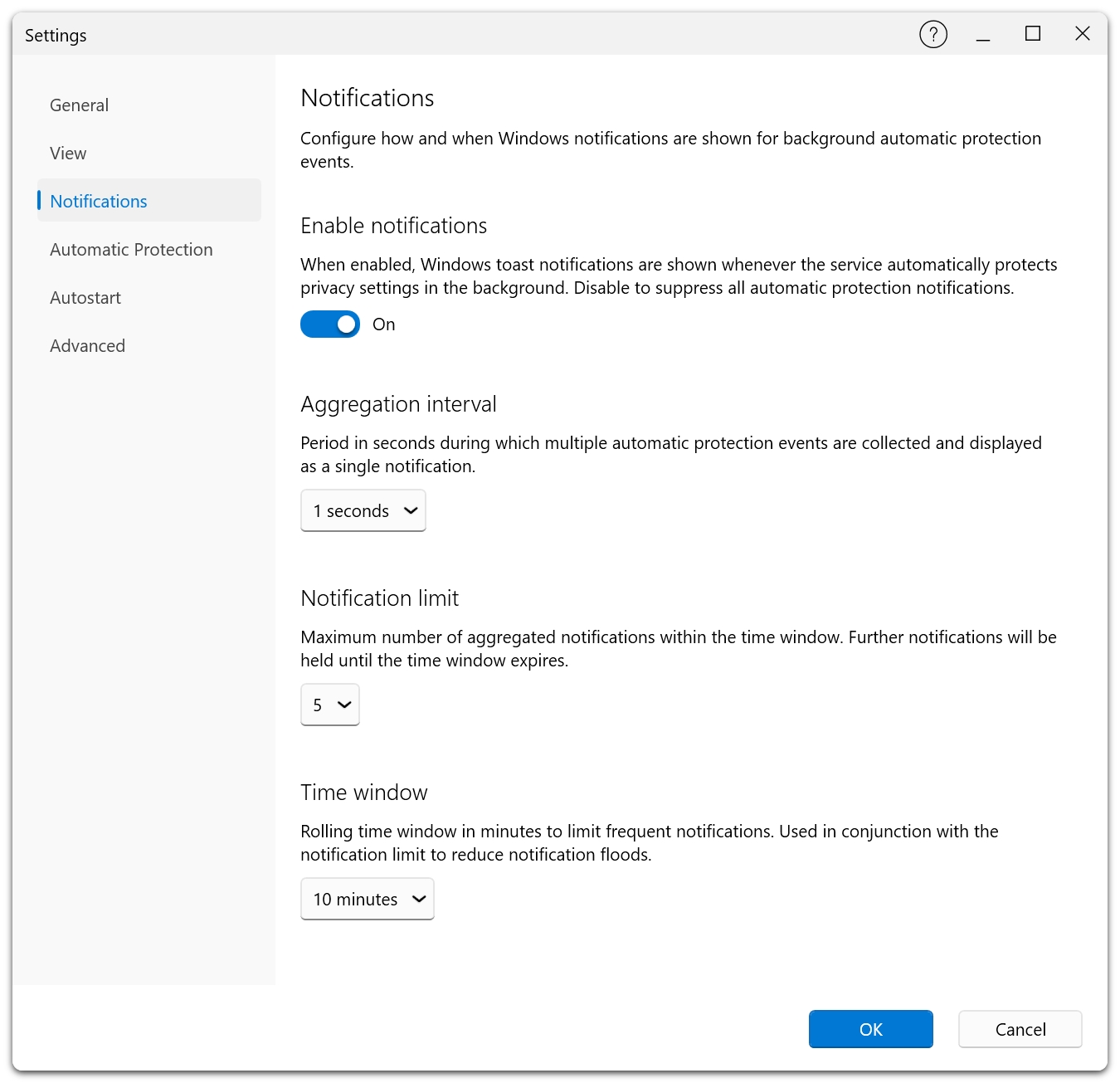
This tab is only available in the Premium Edition and requires the background service to be running. If the service is not available, a warning message is displayed and the controls are disabled.
Enable Notifications
When enabled, Windows toast notifications are shown whenever the service automatically protects privacy settings in the background. Disable to suppress all automatic protection notifications.
Aggregation Interval
Defines how long the service waits (in seconds) before sending a combined notification for multiple events. Available values: 1, 2, 5, 10, 15, 30, 60, or 120 seconds.
Suppression Threshold
Maximum number of notifications allowed within the suppression window before further notifications are suppressed. Available values: 1, 2, 3, 5, 10, 15, or 20.
Suppression Window
Rolling time window (in minutes) used together with the suppression threshold for flood prevention. Available values: 1, 2, 5, 10, 15, 30, or 60 minutes.
Automatic Protection Tab Premium
Configure automatic protection settings.
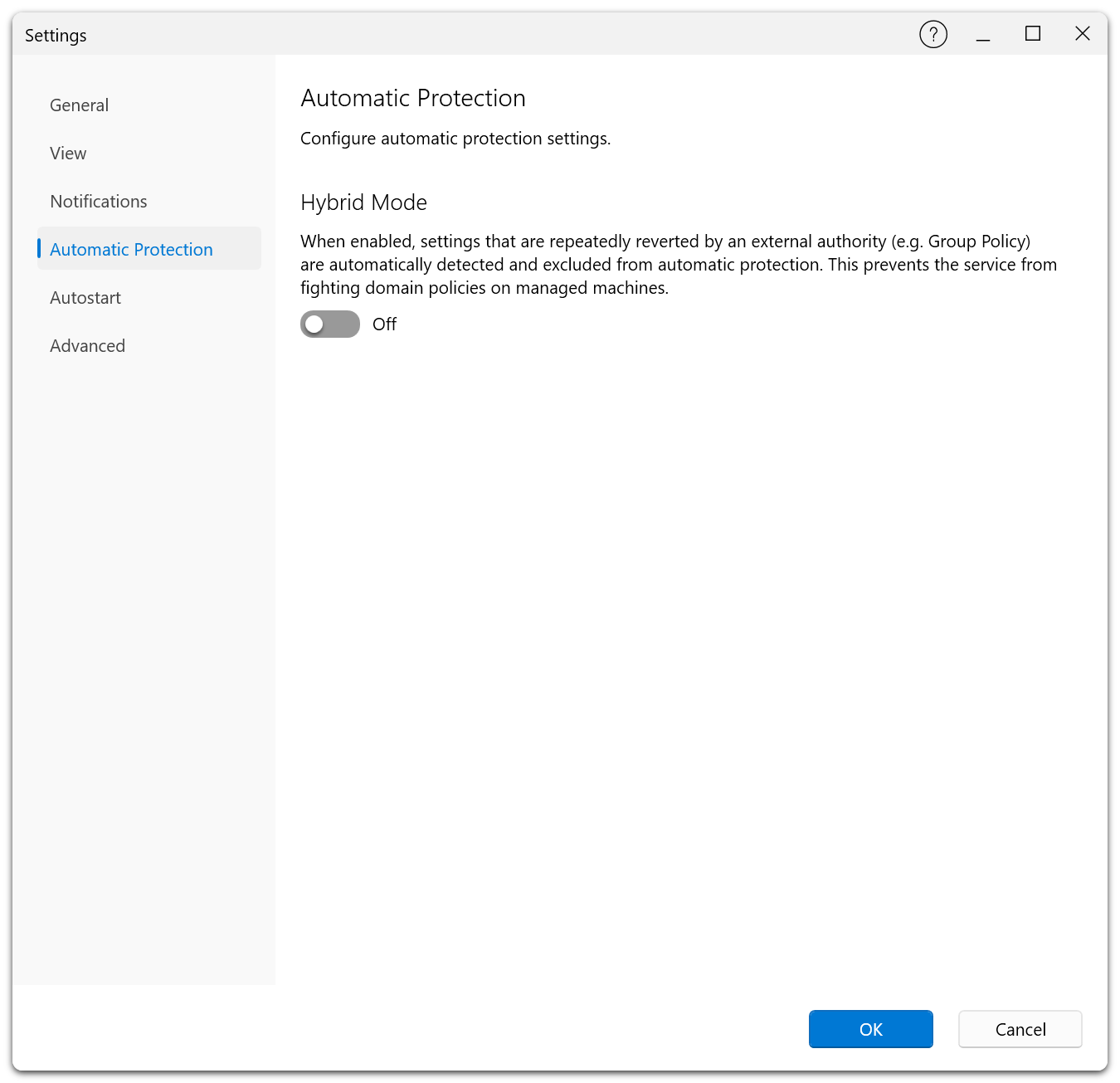
This tab is only available in the Premium Edition and requires the background service to be running.
Hybrid Mode
When enabled, settings that are repeatedly reverted by an external authority (e.g., Group Policy) are automatically detected and excluded from automatic protection. This prevents the service from fighting domain policies on managed machines.
Hybrid Mode is particularly useful in corporate environments where certain privacy settings are controlled by organizational Group Policy and should not be overridden by the ShutUp10 service.
Autostart Tab Premium
Configure whether the application starts automatically when you log on to Windows.
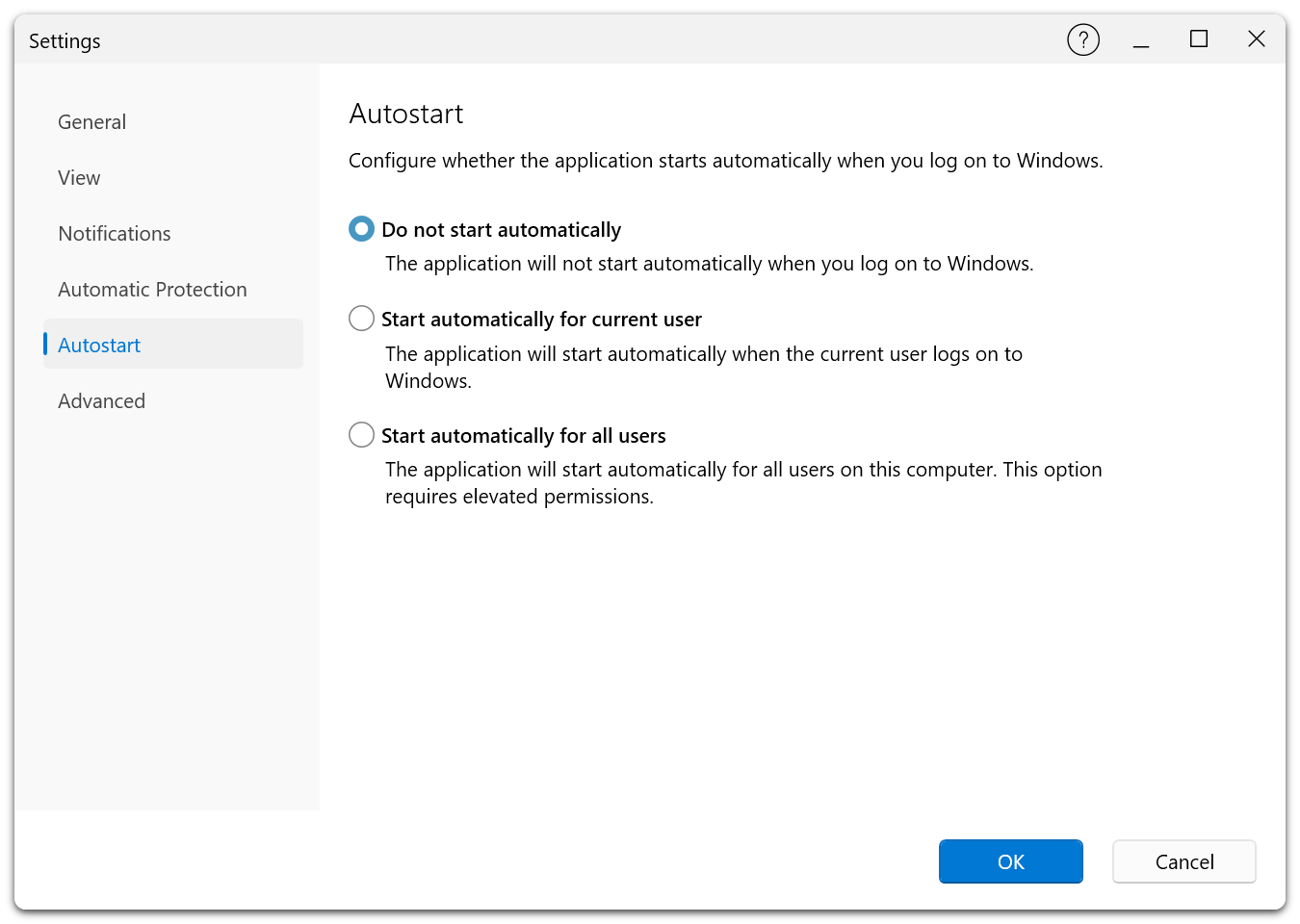
This tab is only available in the Premium Edition.
| Option | Description |
|---|---|
| Do not start automatically | The application will not start automatically when you log on to Windows. |
| Start automatically for current user | The application starts automatically when the current user logs on. |
| Start automatically for all users | The application starts automatically for all users on the computer. Requires elevated permissions. |
The following examples illustrate the autostart options as they appear in the client interface:
Advanced Tab
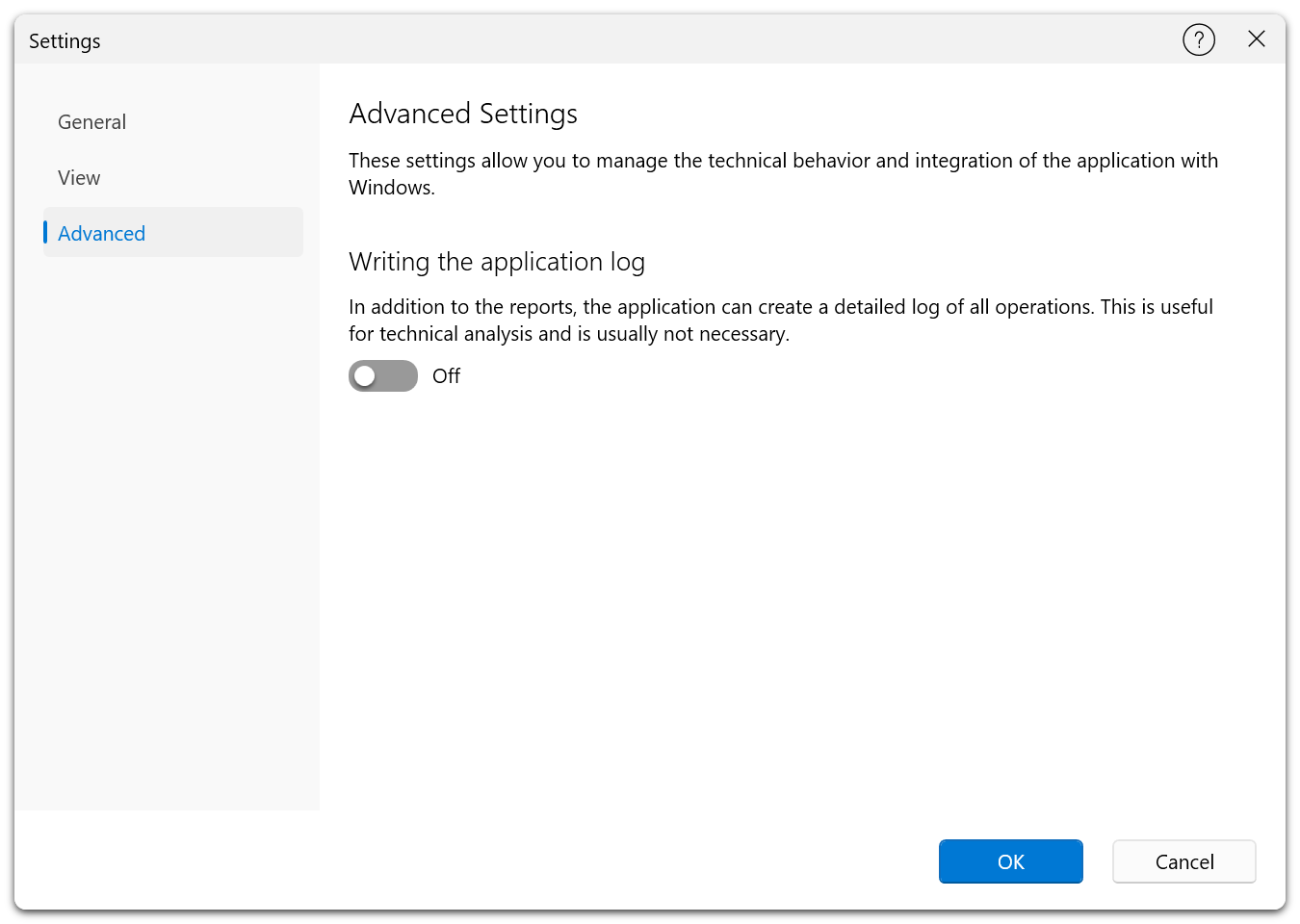
These settings allow you to manage the technical behavior and integration of the application with Windows.
Free Edition:
Premium Edition:
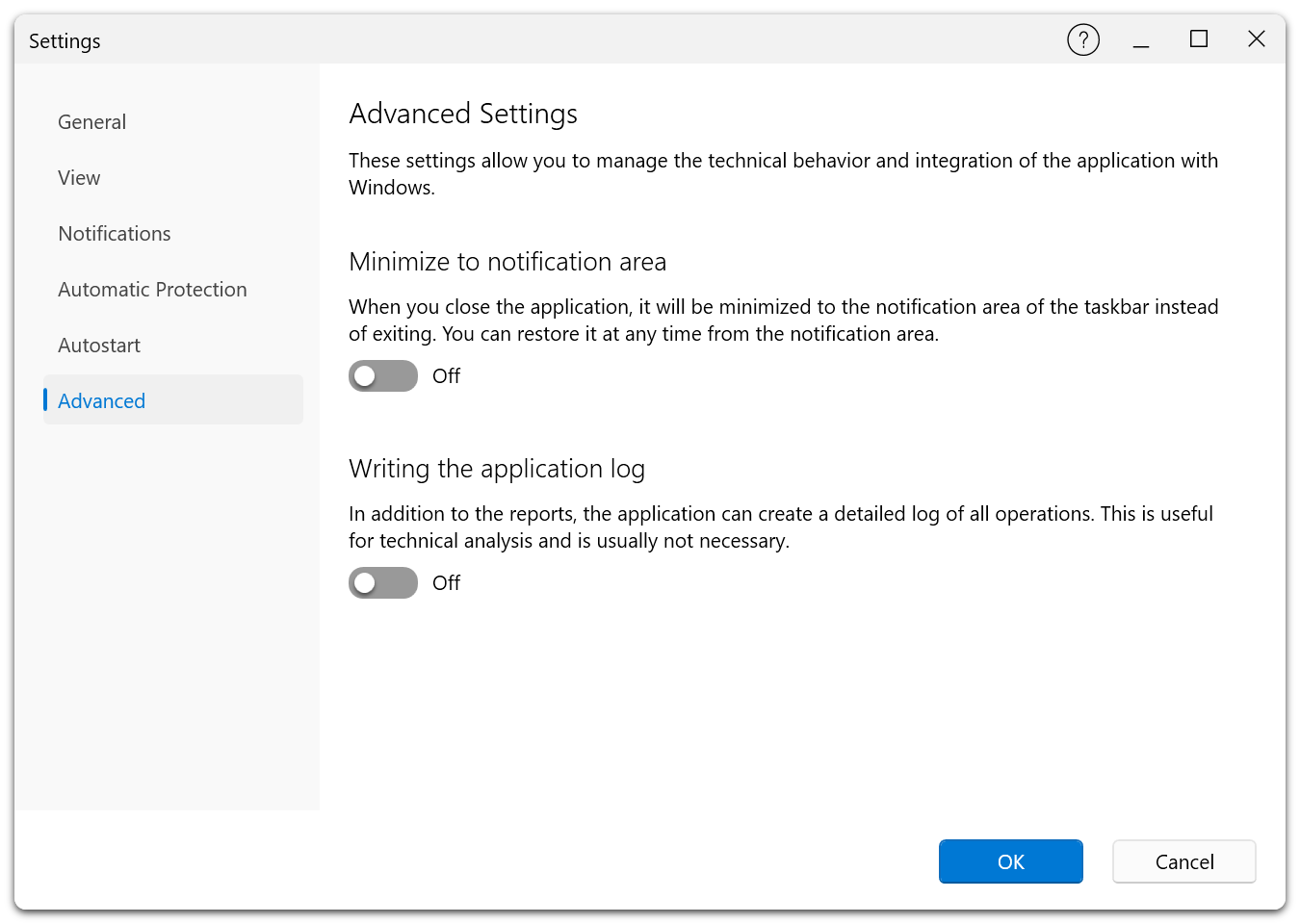
Minimize to Notification Area Premium
When enabled, closing the application minimizes it to the notification area (system tray) instead of exiting. You can restore it at any time from the notification area icon. This is a Premium-only feature.
Enable Logging
In addition to the standard reports, you can have the application create a detailed log of all operations. This is useful for technical analysis and troubleshooting. Logging is hidden in BlueCon and Fortress Mode builds.
Update Check
Configure whether the application checks for new versions at startup. When enabled, it contacts the O&O Software update server and offers an available update.
In the Free Edition, you can also use Help → Check online for new version, which opens the download page. The Premium Edition checks for updates through its integrated updater, offers a detected update automatically, and does not display this manual menu command. If update checks are disabled or outbound access is restricted, visit the product download page yourself to check manually.
Information Tab
Displays version information and product details about the application.
The Information tab provides a quick reference for the installed version of O&O ShutUp10, including the edition type, build number, copyright information, and the actual result of the most recent update check. This is useful for verifying your installation when contacting support or checking compatibility.