Privacy Settings
O&O ShutUp10 provides comprehensive control over almost 300 Windows privacy settings across more than 20 categories. This section covers all settings categories available in both the Free and Premium Editions.
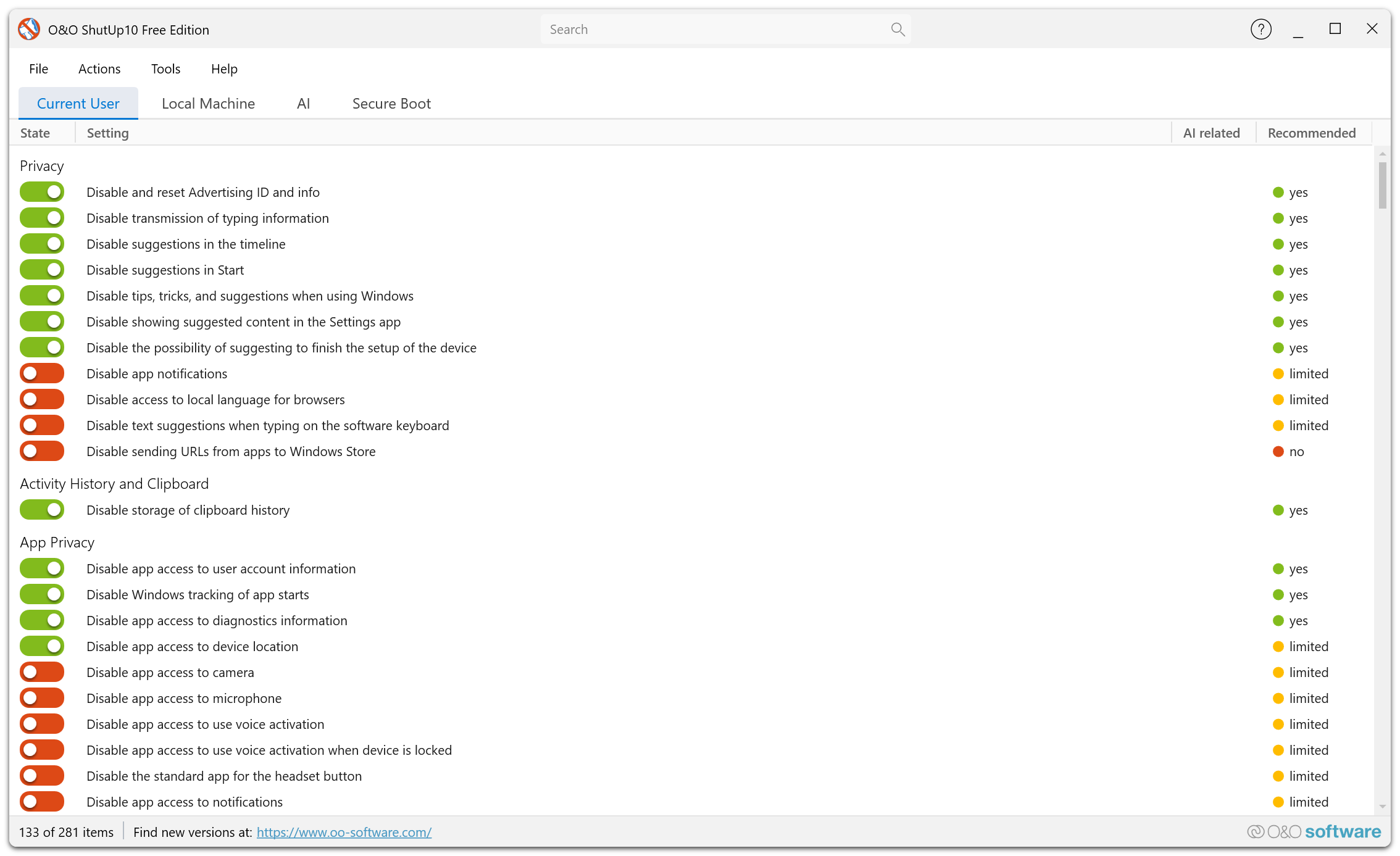
Overview
Windows 10 and Windows 11 include numerous privacy-related settings spread across the Settings app, Group Policy, and the Windows Registry. O&O ShutUp10 consolidates these into a single interface, making it easy to review and adjust them. Settings are organized into clearly defined categories, each with individual recommendation levels.
Recommendation Levels
Each privacy setting includes a recommendation level:
| Level | Description |
|---|---|
| Recommended | Safe for most users. No negative impact on core functionality. |
| Limited | Generally safe, but may affect certain personalization features. |
| Not recommended | May affect important functionality. Apply only with understanding of the impact. |
Start by applying the Recommended settings. You can always adjust individual settings later.
Settings Categories
Privacy
Controls core Windows privacy behaviors including error reporting, notifications, and suggestions. These settings prevent Windows from transmitting personal information and displaying unsolicited content.
Key recommended settings:
- Disable Windows Error Reporting — Prevents crash reports (which may include memory dumps with personal data) from being uploaded to Microsoft.
- Disable tips, tricks, and suggestions when using Windows — Suppresses pop-ups in the Notification Pane and Info Center.
- Disable showing suggested content in the Settings app — Prevents promotional suggestions in system settings.
- Disable suggestions in the timeline — Blocks advertisements in the Windows Explorer timeline (e.g., OneDrive ads).
- Disable app notifications — Prevents apps from displaying notifications on tiles, lock screen, and desktop.
Telemetry and User Behavior
Manages the diagnostic and telemetry data that Windows sends to Microsoft for product improvement. Disabling these settings significantly reduces the amount of usage data, crash reports, and behavioral analytics transmitted from your device.
Key recommended settings:
- Disable application telemetry — Stops sending usage data and crash information to Microsoft.
- Disable diagnostic data from customizing user experiences — Prevents Microsoft from using your diagnostic data for personalization.
- Disable diagnostic log collection — Stops collection of detailed diagnostic logs.
- Disable downloading of OneSettings configuration settings — Prevents Microsoft from remotely configuring your device.
App Privacy
Controls which system resources and personal data Windows apps can access. This includes voice activation, camera, microphone, contacts, calendar, messaging, and more. Restricting app permissions limits what information third-party and built-in apps can collect.
Key recommended settings:
- Disable app access to use voice activation — Prevents apps from being activated by voice commands.
- Disable app access to user account information — Blocks apps from reading your account name and profile picture.
- Disable app access to videos — Prevents apps from accessing your video library.
- Disable app access to use voice activation when device is locked — Blocks voice-activated app access when the device is locked.
Cortana (Personal Assistant)
Controls Cortana and input personalization features. These settings prevent Microsoft from collecting voice, handwriting, and keyboard input data used to train Cortana and improve recognition.
Key recommended settings:
- Disable Input Personalization — Stops Microsoft from collecting voice, handwriting, and keyboard input data.
- Disable the search highlights in the taskbar — Removes visual search highlights that communicate with Microsoft servers.
- Disable web search in Cortana — Prevents search queries from being sent to Bing.
Location Services
Controls how Windows and apps use your physical location. Disabling location services prevents GPS, Wi-Fi, and sensor-based location tracking, which in turn stops location data from being sent to Microsoft and third-party apps.
Key recommended settings:
- Disable app access to your location — Prevents apps from accessing your physical location.
- Disable sensors for locating the system and its orientation — Deactivates GPS and gyroscope sensors (may affect screen rotation on tablets).
- Disable functionality to locate the system — Blocks system-level location tracking.
- Disable scripting functionality to locate the system — Prevents script-based location detection.
Search
Controls Windows Search behavior, including web search integration and search history collection.
Key recommended settings:
- Disable web search in Start Menu — Prevents Start menu search queries from being sent to Bing.
Synchronization of Windows Settings
Manages the synchronization of your Windows settings across devices using a Microsoft account. Settings, passwords, language preferences, and design choices are stored on Microsoft servers when synchronization is active.
Key recommended settings:
- Disable synchronization of all settings — Stops all Windows settings from being synced to Microsoft servers.
- Disable synchronization of credentials (passwords) — Prevents passwords from being stored and synced via Microsoft servers.
- Disable synchronization of language settings — Stops language preferences from being shared across devices.
- Disable synchronization of design settings — Prevents theme and visual settings from being synced.
Security
Controls security-related features that overlap with privacy, including Wi-Fi Sense, DRM, the steps recorder, and the Customer Experience Improvement Program. Adjusting these settings reduces the data shared with Microsoft while maintaining core security.
Key recommended settings:
- Disable WiFi Sense — Prevents automatic connection to contacts' Wi-Fi networks and sharing of your Wi-Fi password via Microsoft servers.
- Disable user steps recorder — Stops automatic recording of all actions on your computer (including screenshots and typed text).
- Disable Internet access of Windows Media Digital Rights Management (DRM) — Blocks DRM-related Internet communication (only if you do not use DRM-protected media).
- Disable participation in Customer Experience Improvement Program — Stops sending hardware and software usage data to Microsoft.
Windows Update
Controls how Windows downloads and installs updates, including peer-to-peer delivery, automatic driver updates, and optional/preview updates. While security updates are critical, some update features transmit data or install non-essential content.
Key recommended settings:
- Disable Windows Update via peer-to-peer — Stops your computer from sharing update data with other PCs over the Internet.
- Disable optional updates (including preview updates) — Prevents installation of unfinished preview updates.
- Activate deferring of upgrades — Delays feature upgrades so you can install them at a time of your choosing.
Microsoft Edge (new version based on Chromium)
Controls privacy and telemetry settings specific to the Chromium-based Microsoft Edge browser. These settings manage data collection, autofill behavior, cloud services, and promotional content within Edge.
Key recommended settings:
- Disable automatic sign-in from web to browser — Prevents automatic browser sign-in when signing into Microsoft websites.
- Disable visual search — Stops images from being sent to Bing for visual search.
- Disable text prediction in forms — Prevents cloud-based text prediction in browser form fields.
- Disable cloud-based tab services — Stops tab data from being synced to Microsoft cloud services.
- Hide Microsoft Rewards — Removes Microsoft Rewards promotional content from the browser.
Microsoft Edge (legacy version)
Controls privacy settings for the legacy (non-Chromium) version of Microsoft Edge. These settings manage form suggestions, search history, web tracking, and the Edge bar.
Key recommended settings:
- Disable tracking in the web — Enables Do Not Track signals in the legacy Edge browser.
- Disable form suggestions — Prevents Edge from remembering and suggesting form data.
- Disable showing search history — Stops Edge from displaying previous search queries.
- Disable Edge bar — Removes the Edge bar overlay from the desktop.
Microsoft Office
Controls privacy and telemetry settings for Microsoft Office applications. These settings manage connected experiences, diagnostic data, and feedback mechanisms that transmit usage information to Microsoft.
Key recommended settings:
- Disable connected experiences with content analytics — Stops Office from sending entered data to Microsoft's cloud for analysis.
- Disable diagnostic data submission — Prevents Office from transmitting diagnostic usage data.
- Disable Microsoft Office surveys — Blocks in-product survey prompts.
- Disable participation in the Customer Experience Improvement Program — Stops sending Office usage data to Microsoft.
Microsoft 365
Additional privacy settings specific to Microsoft 365 cloud-connected features and services.
Windows Explorer
Controls privacy-related behaviors in Windows Explorer, including OneDrive integration, Start menu suggestions, and recently opened items tracking.
Key recommended settings:
- Disable ads in Windows Explorer/OneDrive — Removes advertisements and sync provider notifications from Explorer.
- Disable Microsoft OneDrive — Fully disables Microsoft's cloud storage integration.
- Disable OneDrive access to network before login — Prevents OneDrive from synchronizing before users log in.
- Disable occasionally showing app suggestions in Start menu — Removes app advertisements from the Start menu.
Lock Screen
Controls the information displayed on the Windows lock screen, including notifications, advertisements, and Windows Spotlight content that communicate with Microsoft servers.
Key recommended settings:
- Disable fun facts, tips, tricks, and more on your lock screen — Removes advertisements and sponsored content from the lock screen.
- Disable notifications on lock screen — Prevents potentially private app notifications from being visible without logging in.
- Disable Windows Spotlight — Stops Microsoft from displaying curated images and content on the lock screen.
Taskbar
Manages privacy settings related to the Windows taskbar, including widgets, search box, news feed, and social features that exchange data with Microsoft servers.
Key recommended settings:
- Disable widgets in Windows Explorer — Prevents Windows 11 widgets from exchanging data with Microsoft servers.
- Disable search box in task bar — Removes the search box that sends queries to Microsoft.
- Disable news and interests in the task bar — Removes the news feed that transmits browsing and interest data.
- Disable People icon in the taskbar — Removes the People social feature from the taskbar.
Activity History and Clipboard
Controls the recording of user activities and clipboard history. Windows can track your activities across apps and devices, and store clipboard contents for cloud-based sharing.
Key recommended settings:
- Disable the submission of user activities to Microsoft — Stops activity data from being sent to Microsoft servers.
- Disable storing users' activity history — Prevents Windows from recording your application usage history.
- Disable storage of clipboard history — Stops Windows from retaining clipboard contents, reducing potential security risks.
- Disable the transfer of the clipboard to other devices via the cloud — Prevents clipboard data from being synced across devices through Microsoft servers.
Microsoft Defender and Microsoft SpyNet
Controls data sharing behaviors of Microsoft Defender, including sample submission and SpyNet membership. These settings manage what security-related data is sent to Microsoft for threat analysis.
Key recommended settings:
- Disable submitting data samples to Microsoft — Prevents Defender from sending file samples for cloud analysis.
- Disable Microsoft SpyNet membership — Stops participation in the Microsoft SpyNet telemetry network.
- Disable reporting of malware infection information — Prevents malware detection reports from being sent to Microsoft.
Do not disable Microsoft Defender itself unless you have an alternative, regularly updated antivirus solution in place.
Microsoft Copilot (in Windows)
Controls AI-related features in Windows, including the Microsoft Copilot assistant, the Copilot keyboard shortcut, and AI-powered features in built-in apps like Paint.
Key recommended settings:
- Disable the Windows Copilot — Fully disables the Copilot AI assistant in Windows.
- Disable the Copilot button from the taskbar — Removes the Copilot button from the taskbar.
- Disable the Windows Copilot key on the keyboard — Prevents the dedicated Copilot keyboard key from launching the assistant.
- Disable the Image Creator in Microsoft Paint — Disables AI-powered image generation in Paint.
- Disable AI-powered image fill in Microsoft Paint — Disables AI-powered fill features in Paint.
Mobile Devices
Controls the integration between your PC and mobile devices, including Phone Link and related notifications.
Key recommended settings:
- Disable Phone Link app — Disables the Phone Link application.
- Disable connecting the PC to mobile devices — Prevents PC-to-phone connectivity features.
- Disable access to mobile devices — Blocks mobile device access entirely.
- Disable showing suggestions for using mobile devices with Windows — Removes promotional notifications about mobile device features.
Miscellaneous
Covers additional privacy-related settings that do not fit into other categories, including feedback reminders, automatic app installations, and network connectivity checks.
Key recommended settings:
- Disable feedback reminders — Stops Microsoft from periodically requesting feedback and transferring diagnostic data.
- Disable automatic installation of recommended Windows Store Apps — Prevents Windows from silently installing promoted apps.
- Disable tips, tricks, and suggestions while using Windows — Suppresses promotional pop-ups and suggestions throughout the OS.
- Disable Key Management Service Online Activation — Blocks periodic activation verification checks with Microsoft (use only if you understand the implications).
Gaming
Controls gaming-related features that may collect data or cause unwanted behavior.
Key recommended settings:
- Disable Xbox Game Bar and Game DVR — Disables the Game Bar, Game DVR, and app capture functionality, preventing unwanted Microsoft Store prompts.