First Steps
This guide walks you through the initial setup process after installing O&O ShutUp10. Follow these steps to get started with either the Free Edition or the Premium Edition.
Free Edition — Getting Started
The Free Edition requires no installation. Follow these steps to begin managing your Windows privacy settings:
1. Download and Launch
- Download the O&O ShutUp10 executable from the O&O Software website.
- Run the executable directly — no installation is needed.
- Start as a standard user to review and change current-user settings. To change machine-wide settings, use Restart as Admin on the Local Machine tab and accept the User Account Control (UAC) prompt.
Only machine-wide settings and operations such as creating a system restore point require elevation. The Local Machine tab explains when access is missing and provides the restart action directly.
2. Review Your Privacy Settings
After launching, O&O ShutUp10 scans your current Windows privacy and telemetry settings. The main window displays a categorized list of all available settings, each with:
- A toggle switch showing the current state (enabled or disabled).
- A recommendation level — Recommended, Limited, or Not Recommended.
Take a moment to review the settings and their recommendation levels before making changes.
3. Create a System Restore Point
Before making any changes, create a system restore point from the Actions menu:
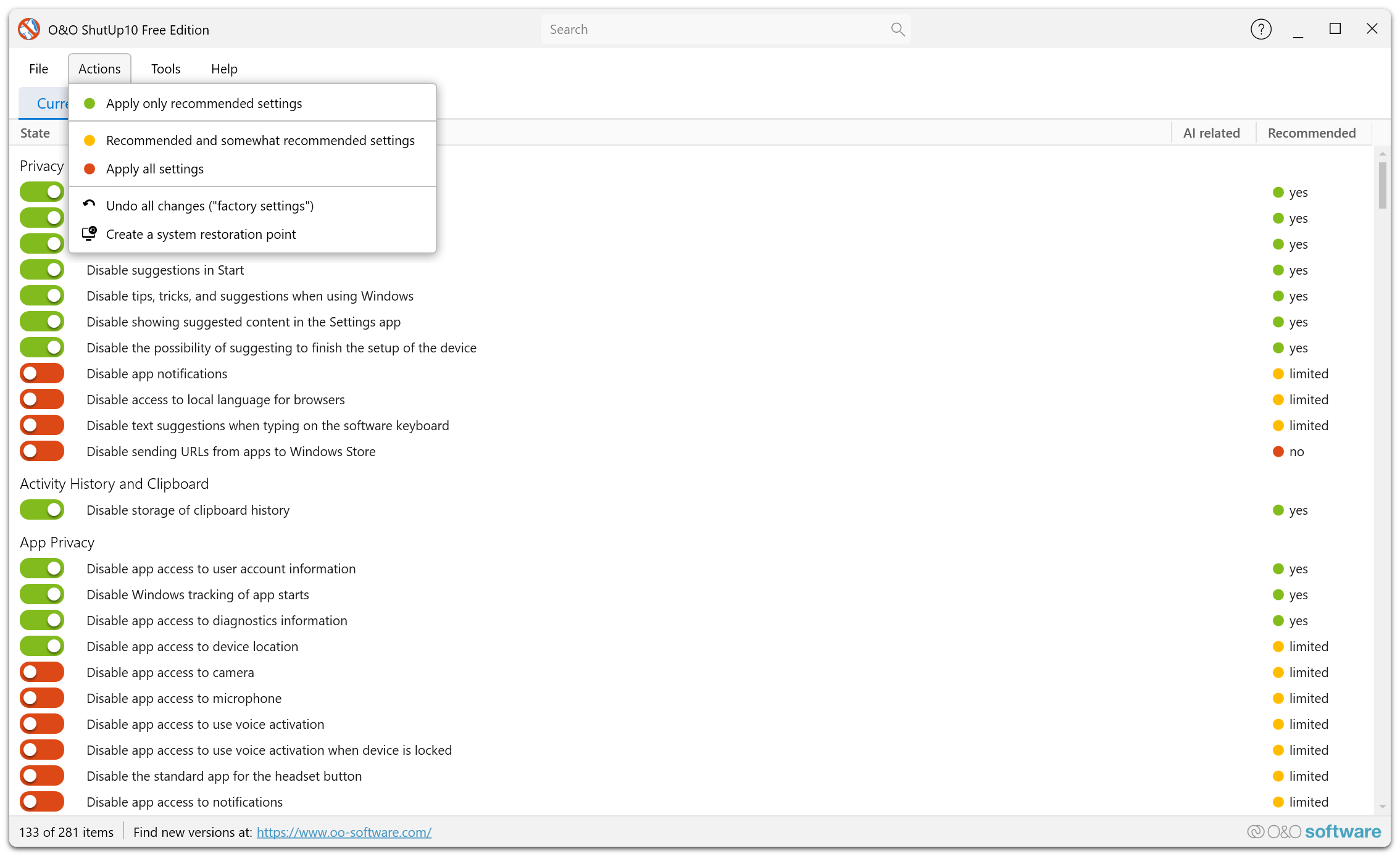
- Open Actions → Create System Restore Point.
- Confirm the creation when prompted.
This allows you to revert all changes if something does not work as expected.
4. Apply Recommended Settings
For a quick start, apply all recommended settings at once:
- Open Actions → Apply All Recommended Settings.
- Confirm the action when prompted.
This enables all settings marked as Recommended — safe for most users with minimal impact on Windows functionality.
5. Fine-Tune Individual Settings
After applying recommended settings, review the remaining settings and adjust them based on your preferences:
- Limited recommended settings are generally safe but may affect certain features.
- Not recommended settings may impact important Windows functionality — apply only if you understand the consequences.
6. Close the Application
Once you are satisfied with your settings, simply close the application. Your changes are saved in the Windows registry and persist until changed by you, a Windows update, or another system modification.
Run O&O ShutUp10 again after each major Windows update to verify that your privacy settings have not been reset.
Premium Edition — Getting Started
The Premium Edition uses a client/service architecture. The initial setup is guided by the Premium Overview page, which walks you through each step.
1. Install the Premium Edition
Install O&O ShutUp10 Premium Edition using the provided installer. The installer registers:
- The Service — A Windows background service that runs with system privileges.
- The Client — The user-facing application for viewing and configuring settings.
2. Launch the Client
After installation, launch the O&O ShutUp10 client application. The Premium Overview opens automatically in Setup Mode.
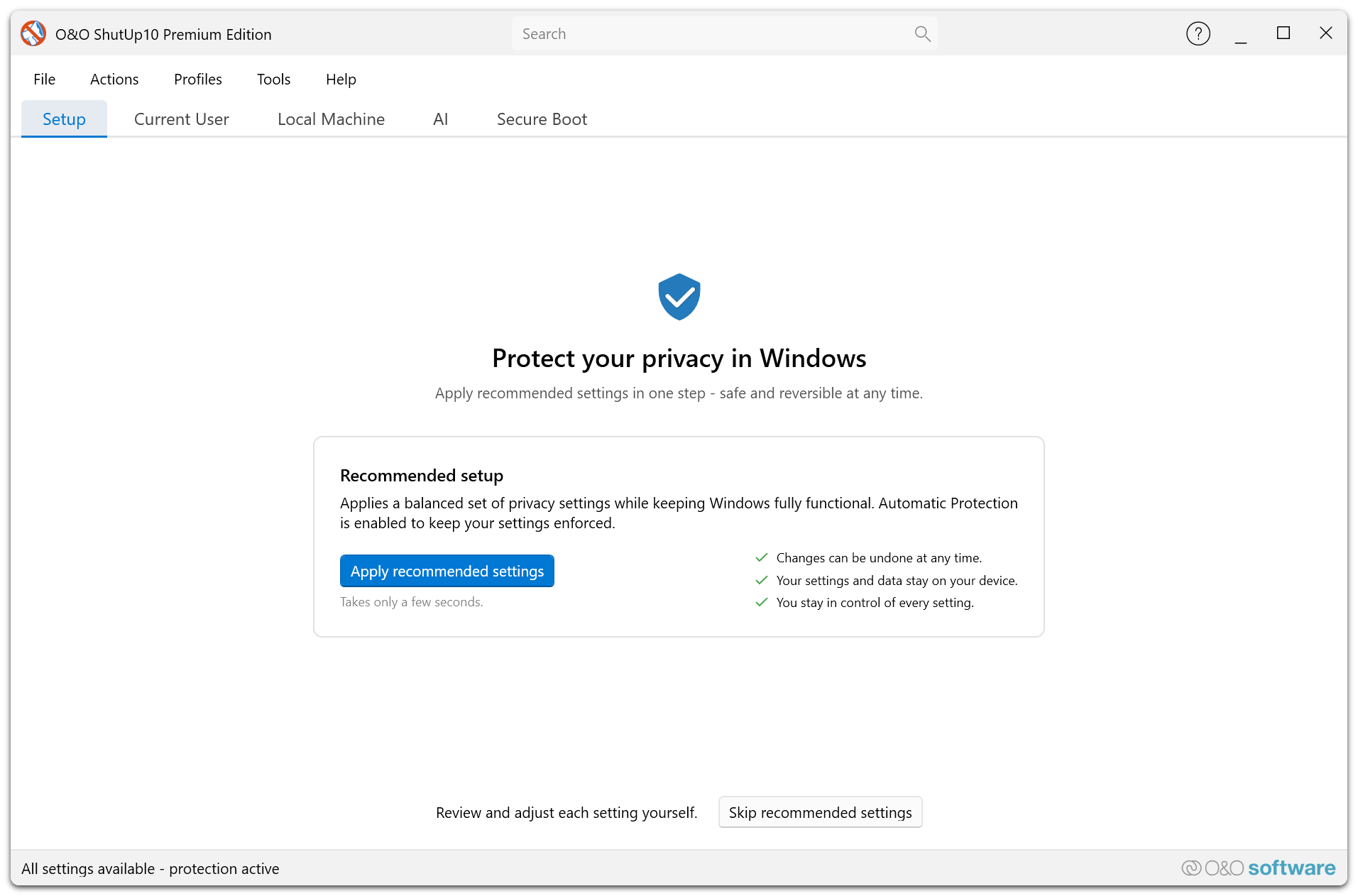
3. Complete the Guided Setup
The Premium Overview guides you through the following steps in Setup Mode:
| Step | What Happens |
|---|---|
| Service Installation | The setup verifies that the background service is installed and registered. |
| Service Connection | The client confirms communication with the background service. |
| Profile Selection | You are prompted to choose an initial privacy profile (e.g., Recommended Settings). |
| First Application | The selected profile is applied to establish your baseline privacy configuration. |
No administrator rights are required from the end user — the background service handles all privileged operations.
4. Verify Protection Status
Once setup is complete, the Premium Overview transitions to Overview Mode, displaying:
- Protection Status — Confirms that automatic protection is active.
- Service Status — Shows the background service is running.
- Active Profile — Displays the name of the applied privacy profile.
5. Configure Additional Settings (Optional)
After the initial setup, you can customize the application further through the Settings Dialog (View → Settings…):
- Notifications — Configure how you are notified about automatic protection events.
- Autostart — Set the application to start automatically when you log on.
- Hybrid Mode — Enable automatic exclusion of settings managed by Group Policy (useful in corporate environments).
For details, see the Settings Dialog documentation.
6. Ongoing Usage
With the Premium Edition, your privacy settings are automatically maintained:
- The service continuously monitors and re-applies your configuration after Windows updates, Group Policy changes, or registry modifications.
- Open the client at any time to check the Premium Overview for current protection status.
- Use the Profiles Editor to create and manage custom profiles for different scenarios.
If the Premium Overview remains in Setup Mode after installation, verify that the O&O ShutUp10 service is running. Check Windows Services (services.msc) or contact your IT administrator.