Profiles and export
Both editions can save a configuration for reuse, but they use different file formats and workflows.
Free Edition
Use File → Export settings… to save current settings in a .cfg text file. Use File → Import settings… to read and apply a saved configuration. Review its contents before applying settings from another computer.
Premium Edition
Use Profiles → Manage Profiles… to create a named profile from current settings, buffered changes, or an existing profile. Profiles → Import Profile… adds a .pcfg profile to your collection without applying it. Select it in profile management and click Apply profile when you want to use it.
Profiles → Export profile… opens profile management so you can select and export a profile. Premium profile files contain XML; they are not interchangeable with Free Edition .cfg settings files.
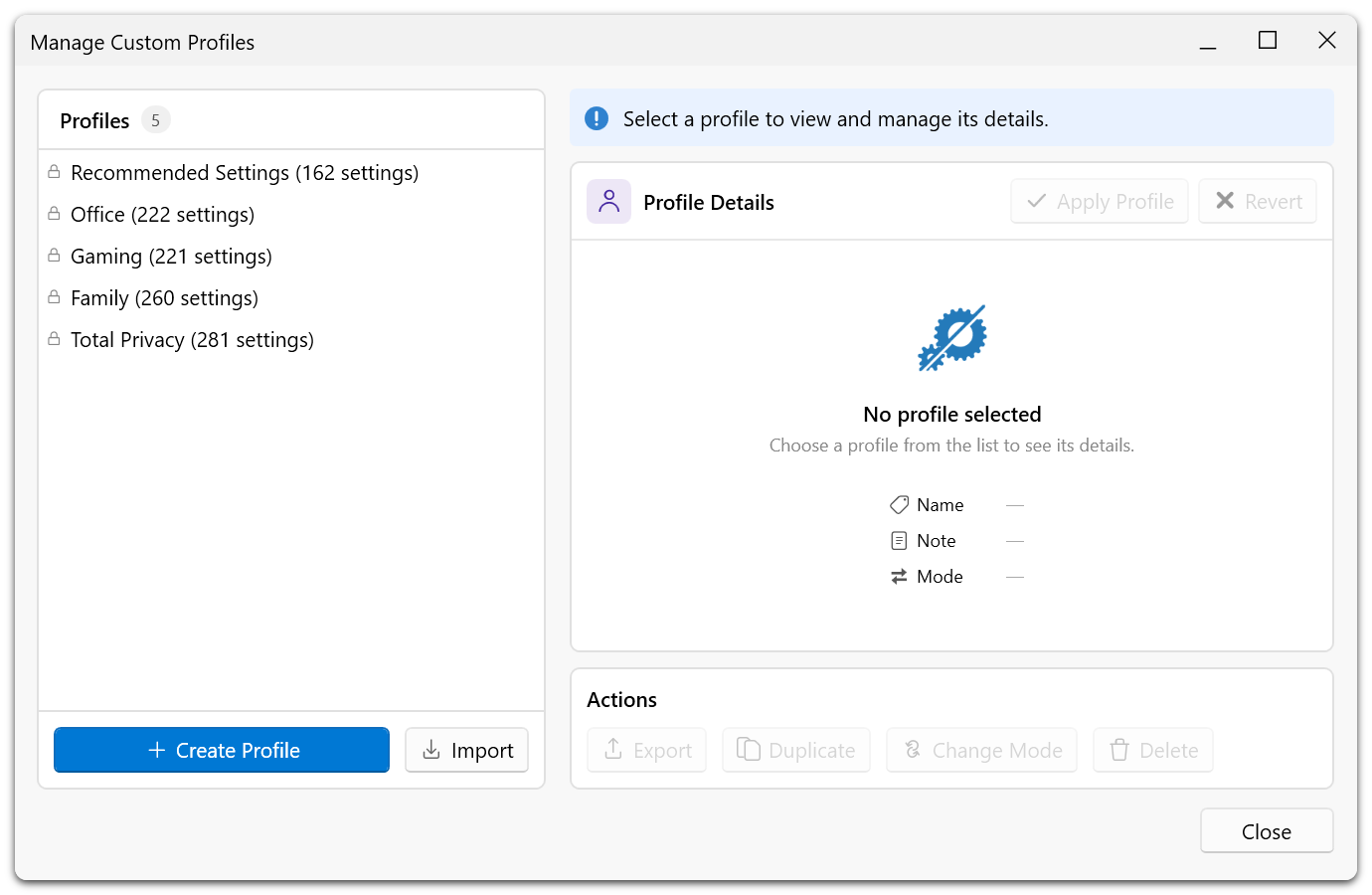
See Profiles Editor for creation and application modes, and Profile File Structure for the formats. For restoring recorded previous settings, see Undo History.
Command-line use
The application supports applying a settings configuration file from the command line. This is a separate workflow from importing a named Premium profile into the profile collection; do not assume that a .pcfg file can replace a .cfg input file.