Automatic protection Premium
Automatic protection must be enabled and the service must be running. Windows-protected settings or settings excluded by Hybrid Mode may not be re-applied. Check the reported status rather than assuming every policy conflict will be overridden.
Automatic protection is an exclusive feature of the O&O ShutUp10 Premium Edition. It ensures your privacy settings remain applied even after Windows updates, Group Policy changes, or other system modifications.
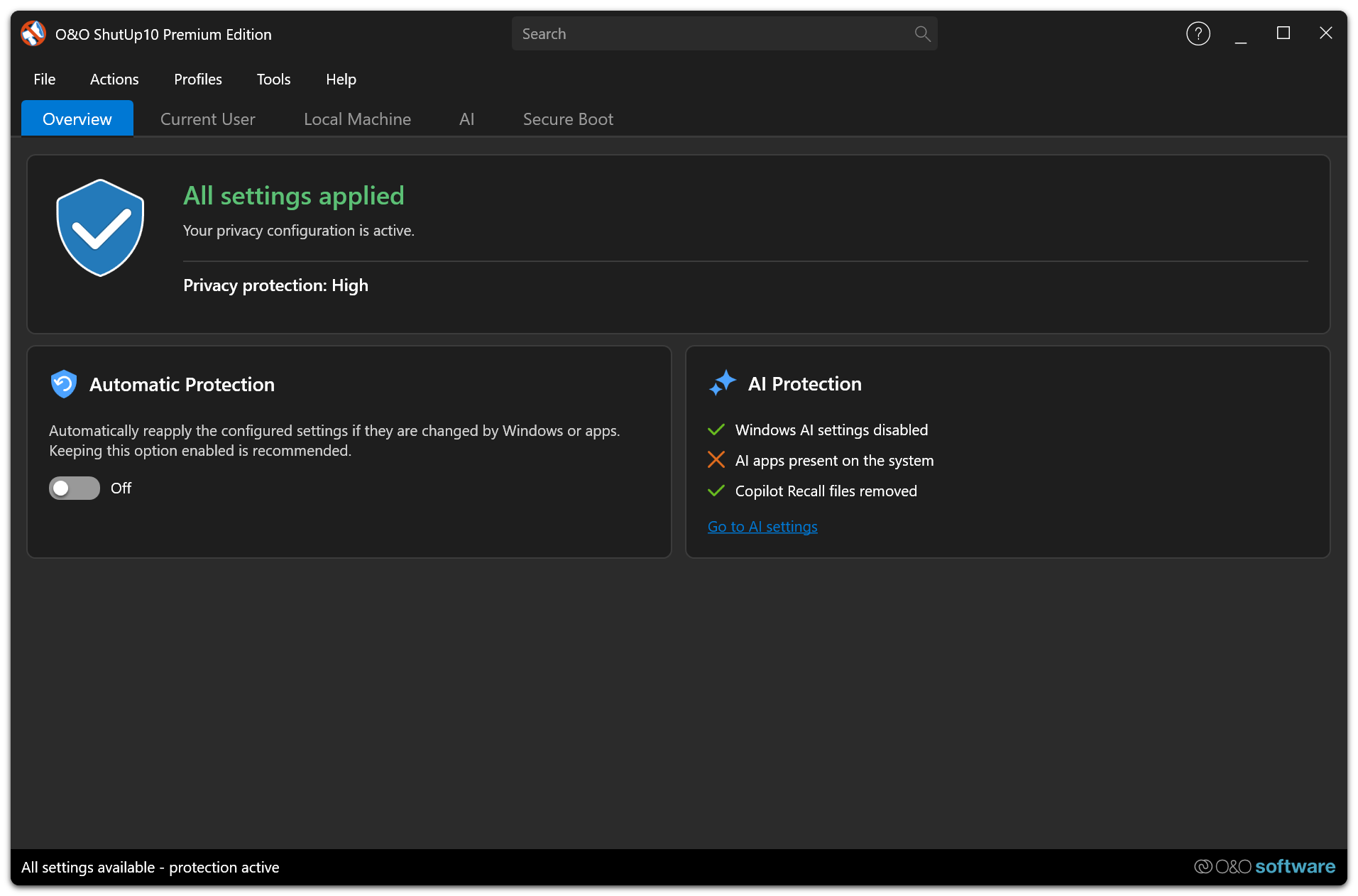
Overview
Windows updates frequently reset privacy settings to their defaults. In the Free Edition, users must manually re-check and re-apply their preferred settings after each update. The Premium Edition solves this with automatic protection.
How it works
The O&O ShutUp10 service runs in the background and continuously monitors your privacy settings. When it detects a change — whether caused by a Windows update, a Group Policy push, or any other system modification — it automatically re-applies your preferred configuration.
Monitored events
The service responds to:
- Windows Updates — Settings that were reset during a cumulative or feature update are restored.
- Group Policy changes — If a policy override conflicts with your preferences, the service re-applies your settings.
- Registry modifications — Direct changes to privacy-related registry values are detected and corrected.
Enforcement timing and Hybrid Mode
The service observes relevant registry values continuously, but enforcement is deliberately rate-limited to avoid repeatedly fighting an external authority. The configured settings are applied once when you sign in; subsequent deviations are handled by the monitored, throttled enforcement path rather than by another blanket pass every 30 seconds.
When Hybrid Mode is enabled, settings repeatedly controlled by an external authority such as domain Group Policy are detected and excluded from automatic protection. This lets organization-managed policy remain authoritative while O&O ShutUp10 protects the remaining settings. Configure this under Tools → Settings → Automatic protection.
Configuration
You configure your preferred privacy settings once through the client application. The service stores this configuration and uses it as the baseline for automatic protection.
Accept changes made outside O&O ShutUp10
Some changes are intentional — for example, you switch a setting back on in the Windows Settings app because you need the feature. Instead of having Automatic Protection undo such changes, you can let them stand.
On the Overview tab, switch on Accept changes made outside O&O ShutUp10 below the Automatic Protection switch. Automatic Protection then no longer resets the settings listed in O&O ShutUp10 when they are changed in Windows or in another program — in either direction. Each change is shown as a difference from the profile, and you decide what happens to it.
Only the settings listed in O&O ShutUp10 are taken into account. The switch does not record other Windows settings.
The switch is available only while Automatic Protection is on; without Automatic Protection nothing is reset anyway. Settings specified by your organization's central configuration are always enforced, regardless of the switch.
| Automatic Protection | Accept changes made outside O&O ShutUp10 | Setting changed outside O&O ShutUp10 | Result |
|---|---|---|---|
| Off | – | Any setting | Stays as changed; shown as a difference |
| On | Off | Switched on in the profile | Reset to the profile value |
| On | Off | Switched off in the profile | Stays as changed; shown as a difference |
| On | On | Any setting | Stays as changed; shown as a difference |
Review differences from the profile
When settings differ from the applied profile, a notice above the settings list shows how many, for example "3 settings differ from the profile". Click Review there — or on the active profile card in Profiles → Manage Profiles… — to open Differences from profile. The list shows the profile value and the current value of each setting and, where known, where the change came from and when it was detected.
Select the settings you want to handle, then choose:
- Take into profile — Writes the current values into the applied profile. Automatic Protection keeps them from now on. Built-in profiles cannot be changed; use Save as new profile… instead.
- Save as new profile… — Saves the profile together with the selected values under a new name and makes it the active profile.
- Restore profile value — Resets the selected settings to the value in the profile.
Values that Microsoft Defender restores on its own are marked and are not preselected. Changes made while O&O ShutUp10 was not running are shown as "Origin unknown". While Automatic Protection is off, changes you make in O&O ShutUp10 itself also appear in the list, so you can take them into the profile as well.
Switch off accepting changes
When you switch off Accept changes made outside O&O ShutUp10, Automatic Protection resets the accepted changes to the profile value. A confirmation tells you how many settings are affected: choose Review first to open the list, or Reset to continue. Differences in settings that are switched off in the profile are not reset and remain visible.
Automatic Protection requires the O&O ShutUp10 service to be running. If the service is stopped, settings will not be automatically re-applied until the service is restarted.
If the service is temporarily busy while you switch Automatic Protection on or off, the client retries brief communication failures. The stored state is changed only after the service confirms the operation; otherwise the previous state remains active and an error explains whether the service did not answer or could not apply the change.
Benefits
- Configure once — The settings stay protected continuously.
- Protection against update regressions — Windows updates no longer silently undo your privacy choices.
- Zero user intervention required — The service handles everything in the background.