Premium overview Premium
Setup
On first use, the Setup tab offers two choices:
- Apply recommended settings applies the recommended configuration and requests automatic protection if the service is available. Check the resulting protection status on the Overview tab.
- Skip recommended settings opens the overview so you can review and adjust settings yourself. Skipping does not apply a profile or enable protection.
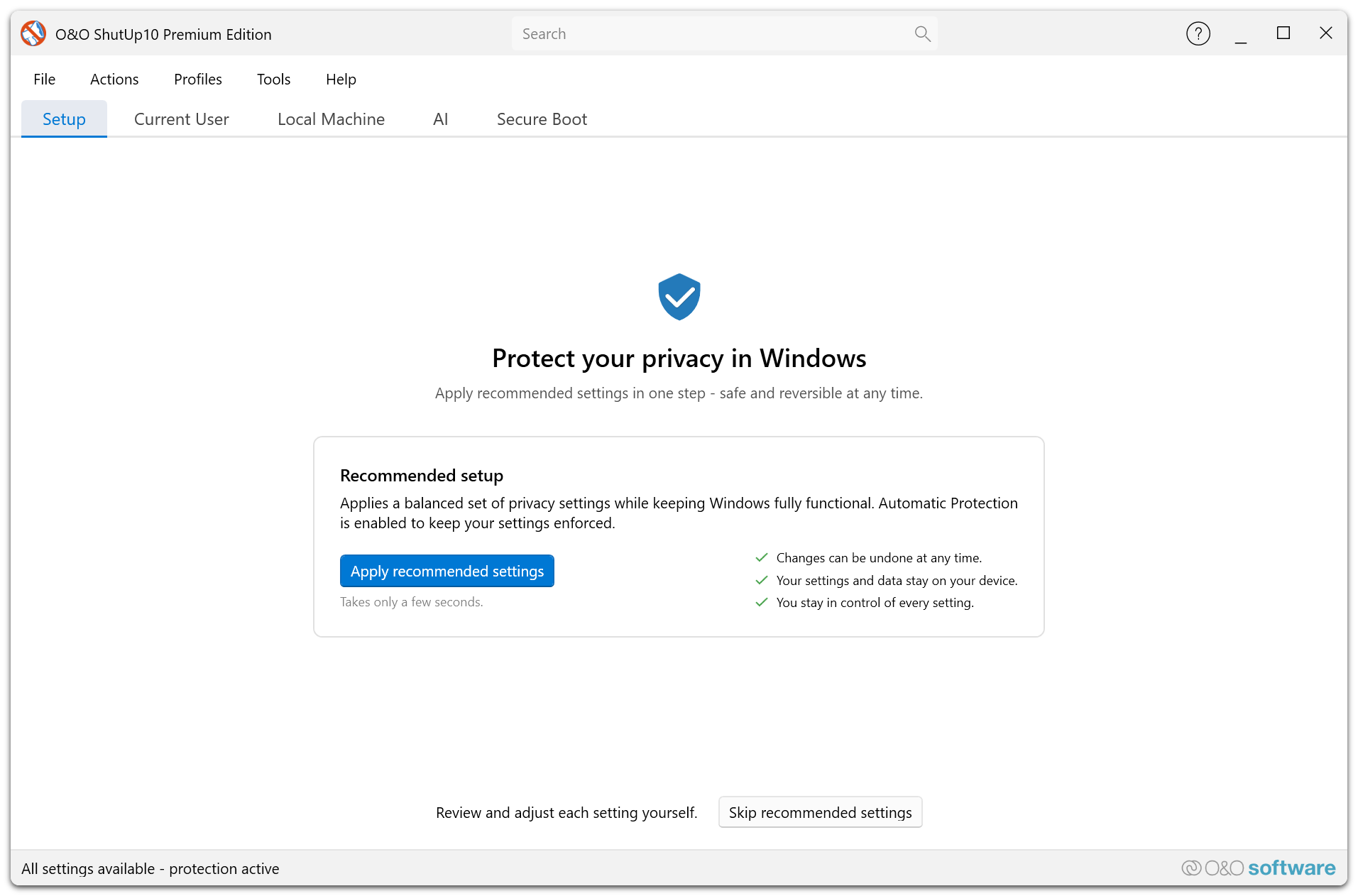
Setup completion is saved. If all recommended settings are already applied, the application can skip this screen automatically. Service installation is handled by the installer; this screen is not a service-installation or profile-selection wizard.
Overview
After setup, the Overview tab summarizes the current privacy configuration, the active profile, automatic protection, and AI component status.
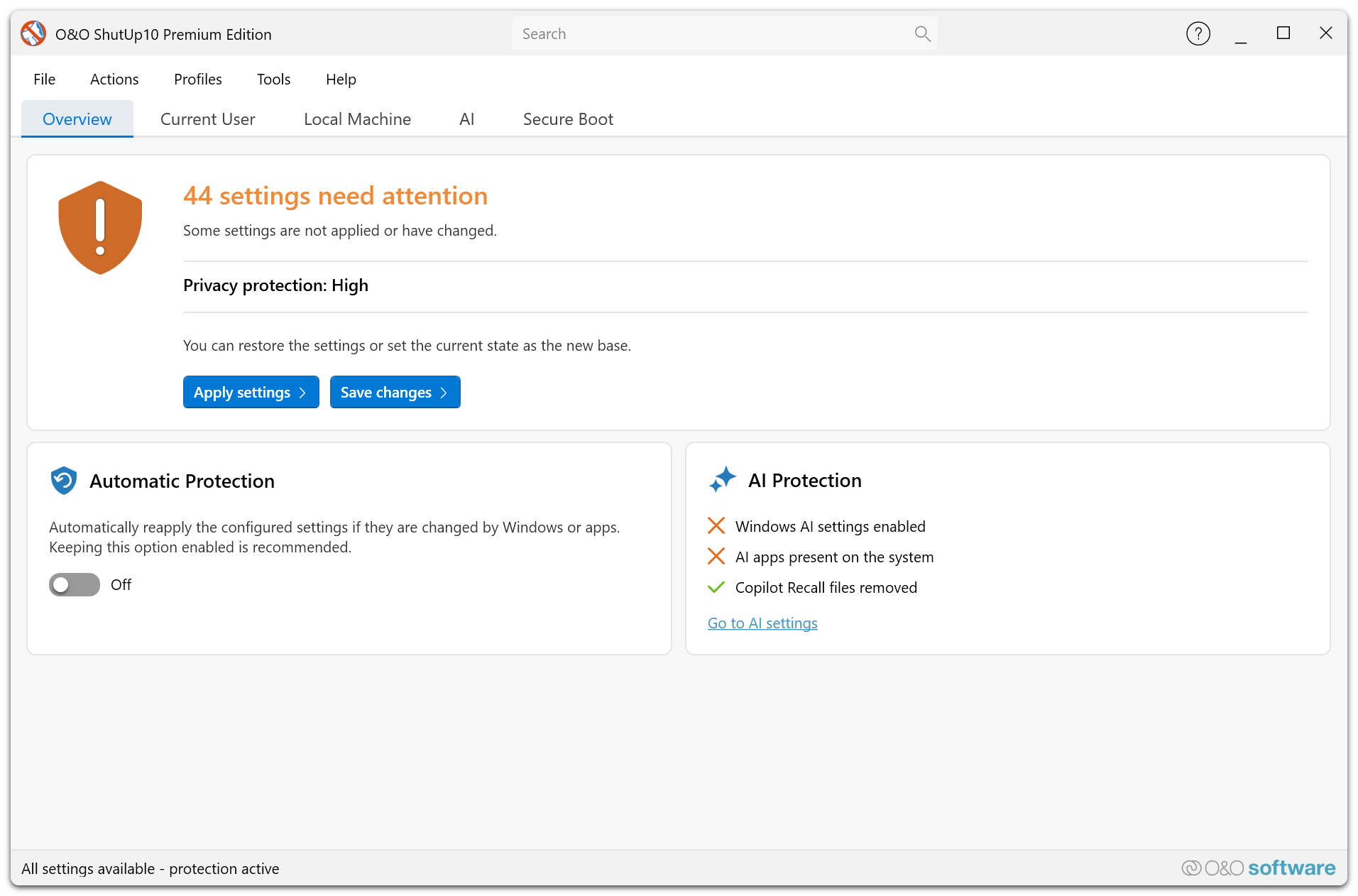
The active profile identifies your chosen configuration. Its coverage indicates how closely the system matches that profile; it is distinct from whether automatic protection is enabled. Review deviations and any locked or Windows-protected settings before assuming every setting can be re-applied.
Settings changed outside O&O ShutUp10 are shown as differences from the profile. You can review them, take them into the profile, or restore the profile value; see Accept changes made outside O&O ShutUp10.
Use the Profiles editor to choose or change a profile and Automatic protection to understand background enforcement. Notifications, Hybrid Mode, and autostart are configured under Tools → Settings…; see Settings dialog.
If the service is unavailable
Automatic protection requires the background service. Check its status in Windows Services (services.msc) or contact your administrator. Completing setup does not prove the service is running, and a lost connection does not mean that the initial setup wizard must be repeated.