Profiles editor Premium
Open Profiles → Manage Profiles… to create, organize, import, export, and apply named profiles in the Premium Edition.
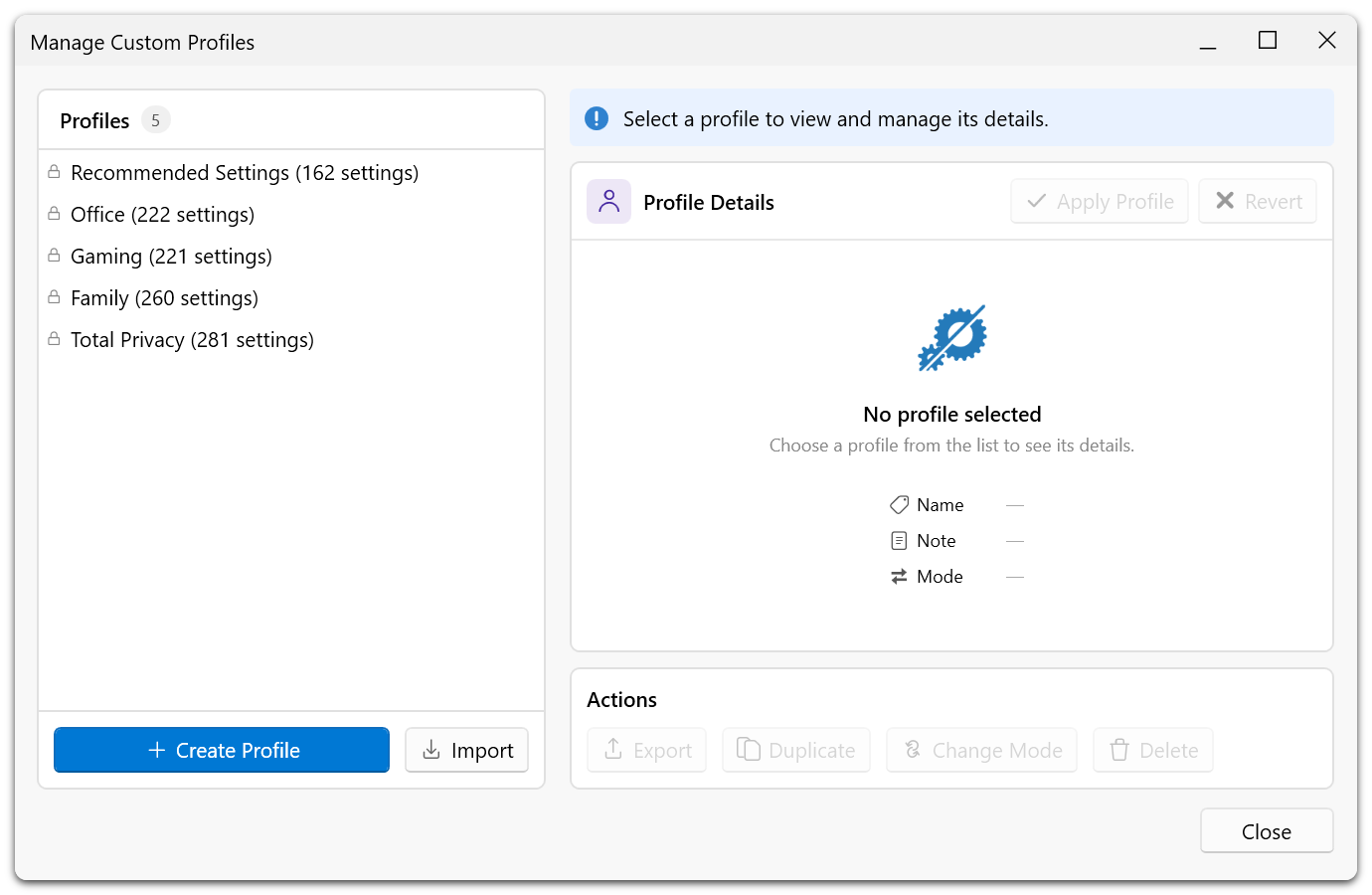
Built-in profiles
| Profile | Description |
|---|---|
| Recommended settings | Applies settings with the recommended level. |
| Office | A configuration intended for Office use. |
| Gaming | A configuration intended for gaming. |
| Family | A configuration intended for family PCs. |
| Total privacy | Applies all recommendation levels, including settings that can impair Windows features, apps, or security. |
Built-in profiles are read-only. Use Duplicate to create an editable copy. Review the included settings and their effects before applying a profile, especially Total privacy.
Create a profile
- Open Profiles → Manage Profiles… and click Create profile.
- Choose Current settings, Buffered changes, or Duplicate existing profile. To use buffered changes, first make changes in Edit Mode; to duplicate, select an existing profile.
- Enter a name and an optional note, then select the application mode.
- Click Create profile. Saving a profile does not itself apply it.
A name is required (maximum 64 characters); the note can contain up to 1,000 characters. Choosing the name of an existing custom profile offers to replace its contents after confirmation. Built-in profiles cannot be replaced. The buffered source requires pending changes; the current-settings source does not.
Manage and apply profiles
Select a profile to view its settings and details. Custom profiles can be renamed, annotated, duplicated, exported, deleted, and assigned a different mode with Change mode. Built-in profiles can be applied, duplicated, and exported.
Click Apply profile to apply the selected configuration and make it the active profile. A profile can become active even when all its settings already match the system. If it is already active and no applicable settings differ, Apply is unavailable. Locked or otherwise unavailable settings cannot be changed locally.
Add-Only applies the values in the profile and leaves other settings alone. Replace-All also switches off applied, active settings absent from the profile. Neither mode restores Windows defaults. See Profile file structure.
If settings differ from the active profile, its card shows a Review button. It opens the list of differences, where you can take the current values into the profile or save them as a new profile; see Review differences from the profile.
Import and export
Use Import to add a .pcfg profile to the collection, then select and apply it separately. Export saves the selected profile. Import assigns a new ID and adds a numeric suffix if the name already exists. Free .cfg settings exports use a different format.
Applying settings is recorded in Undo history. Undo does not restore a deleted profile or undo replacement of its saved contents.